How to Use the Clone Stamp Tool in Photoshop (And Where to Find it Free)
It is one of the oldest, most reliable, and most essential tools in the history of digital editing. If you need to know how to use clone stamp tool in photoshop to remove a stray hair across a face, erase a power line from a landscape, or clean up a skin blemish, the technique is actually quite simple to master. In this guide, we will cover the core mechanics of sampling and painting, and reveal how you can access this exact tool for free without paying for expensive desktop software.
The Classic Photoshop Workflow
In Adobe Photoshop, the Clone Stamp tool works by taking pixels from one specific coordinate of an image and literally painting them over another coordinate. It is manual, precise, and highly effective. Here is the standard workflow:
- Create a New Layer: Never edit directly on your base image. Create a new blank layer above your photo.
- Select the Tool: Press S on your keyboard to select the Clone Stamp tool from the left toolbar.
- Adjust Settings: In the top property bar, ensure the "Sample" dropdown is set to Current & Below. This allows the tool to 'see' the image below, but paint onto the empty layer. Use a soft-edged brush (Hardness at 0%) for better blending.
- Set the Source Point: You must tell the tool what to copy. Hold down the Alt key (Windows) or Option key (Mac). Your cursor will turn into a target icon. Click on a clean, texture-matching area near the blemish.
- Paint to Conceal: Release the Alt/Option key, move your cursor over the blemish, and simply click or paint. The software copies the source pixels and seamlessly blends them over the imperfection.
The Free Browser Alternative: PhotoQuill
You do not need a heavy 2GB installation or a Creative Cloud subscription to access professional-grade retouching tools. PhotoQuill provides a completely free, browser-based editing environment that perfectly mirrors the functionality, shortcuts, and layer system of desktop software.
Open Your Image Instantly
Navigate to the PhotoQuill Editor. Drag and drop your JPG, PNG, or PSD file straight into the browser. It loads locally and instantly, ensuring your photos remain completely private.
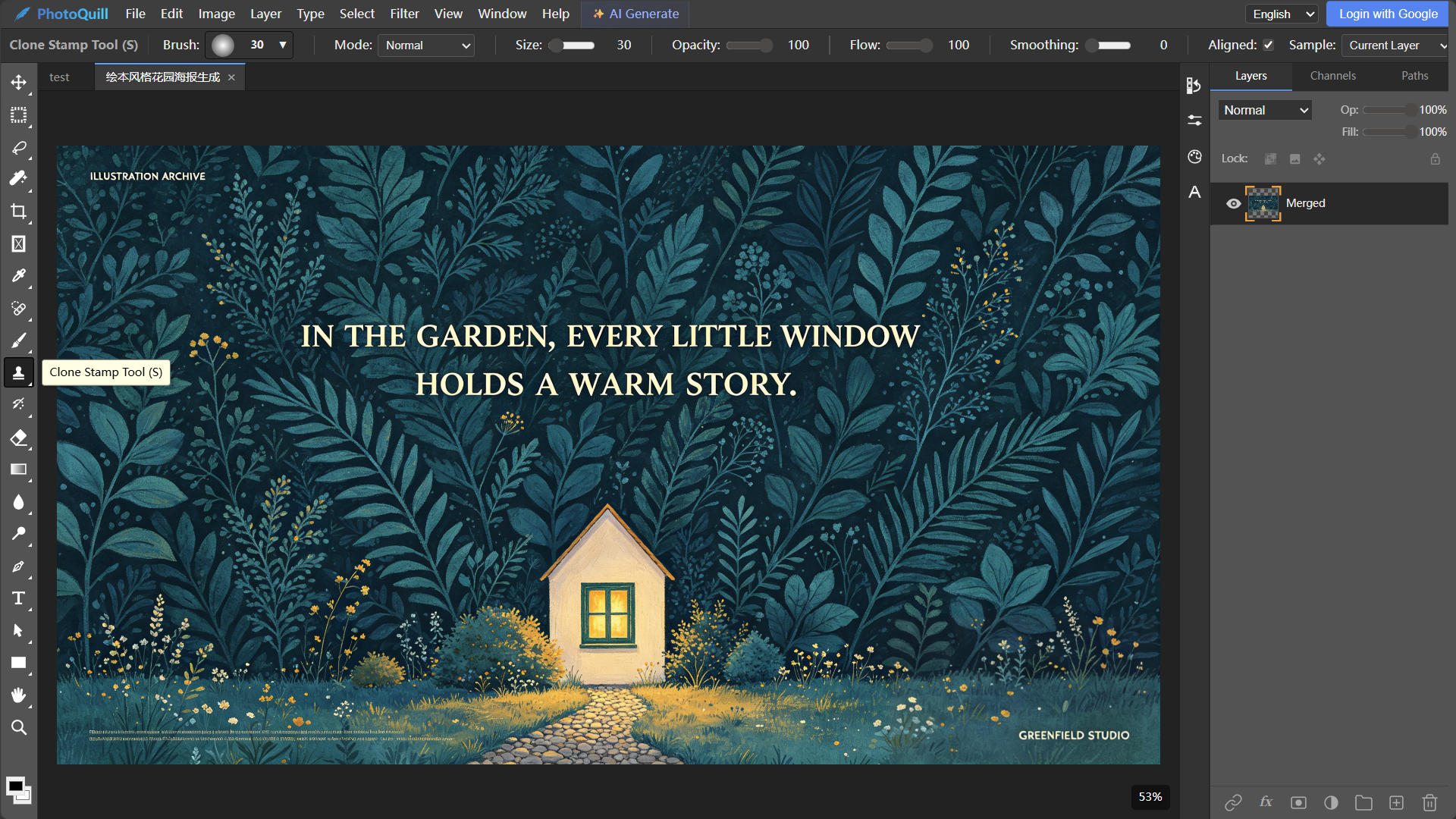
Select the Clone Stamp (S)
We designed PhotoQuill to respect your established muscle memory. Press 'S' on your keyboard to select the Clone Stamp tool. Adjust your brush size using the bracket keys [ and ], and lower the hardness in the top properties bar for a softer edge.
Alt-Click and Retouch
Just like the original software, hold Alt/Option to sample a clean area of your image, then click over the blemish to remove it. Because PhotoQuill utilizes local WebGPU acceleration, the brush strokes are incredibly smooth and responsive, completely eliminating the lag usually associated with web-based editors.