How to Expand Image in Photoshop: Free AI Generative Expand
Cropping a vertical photo into a wide banner usually results in awkward cutoffs or distorted subjects. Here is how to expand image boundaries and backgrounds using modern generative AI.
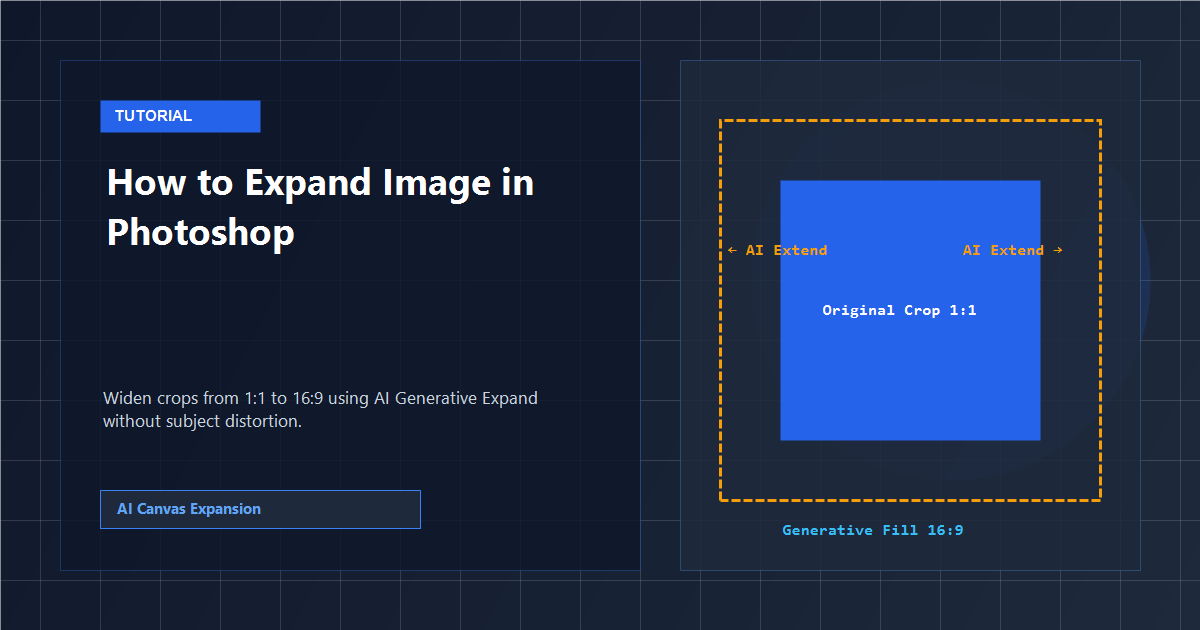
The Problem with Stretching: Why AI Generative Expand Changed the Game
Designers frequently receive vertical 9:16 mobile photos or 1:1 square assets that need to fit desktop websites, YouTube thumbnails, or landscape ad banners. For years, the only recourse was using Content-Aware Scale or cloning edges with the Stamp tool.
Both legacy methods carry severe limitations. Content-Aware Scale warps human faces and bends straight architectural lines when forced beyond modest expansion limits. Clone stamping repetitive foliage or sky textures leaves obvious pattern seams that stand out to viewers.
Generative expansion solves this by understanding contextual geometry. Instead of stretching existing pixels, deep diffusion models sample the lighting angle, depth of field, and subject textures, synthesizing authentic scenery that looks as though the original camera simply used a wider lens.
For standard dimension configuration before generative expansion, consult our guide on how to change canvas size in Photoshop. To master prompt-driven layer additions, read our walkthrough on how to use Generative Fill in Photoshop.
Expansion Approaches Compared: Which Tool to Choose
Review how different expansion techniques handle complex photographic scenes:
| Method | Subject Distortion | Complex Scenery Handling | Best Production Use |
|---|---|---|---|
| AI Generative Expand | Zero (subject untouched) | Synthesizes matching architecture, skies, foliage | Transforming 9:16 to 16:9, banner layouts |
| Content-Aware Scale | High risk on people/text | Repeats pixel seams and creates blur | Uniform backgrounds like calm oceans or studio walls |
| Clone Stamp & Healing | None (manual painting) | Extremely tedious, leaves tiling patterns | Small corner patches under 50 pixels |
| PhotoQuill Inpainting | Zero (subject untouched) | Direct in-browser diffusion rendering | Free canvas extension with daily credit allowance |
Common Aspect Ratio Conversions
Instagram Square (1:1) to Hero Banner (16:9): Keep your subject on the center-right third line and let generative fill extend the horizon on the left to leave negative space for marketing typography.
Step-by-Step: Expanding Image Canvas in PhotoQuill
Follow these steps to expand any photo horizontally or vertically in your browser without paid desktop software.
Open Your Photo in PhotoQuill
Navigate to PhotoQuill in your web browser. Drag and drop your image onto the canvas. Your image renders as the base layer in the Layers panel.
Enlarge the Canvas Boundaries
Go to Image → Canvas Size from the top menu bar (or press Ctrl+Alt+C). Switch units to Percent or Pixels, increase the Width or Height (for example, change Width from 100% to 160%), and click OK. Transparent checkerboard margins appear around your photo.
Select the Transparent Expansion Margins
Press M to choose the Rectangular Marquee Tool. Drag a selection box over the new empty canvas area, ensuring the selection boundary overlaps the photo's edge by at least 6 pixels.
Trigger AI Generation with Contextual Prompts
Click the glowing AI Generate button in the top menu. Enter a prompt describing the extended environment—such as "scenic mountain range, soft warm sunset light, natural continuation of landscape"—and click Generate.
Add as Layer and Export
Hover over the generated result in the gallery and click Add as Layer. If needed, use a soft round brush (B) on the layer mask to blend micro-details. Export your final wide banner via File → Export As → JPG.