PhotoQuill vs Canva (2026): Photo Editing Software vs Design Platform Explained
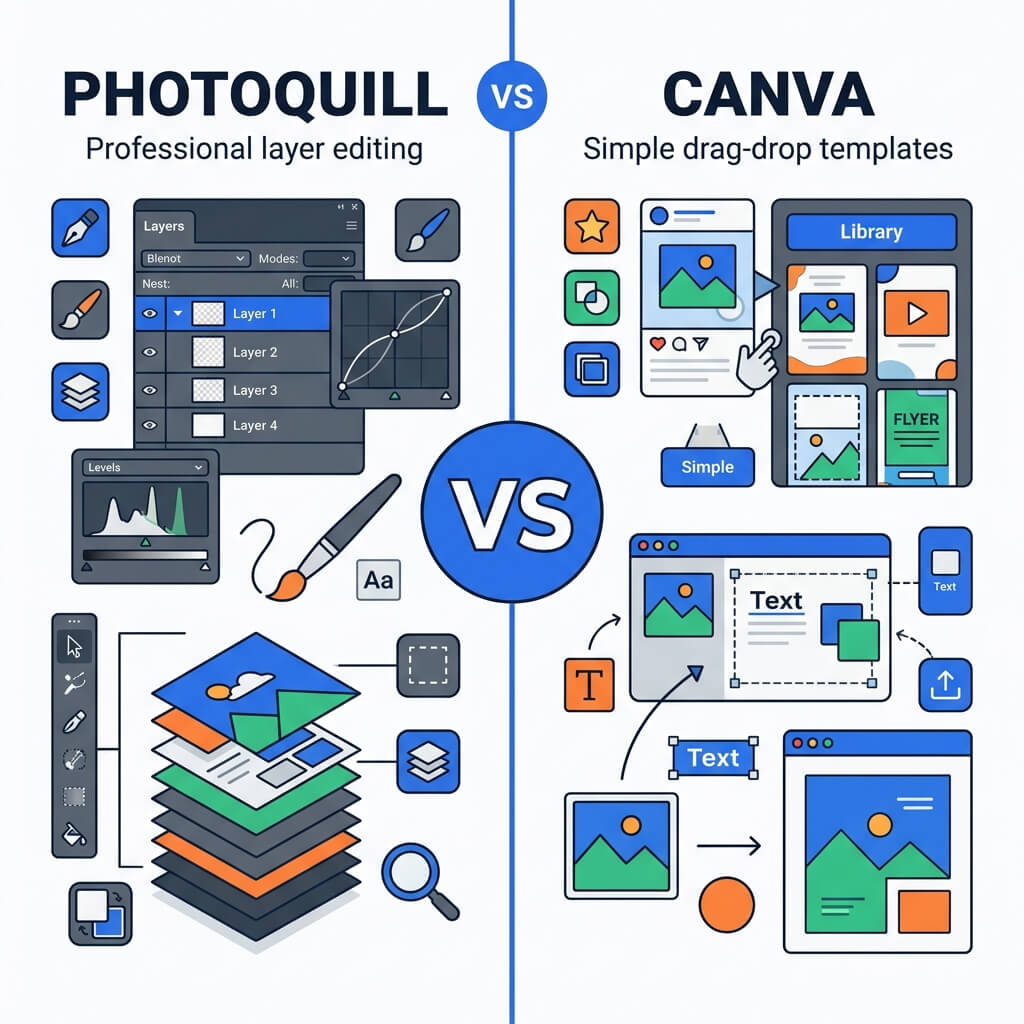
The Verdict (50 Words)
Canva is unbeatable for rapid template-based graphic layout — presentations, social posts, and marketing materials. PhotoQuill is unbeatable for professional pixel-level image work — retouching, masking, layer compositing, and PSD editing. They are not competitors; they are sequential tools in a professional creative workflow. Use both.
The Fundamental Difference: Raster Engine vs. Layout Engine
The most important thing to understand about this comparison is that PhotoQuill and Canva are architecturally different tools built for different creative tasks. Comparing them as if they compete directly is like comparing a kitchen knife to a dinner plate — both are essential, but for different steps.
Canva is a layout engine. It positions text boxes, images, and vector shapes on a canvas at defined coordinates. It's optimized for arranging pre-existing assets into structured visual hierarchies. When you "design" in Canva, you're fundamentally composing — selecting, scaling, and positioning elements that already exist.
PhotoQuill is a raster rendering engine. It works at the pixel level, computing the color value of each of the millions of pixels on your canvas, up to 60 times per second. When you retouch in PhotoQuill, you're mathematically transforming image data — applying convolution kernels (blur), histogram transformations (curves), and AI inpainting algorithms (object removal).
Objective Pros & Cons
Canva: The World's Most Popular Design Platform
With over 170 million users, Canva has democratized graphic design in a way no tool before it has achieved.
Genuine Strengths:
- Template Library: Millions of professionally designed templates for every possible format — Instagram posts, YouTube thumbnails, business cards, presentation decks, website banners, email headers, and more. Updated continuously by professional designers.
- Stock Asset Library: Over 100 million stock photos, videos, audio clips, and vector graphics available directly within the editor. Canva Pro unlocks the premium tier.
- Brand Kit: Store your brand colors, fonts, and logos centrally. Any team member can create on-brand content without consulting a style guide. Critical for marketing teams.
- Collaboration: Real-time multi-user editing like Google Docs. Teams can work on the same design simultaneously with comments and version history.
- Publishing Integration: Schedule and publish directly to Instagram, Facebook, LinkedIn, Pinterest, and TikTok from within Canva. A full social media management workflow.
- Video & Animation: Create animated social posts, short reels, and video slideshows with timeline-based editing — all without leaving Canva.
Real Drawbacks:
- Not a Photo Editing Software: Cannot meaningfully retouch a photograph. No clone stamp, no healing brush, no frequency separation, no complex mask refinement. A "skin smoothing" slider does not make Canva a retouching tool.
- Transparent PNG Behind a Paywall: Exporting a transparent-background PNG requires Canva Pro ($14.99/month). This is arguably the most aggressive paywall in consumer software — a feature that is free in every dedicated photo editing software.
- The Canva Aesthetic Problem: Because millions of users share the same template library, content created in Canva increasingly looks identical. Brand differentiation suffers.
- No PSD Support: Cannot open or save Photoshop files, making it incompatible with professional design agency workflows.
PhotoQuill: The Professional Free Photo Editing Software
Genuine Strengths:
- Pixel-Level Control: Use Curves, Levels, Dodge, Burn, Healing Brush, Clone Stamp, and complex layer masks to retouch images with professional precision.
- Free Transparent PNG: Export transparent-background PNGs at any resolution, completely free. No subscription, no paywall — a feature Canva charges $14.99/month for.
- Non-Destructive Layers: Work with adjustment layers (Curves, Hue/Saturation, Levels) that can be modified or deleted at any time without affecting the original image data.
- AI Object Removal: Select and remove unwanted objects (cables, people, signs) using AI inpainting that intelligently fills the removed area. Processed entirely locally.
- PSD Compatibility: Open and save Photoshop files, enabling collaboration with professional designers using industry-standard tools.
Real Limitations:
- No Templates: Zero pre-made social media layouts, presentation themes, or marketing asset templates. You start from a blank canvas.
- No Direct Publishing: No integration with social media platforms for scheduling or direct posting.
- No Stock Library: No built-in stock photo or video library. You supply your own assets.
Feature Comparison Table
| Feature | PhotoQuill | Canva |
|---|---|---|
| Primary Purpose | Pixel photo editing | Template graphic design |
| Pre-Made Templates | None | Millions (social, print, etc.) |
| Photo Retouching Tools | Professional (Curves, Healing Brush) | Minimal (one-click filters) |
| Transparent PNG Export | Free | Canva Pro only ($14.99/mo) |
| Layer Masking | Full (Paintable Masks) | No |
| PSD File Support | Open & Save | No |
| Stock Photo Library | No | 100M+ assets |
| Team Collaboration | No | Real-time multi-user |
| Social Publishing | No | Direct + Scheduled |
The Professional Workflow: Using Both Together
The most effective workflow for social media managers, marketing teams, and content creators is to use PhotoQuill and Canva sequentially — not to choose between them.
Step 1: Professional Retouching in PhotoQuill
Open your raw photos in photoquill.com. Use Curves to perfect exposure, Healing Brush to remove blemishes, and AI Background Removal to create a clean cutout. Adjust color grading, sharpen, and finalize the image quality.
Step 2: Export transparent PNG (Free)
Go to File > Export As > PNG. Hide background layers to preserve transparency. Save to your desktop — at no cost, at any resolution.
Step 3: Layout and Publish in Canva
In Canva, upload your perfected PNG to Uploads. Drop it onto your chosen template. Add headlines, CTAs, and brand elements. Schedule directly to social platforms from Canva's publishing tools.
Who Should Use Which?
✅ Use PhotoQuill when you need to...
- Retouch skin, remove blemishes, adjust lighting
- Create precisely masked transparent-background images
- Open and edit a client's PSD file
- Apply color grading curves to product photos
- Remove unwanted objects from a scene
✅ Use Canva when you need to...
- Quickly create Instagram posts from a template
- Produce a presentation deck in 20 minutes
- Apply brand colors/fonts across multiple assets
- Collaborate with a non-designer teammate
- Schedule social media posts directly