How to Undo in Photoshop (Free Web Guide)
Making mistakes is part of the design process. Knowing how to efficiently step backward (and forward) through your project timeline is essential. Here is the ultimate guide to the Undo function.
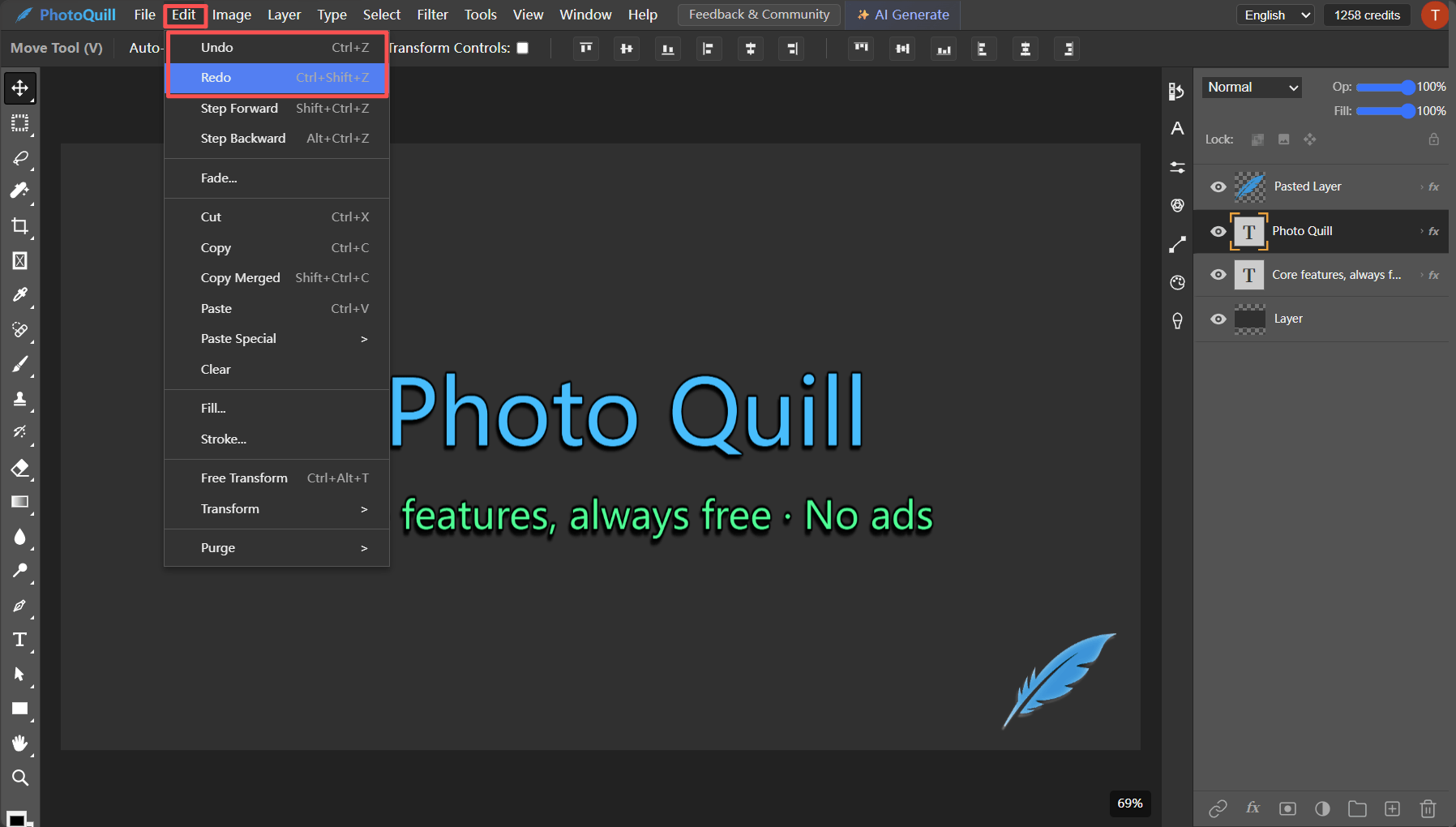
The Basic Undo/Redo Commands
Modern versions of Photoshop have simplified the undo behavior to match most other software, but older versions used a quirky step-backward system.
Executing the Undo Command
Follow these exact steps to execute the operation flawlessly.
The Quick Undo Shortcut
Press Ctrl + Z (Windows) or Cmd + Z (Mac) to undo your last action. You can press this repeatedly to step further back in time.
The Redo Shortcut
If you went too far back, press Shift + Ctrl + Z (Windows) or Shift + Cmd + Z (Mac) to redo the action.
Using the History Panel
For precise control, go to Window > History. This panel shows a list of your recent actions. Click on any state to instantly jump back to that point in time.
A Simpler, Free Alternative
Photoshop limits your history states based on your computer's memory (RAM). If you need lightweight free photo editing software, try PhotoQuill. It features an infinite, deeply optimized history system that runs directly in your browser. You get the exact same Ctrl+Z functionality without the massive RAM usage of Adobe software.