How to Blend Using Photoshop (Mastering Layer Modes & Web Alternatives)
Compositing multiple images together flawlessly requires a deep understanding of layer math. If you are asking how to blend using photoshop, the secret doesn't lie in the eraser tool—it lies in Blending Modes. We are going to demystify how these powerful mathematical modes work, explain the most important ones you need to know, and show you how to execute identical professional blends directly in your web browser for free.
Understanding Layer Blending Modes
In traditional desktop software, blending modes determine exactly how the pixels of a top layer interact with the pixels on the layers beneath it. They are found in a small dropdown menu at the top of the layers panel (which usually defaults to "Normal").
By changing this dropdown, you command the software to hide certain colors and enhance others. Here are the "Big Three" blending modes every designer must know:
- Multiply (Darkens): This mode makes all white pixels completely transparent and keeps the dark pixels. It is absolutely perfect for blending scanned line art, adding realistic shadows, or overlaying a texture onto a bright background.
- Screen (Lightens): The exact opposite of Multiply. Black pixels become completely transparent, while white and bright pixels remain. This is the industry-standard way to add light leaks, lens flares, glowing fire, or smoke onto an image without having to cut them out.
- Overlay (Boosts Contrast): Overlay performs a complex math equation: it multiplies dark areas and screens light areas. It drops 50% gray to transparent. It is incredible for blending textures (like grunge, rust, or film grain) organically onto photographs.
To finalize a blend, professionals usually lower the Opacity of the top layer to make the effect more subtle, and apply a Layer Mask to hide the blend from areas where it shouldn't be (like a person's face).
Blend for Free in Your Browser with PhotoQuill
You do not need a costly Adobe subscription to access advanced layer blending math. PhotoQuill is a fully-featured online editor that supports every single blending mode you are used to, executing them instantly via your local GPU.
Load Your Assets
Open the PhotoQuill Web Editor. Drag in your base photo to establish the background. Then, drag your texture, flare, or effect image directly on top of it. They will automatically organize into a professional layer stack on the right-hand panel.
Change the Blending Mode
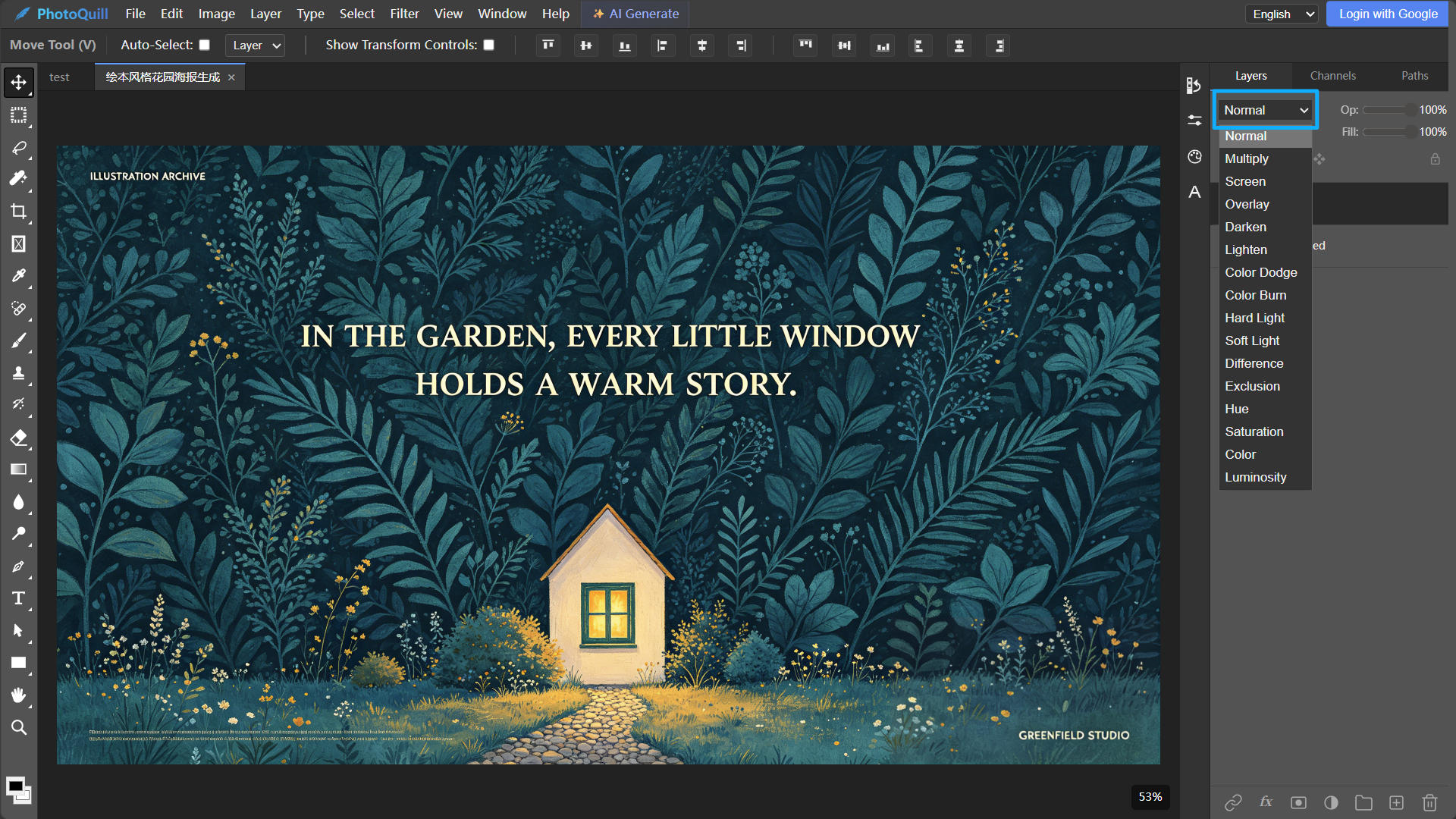
Select your top layer, click the dropdown menu that says "Normal" at the top of the layers panel, and experiment with different modes like Screen or Multiply. Because PhotoQuill uses WebGPU technology, the mathematical blending happens instantly without any of the lag common in older web tools.
Refine with Opacity and Masks
Once you have a blend mode you like, dial back the "Opacity" slider (located right next to the blending modes) to make it subtle. If you want the blend to only affect the background and not the subject, click the "Add Mask" icon at the bottom of the layers panel. Grab a soft brush, set your color to black, and paint away the effect precisely where you don't want it.