How to Invert Colors in Photoshop (Free Web Guide)
Inverting colors creates a striking photo negative effect and is a fundamental technique for masking and graphic design. Whether you are using heavy desktop software or a free web alternative, here is exactly how to do it.
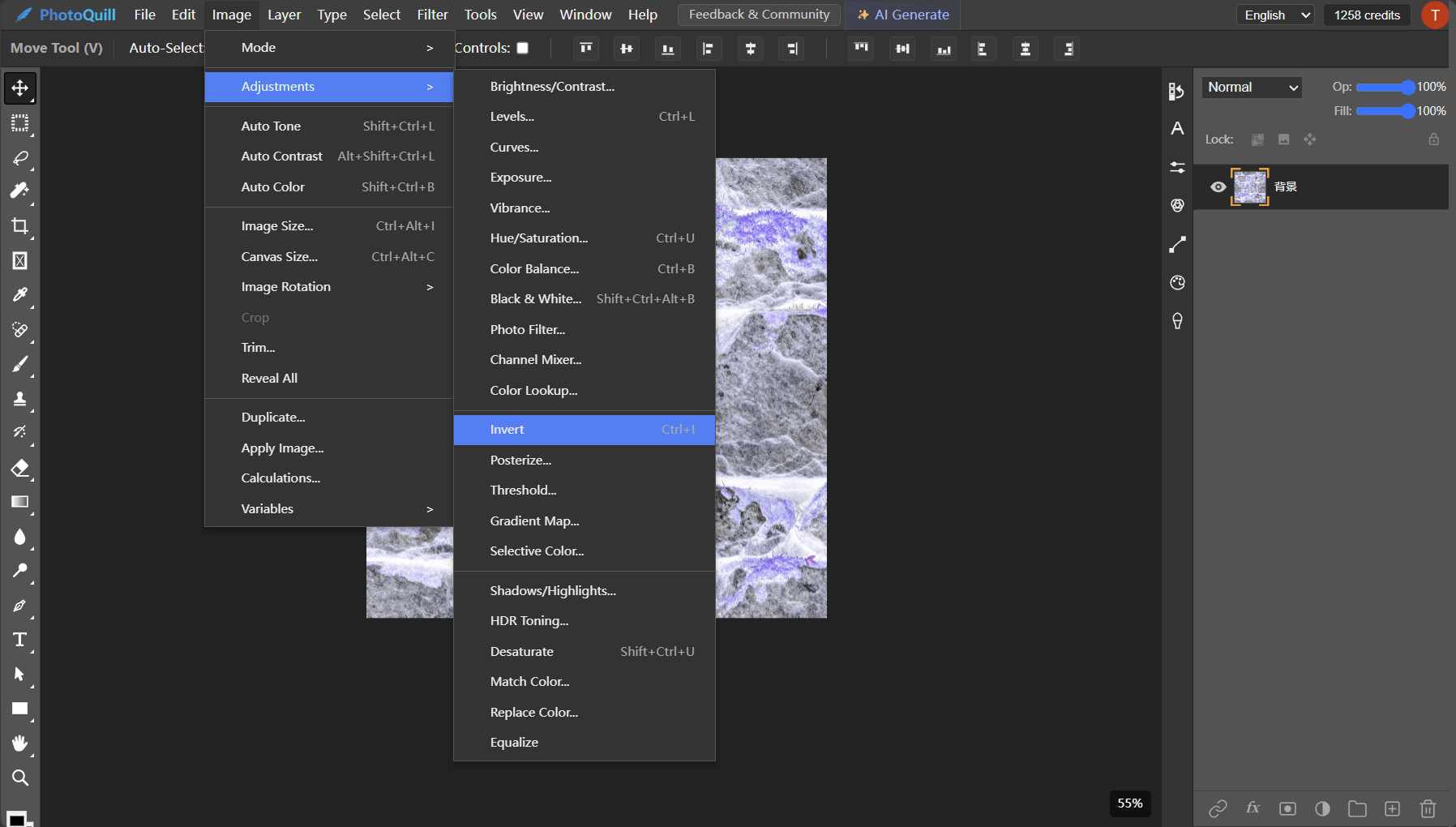
The Classic Photoshop Method
Photoshop offers two main ways to invert colors: a destructive method that alters your original pixels, and a non-destructive method using adjustment layers.
Step-by-Step Instructions
Follow these exact steps to execute the operation flawlessly.
Open Your Image
Load your image into Photoshop and ensure the layer you want to invert is selected in the Layers panel.
Method 1: The Keyboard Shortcut (Fast)
Simply press Ctrl + I (Windows) or Cmd + I (Mac). This instantly inverts the colors on the selected layer. However, this permanently changes the pixels.
Method 2: Adjustment Layer (Safe)
Go to Layer > New Adjustment Layer > Invert. This creates a maskable layer above your image, allowing you to turn the effect on or off without destroying the original photo.
How to Do It Instantly for Free (Without Photoshop)
Don't want to pay $20/month just to flip colors? Open PhotoQuill — free photo editing software that runs in your browser. Just drag your image onto the canvas and hit the exact same shortcut (Ctrl+I/Cmd+I) or go to Image > Adjustments > Invert. It works identically, processes instantly on your device, and requires zero sign-ups.