How to Crop an Image in Photoshop (Free Web Guide)
Cropping is the most fundamental photo editing technique. It improves composition, removes distractions, and fits your image to specific aspect ratios for social media.
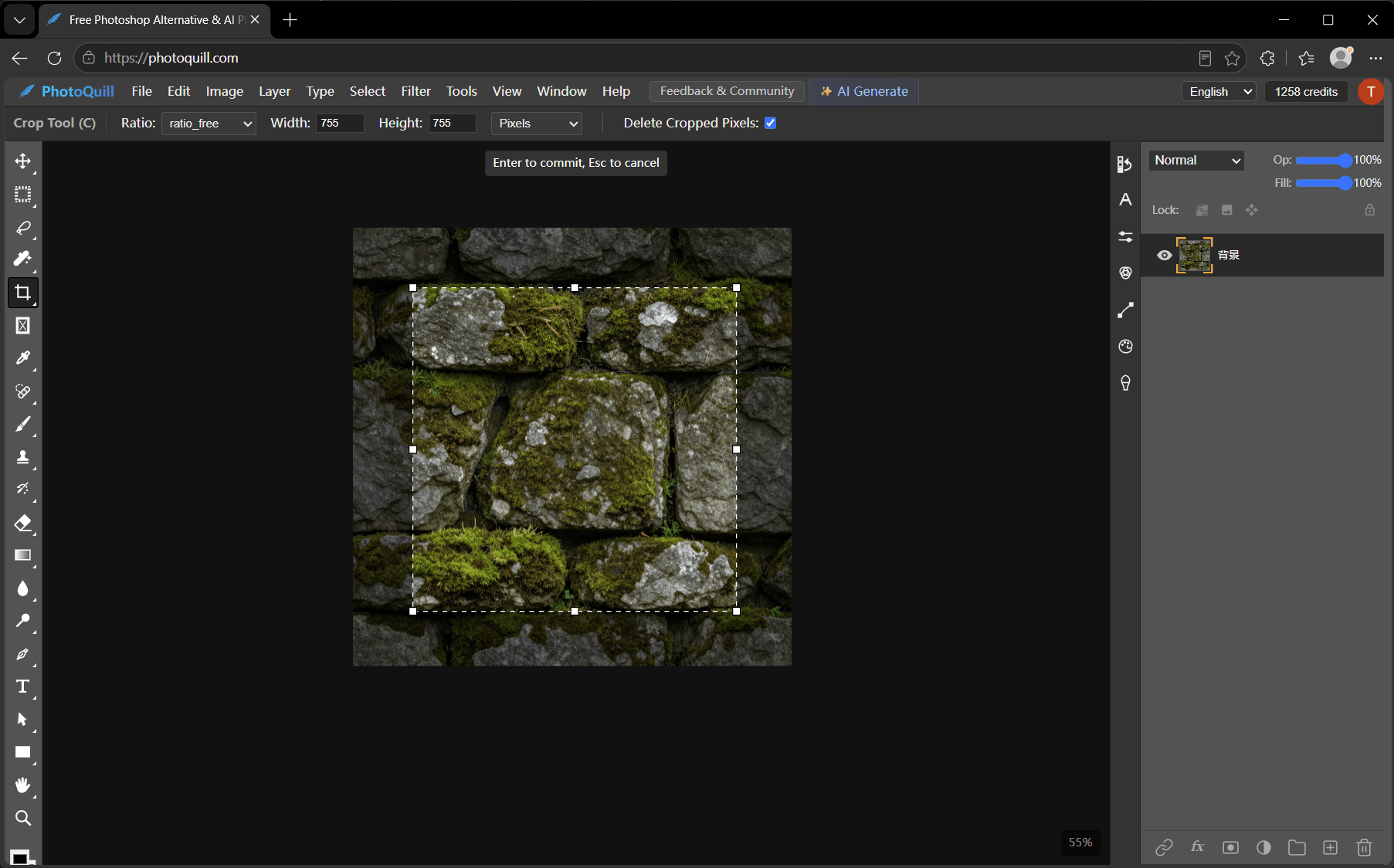
Using the Crop Tool Effectively
Photoshop provides a dedicated Crop Tool that offers destructive (deleting pixels) and non-destructive (hiding pixels) cropping options.
The Cropping Workflow
Follow these exact steps to execute the operation flawlessly.
Select the Crop Tool
Press the C key on your keyboard or select the Crop Tool from the left toolbar. Crop boundaries will appear around your image.
Adjust the Crop Box
Drag the corner or edge handles to frame your desired area. You can drag inside the box to reposition the image beneath it.
Set an Aspect Ratio (Optional)
In the top options bar, you can choose a specific ratio (like 1:1 for Instagram or 16:9 for YouTube) from the dropdown menu.
Confirm the Crop
Press Enter or click the checkmark at the top to apply. If Delete Cropped Pixels is unchecked in the top bar, you can undo the crop later.
A Free, Lightning-Fast Cropping Tool
Opening a massive Adobe application just to crop a photo is overkill. For quick, professional crops, use PhotoQuill — free photo editing software that runs in any browser. It’s a free, browser-based editor that loads instantly. Just hit C, drag your crop box, and export. No installation, no subscription, and completely private.