PhotoQuill vs Photopea (2026): Which Browser Editor is Better?
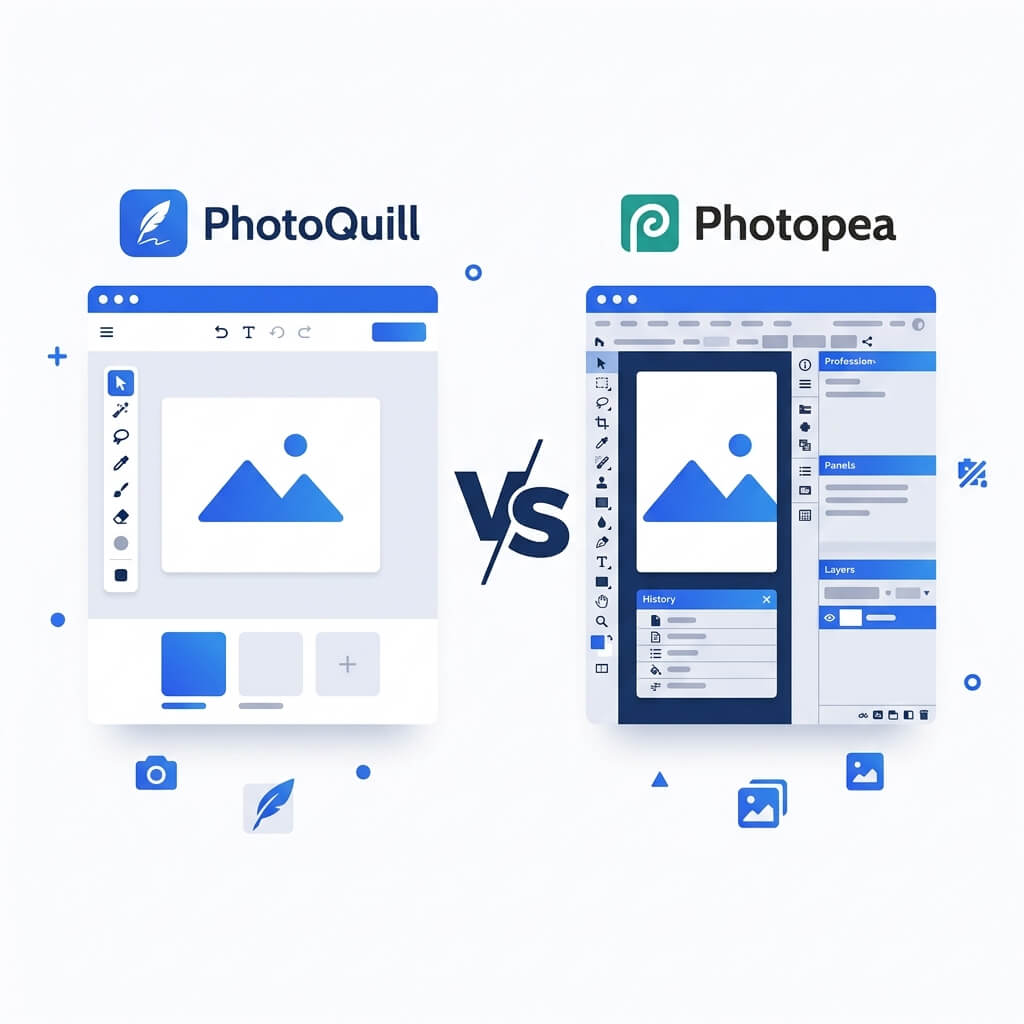
The Verdict (50 Words)
If you need to open obscure formats like Sketch, XD, or XCF files in a browser — Photopea is a technical marvel and remains unmatched. For everything else: ad-free workspace, modern AI tools, cleaner UI, and better performance on modest hardware — PhotoQuill is the superior daily driver.
Two Heroes of the Browser Editor World
Photopea is an extraordinary achievement. Built and maintained largely by a single developer (Ivan Kutskir), it replicates Adobe Photoshop's complete interface inside a browser tab — a feat of engineering that rightly earned it millions of users.
PhotoQuill takes a different approach: rather than replicating legacy software, it builds a new professional editor from scratch using modern 2020s web APIs, with a focus on clean UX and built-in AI capabilities.
This comparison examines both tools honestly across the dimensions that matter most to professional users.
Objective Pros & Cons
Photopea: The Legendary Browser Photoshop Clone
Genuine Strengths:
- Unmatched Format Support: Photopea opens PSD, PSB, Sketch (.sketch), Adobe XD (.xd), Figma exports, GIMP XCF (.xcf), CorelDRAW CDR, and even InDesign IDML files — no other browser editor comes close.
- Photoshop Muscle Memory: The layout is a near-pixel-perfect clone of Photoshop CS6. Every menu, every keyboard shortcut, every panel is in the expected position. Switching requires zero retraining for Photoshop veterans.
- Deep Legacy Format Compatibility: Opens very old PSD files from Photoshop 3 through current versions, including some legacy layer effects that newer parsers drop.
- Advanced Vector Tools: Full Pen tool path manipulation, custom shape libraries, and shape boolean operations that rival desktop apps.
- SVG Export: Can export vector layers and paths as SVG, useful for web designers who need scalable assets.
Real Drawbacks:
- Permanent Ad Sidebar: The free tier displays a large static advertisement on the right edge of the interface. On a 1080p monitor, this removes approximately 15–20% of visible screen space from your workspace. This is a constant distraction during focus work.
- Legacy UI Paradigm: Replicating 2012-era Photoshop means Photopea inherits its density and complexity. The interface is powerful but visually dated, with many nested menus and small icons.
- Premium Subscription for Ad Removal: Removing ads costs $5/month (Photopea Premium), which over 2 years equals $120 — more than Affinity Photo 2's one-time cost.
PhotoQuill: The Modern Ad-Free Browser Editor
Genuine Strengths:
- Zero Ads, Zero Cost: The full editor experience — 100% screen for your canvas — at no cost. No premium tier needed for a distraction-free environment.
- Modern UI/UX: Clean, minimalist interface designed for 2020s design sensibilities. Tools are discoverable, panels are uncluttered, and the dark mode is tastefully done.
- Native AI Tools: AI object removal, background replacement, and intelligent selection refinement are built into the core workflow — processed locally via WASM, not sent to a cloud API.
- Performance on Modest Hardware: Optimized architecture performs consistently well on school Chromebooks, older laptops, and low-RAM devices where Photopea's larger JS bundle can stutter.
- Privacy First: No ad network telemetry, no tracking pixels. A completely clean processing environment.
Real Limitations:
- Narrower Format Support: Cannot open Sketch, XD, XCF, or CorelDRAW files. Focused on PSD, PNG, JPG, TIFF, WebP, and RAW formats.
- Less Legacy Photoshop Fidelity: Some very old or obscure Photoshop layer effects may render slightly differently due to PhotoQuill not being a clone of Photoshop's internal renderer.
The Ad Experience: A Deeper Look
Photopea's free tier monetization deserves a more technical discussion, because it affects the editing experience in ways beyond just "there's an ad."
The ad panel in Photopea is not just visual clutter — it requires the browser to maintain a persistent connection to an ad delivery network, polling for new ad creatives at intervals. On lower-powered devices, this background network activity competes with the WASM image processing for CPU time. Users on Chromebooks and older laptops have reported noticeably smoother performance when running Photopea with an ad blocker.
PhotoQuill's architecture has no ad network code. The total JavaScript bundle is smaller, and 100% of browser resources are dedicated to image processing and rendering.
Feature Comparison Table
| Feature | PhotoQuill | Photopea |
|---|---|---|
| Cost (Free Tier) | Free (Ad-Free) | Free (With Ads) |
| Ad-Free Experience | Always | $5/month premium |
| Interface Style | Modern (2020s design) | Legacy Photoshop CS6 clone |
| PSD Compatibility | High Fidelity | High Fidelity |
| Sketch / XD / XCF Support | No | Yes |
| Built-in AI Object Removal | Yes (Local WASM) | Limited |
| Performance on Low-End Devices | Optimized | Variable (ad network overhead) |
| Privacy (No Ad Tracking) | Clean | Ad network telemetry |
Who Should Use Which?
✅ Choose PhotoQuill if you...
- Want a distraction-free editing environment
- Work on Chromebooks or lower-spec hardware
- Need built-in AI object removal and retouching
- Value a modern, clean UI over legacy conventions
- Are concerned about ad network privacy tracking
✅ Choose Photopea if you...
- Need to open Sketch, XD, or XCF files in a browser
- Want exact Photoshop keyboard layout and muscle memory
- Work with very old/legacy PSD files from Photoshop 3+
- Need SVG path export from vector layers
- Are already a Photopea Premium subscriber
How to Switch from Photopea to PhotoQuill
Save your work in Photopea
In Photopea, click File > Save as PSD to export your layered project to your local hard drive.
Open PhotoQuill
Navigate to photoquill.com. Notice the full-width canvas with no ad sidebar consuming your screen.
Drag your PSD to continue editing
Drop the PSD file onto the PhotoQuill canvas. All layers, blend modes, and adjustment layers load intact. Your familiar shortcut keys (V, B, E, Ctrl+Z) work identically.