PhotoQuill vs Capture One (2026): RAW Workflow vs Photo Editing
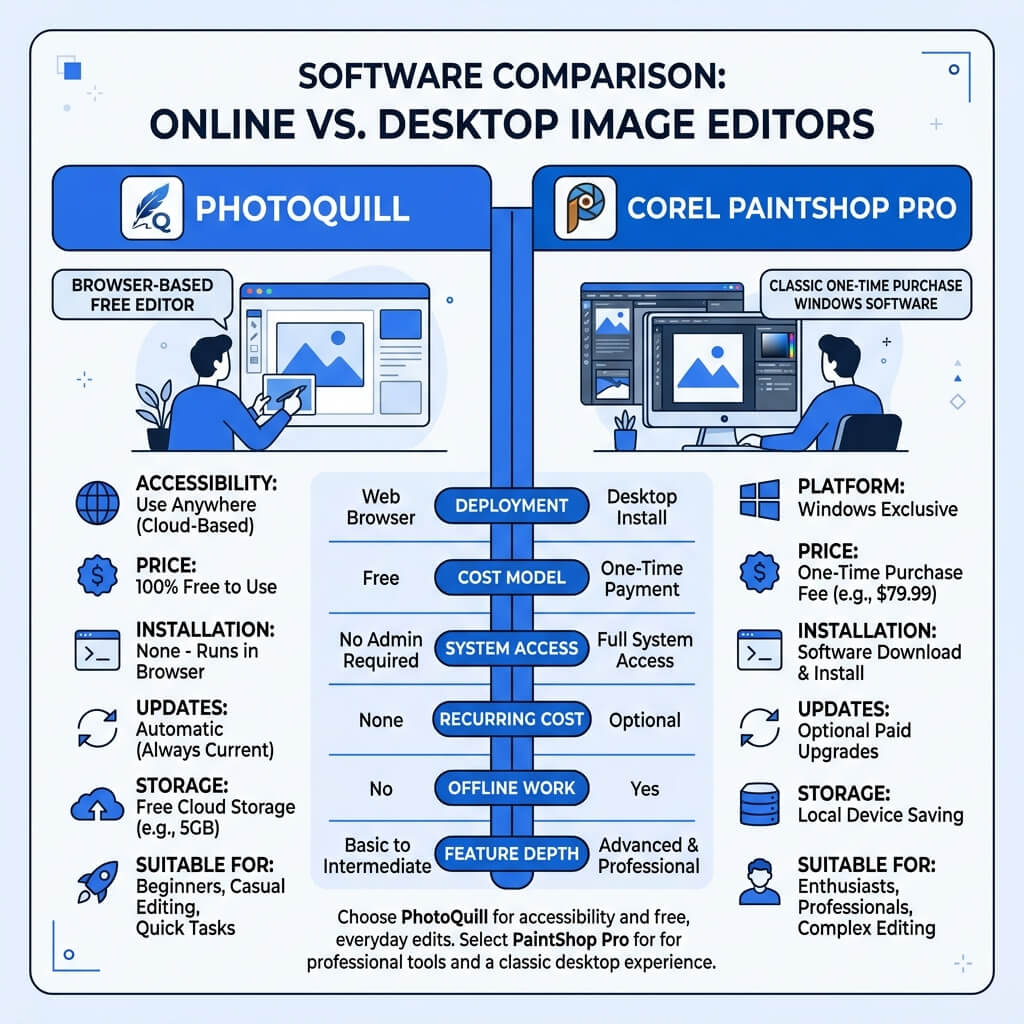
The Verdict (50 Words)
Capture One is an industry-leading RAW processor and tethering tool designed to manage and color-grade hundreds of photos directly from a camera. PhotoQuill is a free, layer-based pixel editor designed to manipulate, composite, and retouch single images. They are not competitors; they are complementary tools in a professional workflow.
Understanding the Digital Photography Pipeline
To understand the difference between Capture One and PhotoQuill, you must understand the two distinct phases of modern professional photography: Development and Retouching.
Capture One (like Adobe Lightroom) belongs to the Development phase. It acts as a digital darkroom. Its primary job is to ingest RAW sensor data from your camera, organize it, apply color profiles, and output a finished photograph. It works globally on the image.
PhotoQuill (like Adobe Photoshop) belongs to the Retouching phase. Once an image is "developed," you bring it into PhotoQuill to manipulate specific pixels. This is where you remove a distracting trash can in the background, composite two exposures together, add text, or use AI to extract a product from its background.
Objective Pros & Cons
Capture One: The Studio Standard
Capture One is the premium choice for high-end fashion, commercial, and studio photographers.
Genuine Strengths:
- Industry-Best Tethering: Allows photographers to connect their camera directly to a computer and instantly preview high-res shots as they are taken in the studio.
- Superior Color Science: Renowned for rendering skin tones and colors more accurately and pleasingly out-of-the-box than almost any other RAW engine.
- Workflow Management: Sessions and Catalogs allow for meticulous organization, culling, and rating of thousands of photos.
- Advanced Color Editor: The color wheels and skin tone uniformity tools are unparalleled for precise global color grading.
- Camera-Specific Profiles: Features bespoke optimization for Phase One, Sony, Fujifilm, and Nikon cameras.
Real Drawbacks:
- Expensive: Costs $24/month or an expensive perpetual license, making it a heavy investment for hobbyists.
- No Pixel Manipulation: It cannot easily remove complex backgrounds, swap heads in a group photo, or add text/graphic design elements.
- Steep Learning Curve: The highly customizable interface can be daunting for beginners.
PhotoQuill: The Free Retouching Suite
PhotoQuill provides the necessary tools for when a photo needs more than just color grading.
Genuine Strengths:
- Pixel-Level Control: Tools like the Clone Stamp, Healing Brush, and Pen Tool allow for surgical alteration of an image.
- Advanced Compositing: Robust layer architecture, clipping masks, and blending modes allow you to combine multiple images or graphic assets seamlessly.
- AI Object Removal: Built-in AI masking can instantly isolate subjects or remove unwanted background elements.
- Completely Free: No subscription required, operating entirely in your browser without installation.
- PSD Compatibility: Perfectly handles layered files, making it a great end-of-pipeline tool.
Real Limitations:
- Not for RAW Development: While it can open RAW files, it lacks the sophisticated color science profiles and non-destructive RAW sliders of Capture One.
- No Batch Management: Cannot catalog, rate, or batch-process folders of 500 images. It is strictly a single-image editor.
Technology Deep Dive: Parametric vs Pixel Editing
Capture One is a parametric editor. When you adjust the exposure or color in Capture One, you aren't actually changing the pixels in your RAW file. You are just writing a text file of "instructions" (parameters) on how the software should display those pixels. This is why it's completely non-destructive and very fast at handling thousands of files.
PhotoQuill is a pixel editor. While it supports non-destructive adjustment layers, its core function is to allow you to alter the actual raster data. When you use the eraser tool or clone stamp in PhotoQuill, you are permanently replacing the RGB values of specific pixels on that layer. This requires much higher memory usage per file, which is why pixel editors are used on one image at a time rather than batches.
Feature Comparison Table
| Feature | PhotoQuill | Capture One |
|---|---|---|
| Primary Function | Pixel Editing / Retouching | RAW Processing / Management |
| Cost | Free | $24/mo or ~$300 Perpetual |
| Tethered Shooting | No | Yes (Industry Standard) |
| Batch Catalog Management | No | Yes |
| Layer Compositing & Text | Yes | No |
| AI Background Removal | Yes | No |
| Installation Required | No (Browser) | Yes (Heavy Desktop App) |
Who Should Use Which?
✅ Choose PhotoQuill if you...
- Need to remove backgrounds or unwanted objects from a photo
- Want to combine multiple images into a composite
- Are adding text or graphic elements to an image
- Need a free tool to edit JPEGs, PNGs, or PSD files
- Are working on a Chromebook or a borrowed computer
✅ Choose Capture One if you...
- Are a commercial photographer shooting directly into a computer (Tethering)
- Need to color grade and manage hundreds of RAW files from a shoot
- Demand the absolute highest quality skin tone rendering
- Require a professional digital darkroom workflow
- Are willing to pay for premium studio software
How to Export from Capture One and Continue Retouching in PhotoQuill
Export from Capture One
After perfecting the color and exposure of your RAW file in Capture One, go to the Export tab. Select PSD or high-quality 16-bit TIFF as your output format. This preserves maximum image data for retouching.
Open PhotoQuill
Open your web browser (Chrome, Edge, Firefox) and navigate to photoquill.com.
Import and Retouch
Drag the exported PSD or TIFF file into PhotoQuill. You can now use layer masks, the clone stamp, frequency separation techniques, and AI background removal—tools that Capture One does not possess—for final, pixel-perfect retouching.