How to Make a GIF in Photoshop: Frame Animation & Web Export
Animated GIFs remain essential for social reactions, email marketing, and product previews. Here is how to create smooth frame animations from layers and optimize them for fast web loading.
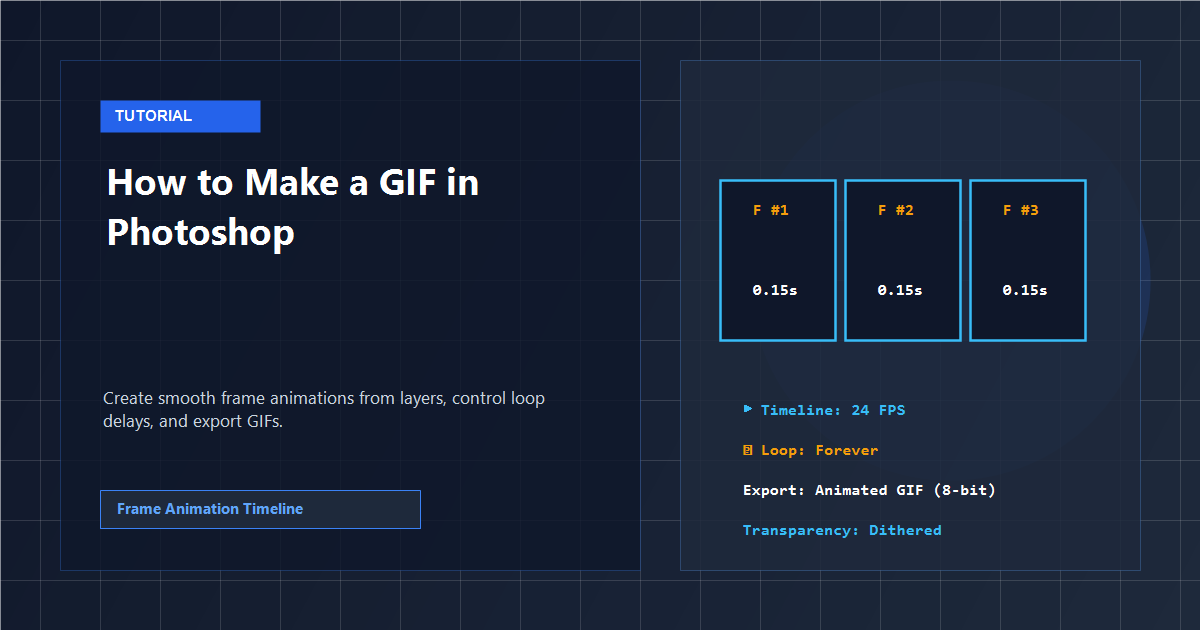
How Frame Animations Work Under the Hood
Unlike video formats such as MP4 or WebM that compress motion through delta temporal vectors, the Graphics Interchange Format (GIF) is an indexed raster specification created in 1987. An animated GIF contains multiple graphic blocks displayed in timed sequence, restricted to a shared 8-bit palette of at most 256 colors.
In Photoshop, every individual frame in your animation links to layer visibility. Frame 1 displays Layer 1; Frame 2 hides Layer 1 and reveals Layer 2. Understanding this one-to-one relationship between the Layers panel and the Timeline panel is the key to creating clean banners, product loops, and kinetic text graphics.
Before organizing your sequence, organize your layer hierarchy. See our tutorial on how to merge layers in Photoshop to flatten static components, and check how to scale an image in Photoshop to keep canvas dimensions web-friendly.
GIF Export Configuration: Quality vs. File Size Matrix
When preparing to export your animation via Save for Web, adjusting palette settings controls visual fidelity and bandwidth:
| Setting | Recommended Value | Impact on Animation Quality | File Size Weight |
|---|---|---|---|
| Color Palette | Selective or Adaptive (128 / 256) | Prioritizes colors with highest perceptual area | High (reducing 256 to 128 cuts ~30% size) |
| Dither Algorithm | Diffusion (75%–85%) | Eliminates color banding on photo gradients | Medium (higher dither increases file size) |
| Lossy Compression | 5 to 15 | Discards imperceptible data artifacts | High (drops 20% size with minimal noise) |
| Looping Options | Forever | Ensures non-stop playback in social feeds | Zero (single metadata byte in file header) |
Use Fixed Solid Backgrounds for Web Graphics
Transparent GIFs use binary 1-bit transparency (a pixel is either 100% opaque or 100% see-through), which produces jagged fringing around rounded logos. If exporting for a dark or light webpage, set the Matte color to match the destination background to ensure soft anti-aliased borders.
Step-by-Step: Creating an Animated GIF from Layers in PhotoQuill
Follow these steps to assemble an animated sequence, adjust frame timings, and export an optimized GIF file in PhotoQuill.
Import Your Sequence as Individual Layers
Open PhotoQuill in your browser. Drag and drop your image sequence onto the canvas. Ensure each frame of motion resides on its own distinct layer, arranged from bottom (first frame) to top (last frame).
Open the Timeline Panel
Go to Window → Timeline in the top menu bar. The timeline workspace expands at the bottom of the screen. Click the center dropdown and ensure Create Frame Animation is selected.
Convert Layers into Timeline Frames
Click the panel options menu (the hamburger icon on the top-right of the Timeline panel) and select Make Frames From Layers. Each layer automatically populates an individual frame on the timeline strip.
Set Frame Durations and Infinite Looping
Click the first frame, hold Shift, and click the last frame to select the entire sequence. Click the small downward arrow under any frame number (where it reads 0 sec) and set the delay to 0.1 seconds. In the bottom-left corner of the timeline, change the loop setting to Forever.
Export Your Animated GIF
Navigate to File → Export As → GIF. Choose 128 or 256 colors and confirm the preview animates smoothly. Click Save to download the animated file to your local computer.