How to Flip an Image in Photoshop: Complete Mirroring Guide
Flipping an image corrects front-facing camera selfies, balances graphic layouts, and creates mirror reflections. While rotating turns an image around a pivot, flipping creates a true mirror reversal across an axis. Many users accidentally invert their whole project when they only mean to mirror a single cutout. Here is the distinction between canvas and layer flips, how to execute each cleanly, and how to do it online in PhotoQuill.
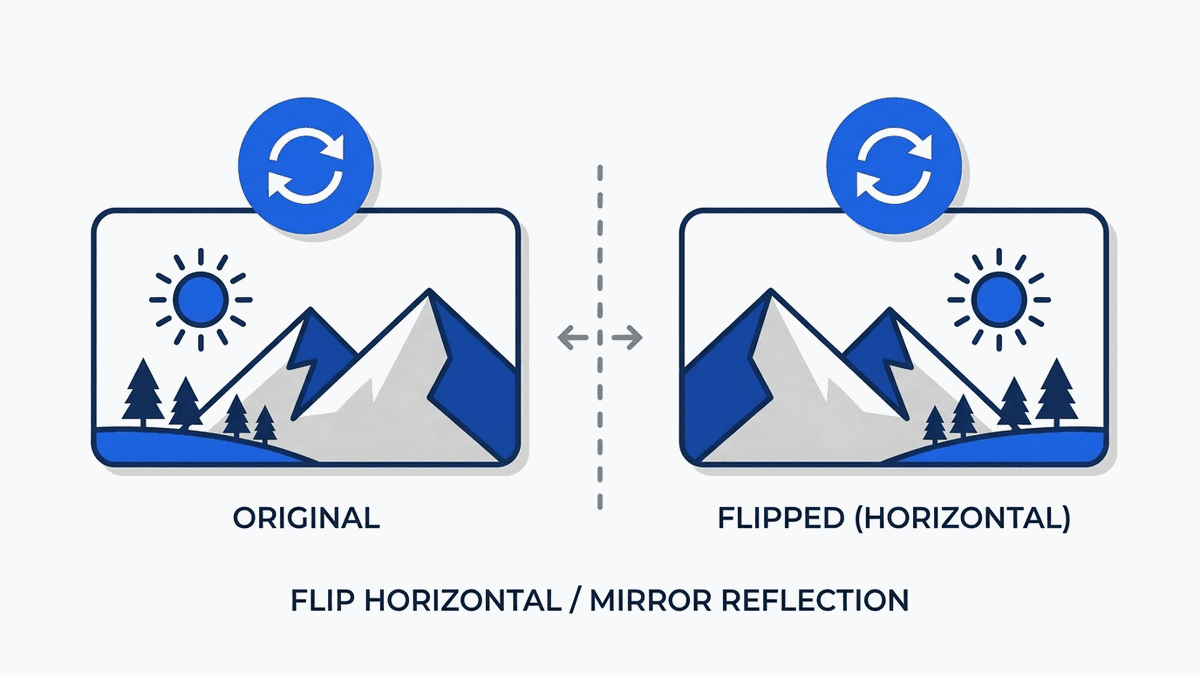
Canvas Flip vs Layer Flip: The Vital Distinction
Before touching any menu command, determine your scope. Photoshop distinguishes between flipping your entire project file and flipping an isolated graphic asset:
- Canvas Flip (Global): Mirrors every single layer, text box, vector shape, and adjustment layer together across the central canvas axis.
- Layer Flip (Local): Mirrors only your currently highlighted layer or active selection boundary, leaving the surrounding artwork, text, and background untouched.
If you have several layers that need to be flipped together without affecting text layers, you can group them or use techniques for merging layers in Photoshop prior to running transform operations.
| Method | Menu Location | Impact Area | Common Use Case |
|---|---|---|---|
| Canvas Flip Horizontal | Image > Image Rotation > Flip Canvas Horizontal |
Entire document (all layers) | Checking composition balance, correcting inverted selfies |
| Canvas Flip Vertical | Image > Image Rotation > Flip Canvas Vertical |
Entire document (all layers) | Upside-down photo orientations, water reflection bases |
| Layer Flip Horizontal | Edit > Transform > Flip Horizontal |
Active layer only | Turning a subject to face toward page content |
| Free Transform Flip | Ctrl + T > Right-Click > Flip |
Selected object / selection | Fast positioning during compositing and collage assembly |
Method 1: Flipping the Entire Image Canvas
When working on a single photograph—such as a portrait, landscape, or product shot—flipping the complete canvas is the cleanest workflow. You do not need to select layers or unlock background protections.
To mirror left to right, go to the top menu and select Image > Image Rotation > Flip Canvas Horizontal. The entire frame flips instantly. To mirror top to bottom, select Image > Image Rotation > Flip Canvas Vertical.
Artists frequently use horizontal canvas flipping as an evaluation tool. Flipping your artwork forces your eyes to see proportions, perspective errors, and lighting inconsistencies with fresh perspective.
Method 2: Flipping a Single Layer or Isolated Subject
In complex multi-layer designs, you frequently need a model or prop facing the opposite direction without altering surrounding branding. The Transform menu provides targeted control.
Flipping an Active Layer
- In the Layers panel on the right, click the layer you want to mirror.
- If the layer says Background with a padlock icon, click the lock once to convert it into an editable layer (Layer 0).
- Go to the top menu bar and select Edit > Transform > Flip Horizontal (or Flip Vertical).
Free Transform Context Menu
- Highlight your layer and press
Ctrl + T(Windows) orCmd + T(Mac) to open Free Transform. - Right-click anywhere inside the transform boundary box on your canvas.
- Click Flip Horizontal from the context dropdown menu.
- Press
Enteror double-click inside the box to confirm and bake the transformation.
You can also combine transforms with creative color styling such as inverting colors in Photoshop to generate stylized split graphics.
Step-by-Step: How to Flip Images and Layers in PhotoQuill
PhotoQuill provides instant canvas and layer transformations in your web browser. Follow these steps to flip images in seconds without subscriptions.
Open Your Image in PhotoQuill
Drag and drop your JPG, PNG, or PSD file into the PhotoQuill browser workspace, or click File > Open in the top menu.
Choose Layer or Canvas Mode
To mirror your entire document, click Image > Flip Canvas Horizontal from the top navigation. Everything flips across the document center instantly.
Flip Single Layer with Transform
Select your target layer in the right-side Layers panel. Press Ctrl + T (or Cmd + T) to display transform handles, right-click the selection, and select Flip Horizontal.
Export Your Reflected Asset
Press Enter to commit the transformation. Go to File > Export As and select PNG or JPG for high-resolution download.
Frequently Asked Questions
Ctrl + T (Windows) or Cmd + T (Mac) to open Free Transform, right-click within the bounding box, and select Flip Horizontal. Press Enter to confirm.Ctrl + J, choose Edit > Transform > Flip Vertical, move it underneath your subject, and reduce the layer opacity to around 30%.