How to Convert HEIC to JPG on Mac: Fast Free Guide
If you take photos on an iPhone and transfer them to your Mac, you have likely encountered files ending in .HEIC. While Apple adopted HEIC for superior compression and high dynamic range, many websites, older image editing suites, and non-Apple devices refuse to open or upload them. Knowing how to convert heic to jpg on mac quickly ensures universal compatibility across all platforms.
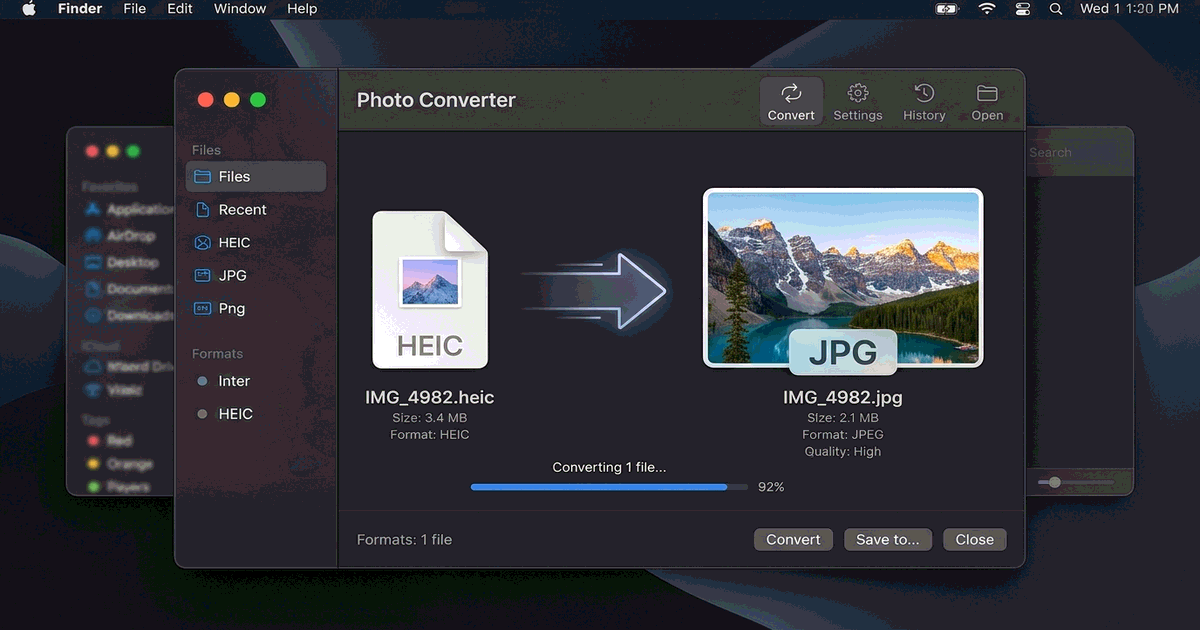
Method 1: Fastest Batch Conversion Using Finder Quick Actions
macOS Sonoma and Sequoia include built-in batch conversion capabilities directly in the Finder context menu:
- Open Finder and navigate to the folder containing your HEIC pictures.
- Select the images you wish to convert. Hold Command (Cmd) to select individual files or Cmd + A to select all photos.
- Right-click (or control-click) the highlighted selection.
- Hover over Quick Actions and click Convert Image.
- In the popup modal, set Format to JPEG and choose Actual Size to maintain maximum resolution.
- Click Convert to JPEG. Your new JPG copies appear instantly alongside your originals.
Method 2: Convert and Export via Mac Preview
If you prefer inspecting photos before saving or need to adjust color balance, the built-in Preview app is a dependable choice:
- Double-click any HEIC photo to open it in Preview.
- Click File → Export from the top system menu bar.
- Hold the Option key while clicking the Format dropdown to reveal all available output types, and select JPEG.
- Adjust the Quality slider to balance compression with sharpness, then click Save.
Comparison: HEIC vs. JPG on macOS
| Feature | Apple HEIC | Standard JPG / JPEG |
|---|---|---|
| Compression Efficiency | ~50% smaller file size than JPG | Standard compression size |
| Color Bit Depth | Supports up to 16-bit color | Standard 8-bit color channels |
| Cross-Platform Compatibility | Apple ecosystem only (requires plugins elsewhere) | 100% universal across Windows, Web & Android |
| Web Upload Support | Rejected by many online forms and CMS tools | Universally accepted |
Method 3: Edit, Crop, and Convert Online with PhotoQuill
If you need to resize, crop, or retouch your images after conversion without switching between apps, open your photos directly in PhotoQuill:
Our browser-based editor supports full layer editing, mask cutouts, and instant export to high-quality JPG or PNG. For resizing workflows, check our guide on how to resize an image or learn how to remove background in photos.
Open PhotoQuill Editor →Frequently Asked Questions
Apple uses HEIC (High Efficiency Image Container) because it cuts photo file size by nearly 50% compared to JPG while retaining 16-bit color depth and superior dynamic range.
Yes. Select all your HEIC files in Finder, right-click, choose Quick Actions, and click Convert Image to batch process them in seconds.
When saving at maximum JPEG quality (90-100%), visual compression loss is imperceptible to human eyes, though the file size will approximately double.
On your iPhone, go to Settings -> Camera -> Formats, and switch the capture mode from High Efficiency to Most Compatible.
Yes. PhotoQuill opens and converts HEIC files directly in your web browser with zero file uploads to external servers, protecting your personal photo privacy.