Best Free Photo Editing Software for Mac in 2026
Mac users expect software that matches Apple hardware: fluid, elegant, color-accurate, and responsive. While macOS includes basic editing inside Apple Photos, serious graphic design and layered compositing traditionally meant paying hundreds of dollars per year for Adobe Creative Cloud subscriptions. Fortunately, modern WebGPU acceleration and open-source software have changed the Mac creative landscape. Here is the definitive guide to the best free photo editing software for Mac in 2026.
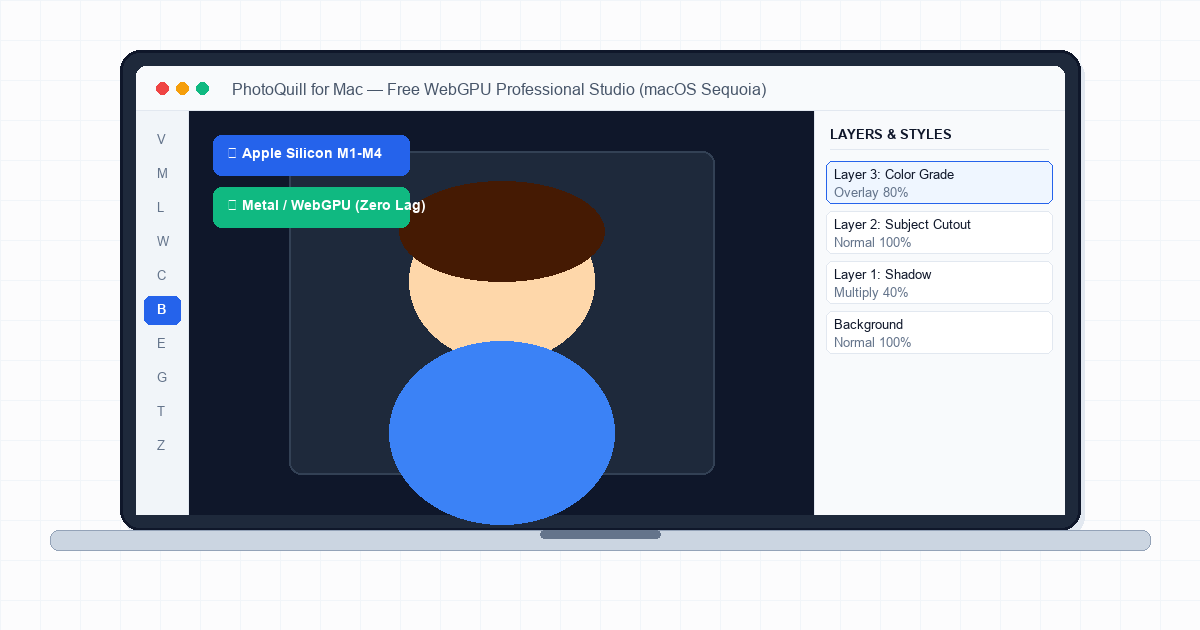
Evaluating Free Photo Editors for macOS Sequoia and Apple Silicon
Modern Mac computers powered by Apple Silicon (M1 through M4 chips) offer unified memory architecture and industry-leading GPU efficiency. However, Mac solid-state storage remains a premium upgrade. Installing massive 4GB creative suites that require helper daemons, background update services, and perpetual license keys quickly clutters your internal drive.
Mac users searching for free editing tools typically fall into three camps: casual shooters who have outgrown Apple Photos, digital creators who need to open and modify PSD mockups, and photographers seeking non-destructive adjustments. Before downloading random installers from the web, check how the top free Mac photo editors compare across key macOS criteria:
| Photo Editor | Architecture / Platform | Apple Silicon / Metal | Layer & Mask Support | Primary Strength |
|---|---|---|---|---|
| PhotoQuill | Browser (WebGPU / Metal) | Native Metal Shaders | Full Non-Destructive Layers | Photoshop-level tools without installation or ads |
| Apple Photos | Native macOS App | Native Apple Silicon | Basic Global Adjustments | Instant iCloud library sync and quick color tweaks |
| GIMP for Mac | Desktop (GTK Port) | Emulated / Rosetta / Arm Port | Full Layer Stack | Extensive plugin library for open-source workflows |
| Photopea | Browser Web App | WebGL | Full PSD Stack | Familiar Photoshop clone with display banner ads |
| Krita | Desktop App (Qt) | Native macOS Build | Layers & Brush Engines | Digital illustration and concept sketching |
~/Library/Application Support. Browser-based tools operate with zero disk footprint.
The Top Free Mac Photo Editors Tested and Ranked
We tested each free editor on macOS Sequoia running on Apple Silicon hardware, evaluating responsiveness, P3 wide color gamut rendering, and PSD compatibility:
1. PhotoQuill — The Modern WebGPU Mac Editor
PhotoQuill is engineered specifically for modern creative workflows. By utilizing WebGPU, Safari and Chrome on macOS map graphics computation directly to Apple's native Metal API. Brushes, healing tools, and real-time adjustment curves run with zero latency at a full 120Hz ProMotion display refresh rate.
It opens Adobe Photoshop PSD files natively, preserves vector type and layer masks, and operates completely free without requiring an account, email sign-up, or subscription card. For broader cross-platform comparisons, explore our complete photo editing software rankings.
2. Apple Photos — Best for Quick Cleanups
Every Mac ships with Apple Photos pre-installed. For fundamental exposure correction, horizon leveling, white balance adjustments, and definition sharpening, Photos is fast and directly syncs with your iCloud Photos library. However, the moment you need to isolate a subject with a magnetic lasso, replace an object with generative tools, or build complex multi-image graphics, you must step into a dedicated layered editor.
3. GIMP for Mac — Best for Scripting Enthusiasts
GIMP offers a deep toolset covering frequency separation, path tools, and hundreds of custom community filters. While feature-rich, GIMP's interface feels distinctly non-Mac: keyboard shortcuts do not conform to native Command key conventions, multi-window floating panels can feel disjointed, and startup times remain slow on first launch. For more desktop options, check our free Photoshop alternatives guide.
Key Considerations for Editing Photos on macOS
When choosing photo editing software on a Mac, three technical factors directly affect your editing quality and hardware longevity:
- Display Color Management: Mac displays (MacBook Pro Liquid Retina XDR and Studio Display) feature wide P3 color gamuts. Ensure your editor supports proper ICC profiles so saturated reds and emerald greens do not clip when exporting to sRGB for web viewing.
- Retina UI Scaling: Older ported Unix utilities often render blurry iconography or tiny text on high-DPI Retina screens. Modern browser editors scale vector UI elements sharply at 2x and 3x device pixel ratios.
- Unified Memory Consumption: Base Mac configurations often feature 8GB or 16GB of unified memory shared between CPU and GPU. Heavy native apps with memory leaks force your Mac into swap space, causing thermal throttling. WebGPU editors free memory as soon as browser tabs close.
Whether preparing social graphics or adjusting high-resolution portraits, mastering accurate dimension scaling is vital; see our guide to resizing images cleanly for ideal pixel dimensions.
Step-by-Step: How to Edit Photos on Mac with PhotoQuill
PhotoQuill brings desktop-grade editing tools to Safari, Google Chrome, and Brave on macOS with zero setup. Follow this quick editing workflow:
Open PhotoQuill in Safari or Chrome
Open your preferred browser on Mac and navigate to PhotoQuill. The editor initializes immediately—no installation wizard, gatekeeper warnings, or account sign-in required.
Drag and Drop Your Image or PSD
Drag any image file (JPG, PNG, WebP, SVG, or PSD) from Finder directly onto the canvas. PhotoQuill renders the layer stack accurately with full layer visibility.
Apply Native Mac Shortcuts and Edits
Use standard Mac muscle memory: press Cmd + J to duplicate layers, Cmd + T to transform, Cmd + Z to undo, and Cmd + Shift + S to save. Adjust color balance, curves, and blend modes using the right-side inspector panel.
Export in Your Desired Format
Go to File > Export As and choose PNG, JPG, WebP, or layered PSD. Your file downloads instantly directly to your Mac's ~/Downloads folder.