The Best Wedding Photo Editing Software for Photographers
Wedding photos capture irreplaceable moments, but unpredictable weather and background distractions often ruin the shot. Learn how to fix these common issues directly in your browser.
Common Wedding Photography Problems
Every wedding photographer knows the pain of reviewing a batch of photos and finding small imperfections. Even the best planning cannot control the environment.
- Photobombers: A tourist walking behind the couple during the first kiss.
- Dull Skies: A gray, overcast sky instead of a romantic golden hour glow.
- Cluttered Backgrounds: Distracting exit signs, trash cans, or microphone stands in the reception hall.
Traditional tools require you to manually clone stamp these elements out, pixel by pixel. PhotoQuill speeds up this process using AI generation.
What AI Editing Actually Changes for Wedding Photos
Manual retouching requires cloning and healing one pixel group at a time. For a person standing in front of a church entrance, that could mean 30–60 minutes of careful work per photo. AI generation compresses that to under 30 seconds.
| Edit Type | Manual Clone Stamp | AI Generator |
|---|---|---|
| Remove background person | 30–60 min per photo | Under 30 seconds |
| Replace overcast sky | Requires masking + compositing skill | Select area + type prompt |
| Remove stray objects (signs, stands) | High skill required for complex textures | Lasso + Object Remove |
| Background swap for portraits | Manual subject masking needed | Invert selection + Replace |
Focus on the Couple, Let AI Handle the Rest
Spend your manual editing time on skin tones, eyes, and the couple's expressions — details that AI cannot reliably fix yet. Use the AI generator for everything in the background: skies, unwanted objects, cluttered venues.
A practical split: color grade the entire batch first in one pass, then flag photos with background problems and batch-fix them using AI Object Remove.
If you prefer to extract the couple entirely and place them on a clean canvas, see our guide on how to remove background without photoshop for detailed edge refinement techniques.
Step-by-Step: How to Do This in PhotoQuill
Here is the workflow for removing a distracting person from the background of your wedding shot.
Upload the Photo
Go to PhotoQuill and drag your high-resolution wedding image onto the canvas to open the project.
Make Your Selection
Press L to activate the Lasso tool. Carefully draw a selection around the unwanted person in the background. Make sure to include their shadow.
Open the AI Generator
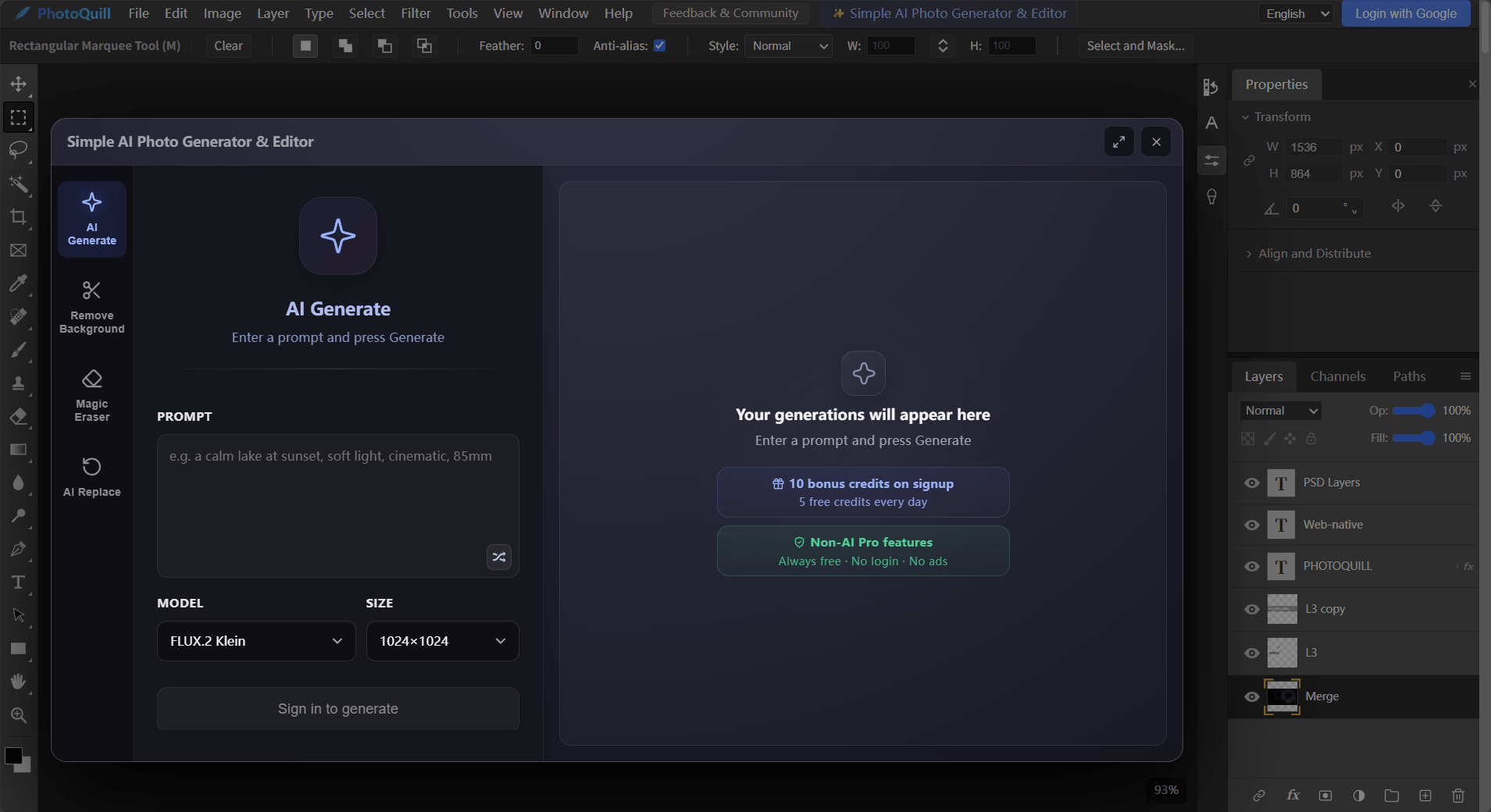
Click AI Generate in the top menu bar. This brings up the Simple AI Photo Generator & Editor panel.
Generate the Fix
In the operation dropdown, select Object Remove. Click Generate. The AI will analyze the surrounding church or outdoor scenery and rebuild the background where the person used to be.
If you need to tweak the overall tint of the dress or background elements after the AI generation, you can refer to how to change background color using photoshop techniques directly in our editor.