How to Blend Two Images in Photoshop: Seamless Merging Guide
Blending two photos together requires more than dropping opacity. Here is how to combine portraits, landscapes, and textures with clean gradient layer masks and blend modes.
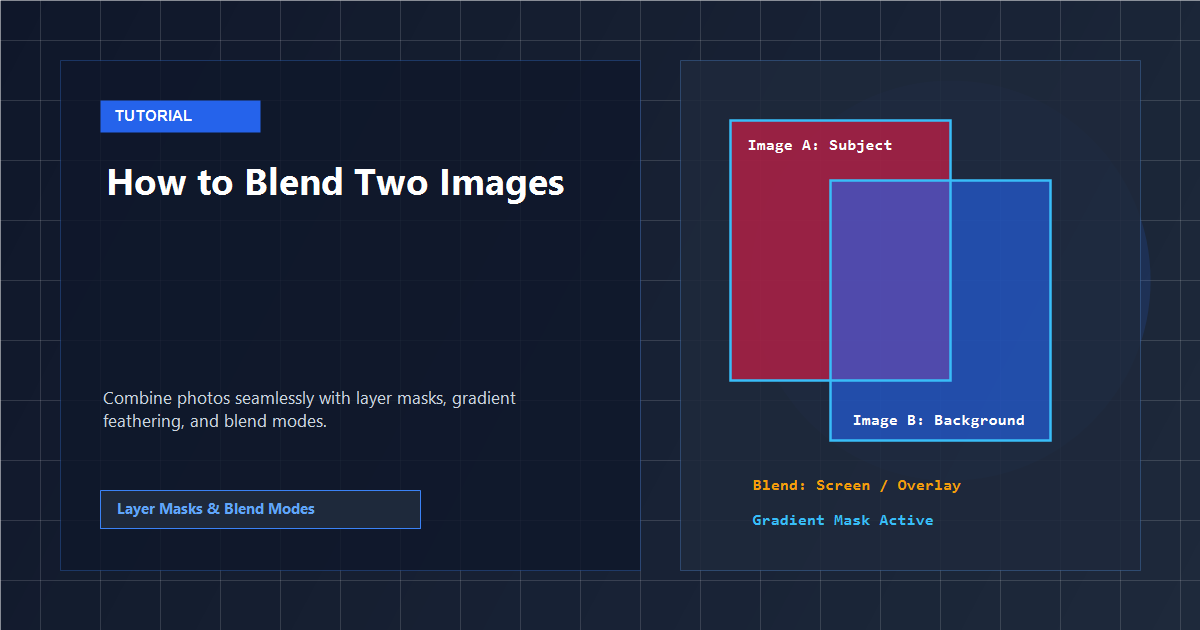
Why Reducing Opacity Is Not True Blending
Beginners often attempt to blend two images by stacking them and reducing the top layer's opacity to 50%. The result is almost always washed out: shadows turn gray, highlights lose dynamic punch, and the rectangular boundaries of both images remain visible to the viewer.
Professional compositing relies on two core mechanisms: non-destructive layer masks with gradient feathering, and mathematical blend modes that calculate pixel luminance. Layer masks allow you to hide the edges of the top photo while keeping the central subject at 100% density.
For more foundational techniques on combining graphics, read our guide on how to blend using Photoshop. To refine edges with custom feather radii, examine our tutorial on feathering edges in Photoshop.
Blend Mode Selection Matrix for Two-Photo Compositing
Layer blend modes change how the colors and brightness of your upper layer interact with the background layer. Use this guide to pick the appropriate blend mode for your specific photos:
| Blend Mode | Category | Best For | Visual Effect |
|---|---|---|---|
| Screen | Lighten | Night skies, fireworks, lens flares, fog | Ignores dark pixels; projects bright elements onto scene |
| Multiply | Darken | Scanned line art, grunge textures, cast shadows | Multiplies luminosity; drops white backgrounds to clear |
| Overlay | Contrast | Double exposures, portraits over landscapes | Boosts contrast; shifts highlights light and shadows dark |
| Soft Light | Contrast | Subtle color toning, paper texture overlays | Delivers an airy, diffused light effect without harsh clipping |
| Luminosity | Component | Applying tone curves while preserving base colors | Adopts upper layer brightness while keeping lower hue |
Generate Custom Textures and Skies on Demand
If you lack a complementary background photo—such as starry skies or moody mist—you can generate an original, royalty-free texture directly on a new layer inside PhotoQuill using text prompts.
Step-by-Step: Blending Two Images with a Gradient Mask in PhotoQuill
Follow these steps to merge two photos horizontally or vertically with an invisible seam in PhotoQuill.
Load Both Images onto the Canvas
Open PhotoQuill in your browser. Drag your first photo onto the workspace. Then drag your second photo onto the canvas and select Add as New Layer. Use the Move Tool (V) to arrange their overlap.
Add a Layer Mask to the Top Layer
In the Layers panel on the right, ensure the upper photo layer is highlighted. Click the Add Layer Mask button (rectangle with a circle inside) located at the bottom of the panel. A white mask thumbnail links to your layer.
Activate the Gradient Tool
Press G on your keyboard to select the Gradient Tool. In the top options bar, confirm the gradient type is set to Linear Gradient and the color gradient is set to Black to White.
Draw the Transition Line
Click on the mask thumbnail. Click on the edge where you want the top image to remain visible, then drag across the overlapping boundary toward the edge you want hidden. Release the mouse. The boundary instantly softens into a seamless fade.
Match Color Temperatures
Go to Layer → New Adjustment Layer → Color Balance. Check Clipping Mask so adjustments apply exclusively to the upper photo. Adjust Cyan/Red and Yellow/Blue sliders until ambient lighting matches the base photo.