Can ChatGPT Make Photoshop Files? How to Get a Layered PSD from AI
You ask ChatGPT for a poster and it looks great, until you need to change one word or move the product. The image is a single flat picture, so the only fix is to generate it again and hope. What designers actually want from AI is a Photoshop file with the background, the subject and the text on separate layers. This guide explains what ChatGPT can and can't do with PSD files and walks through three ways to get a layered file from a prompt.
What ChatGPT Can and Can't Do with Photoshop Files
When ChatGPT draws a poster, everything ends up in one layer of pixels: the background, the product and the headline. You can't select the headline and fix a typo, and you can't move the product without leaving a hole behind it. Here is what ChatGPT offers today (November 2026):
- Image generation: one flat image per request. No PSD, no layers, and any text is drawn into the picture.
- Adobe's plugin in ChatGPT: Photoshop arrived in ChatGPT in December 2025, and Adobe has expanded it into a single Adobe plugin since then. It edits an image you upload with prompts and sliders. For work with layers and masks, Adobe's own guidance is to continue in Photoshop.
- Code: ChatGPT can write Photoshop scripts that build a document layer by layer when you run them in Photoshop.
So ChatGPT on its own won't hand you a layered PSD from a prompt. These are the three ways people get one.
Method 1: Ask ChatGPT to Write a Photoshop Script
This is what most people mean by using ChatGPT to make Photoshop project files. ChatGPT writes an ExtendScript file (.jsx), and Photoshop runs it to create the document, the text layers and the shapes.
- Describe the file in detail: canvas size, background color, each line of text with its font and size, and the path of any image to place.
- Ask:
Write a Photoshop ExtendScript (.jsx) that creates this document with each element on its own named layer and saves it as a PSD. - Save the code in a text file named
poster.jsx. - In Photoshop, choose File → Scripts → Browse and pick the file.
- If Photoshop shows an error, paste it back into ChatGPT and run the corrected script.
Good: real layers and real, editable text. Not so good: you need desktop Photoshop, ChatGPT can't see the result so getting the layout right often takes several rounds, and the script only arranges things. The pictures themselves still have to come from somewhere else, which is Method 2. If you already work in Photoshop, our guide to using AI in Photoshop covers its built-in tools.
Method 2: Generate Each Element Separately and Stack Them
Instead of asking for the finished poster, ask ChatGPT for the parts:
- Generate the background with no text and no main subject.
- Generate the subject, such as the product or person, on a plain background.
- Remove the subject's background so it sits on transparency.
- Open the background in an editor, place the subject on a new layer, and add the headline with the Type tool.
- Save as PSD.
This works in Photoshop, or in PhotoQuill in your browser without installing anything. It is also the most manual of the three methods, and because each part is generated separately, the lighting, colors and perspective often don't match until you correct them by hand.
Method 3: Use an AI Assistant That Builds the Layers
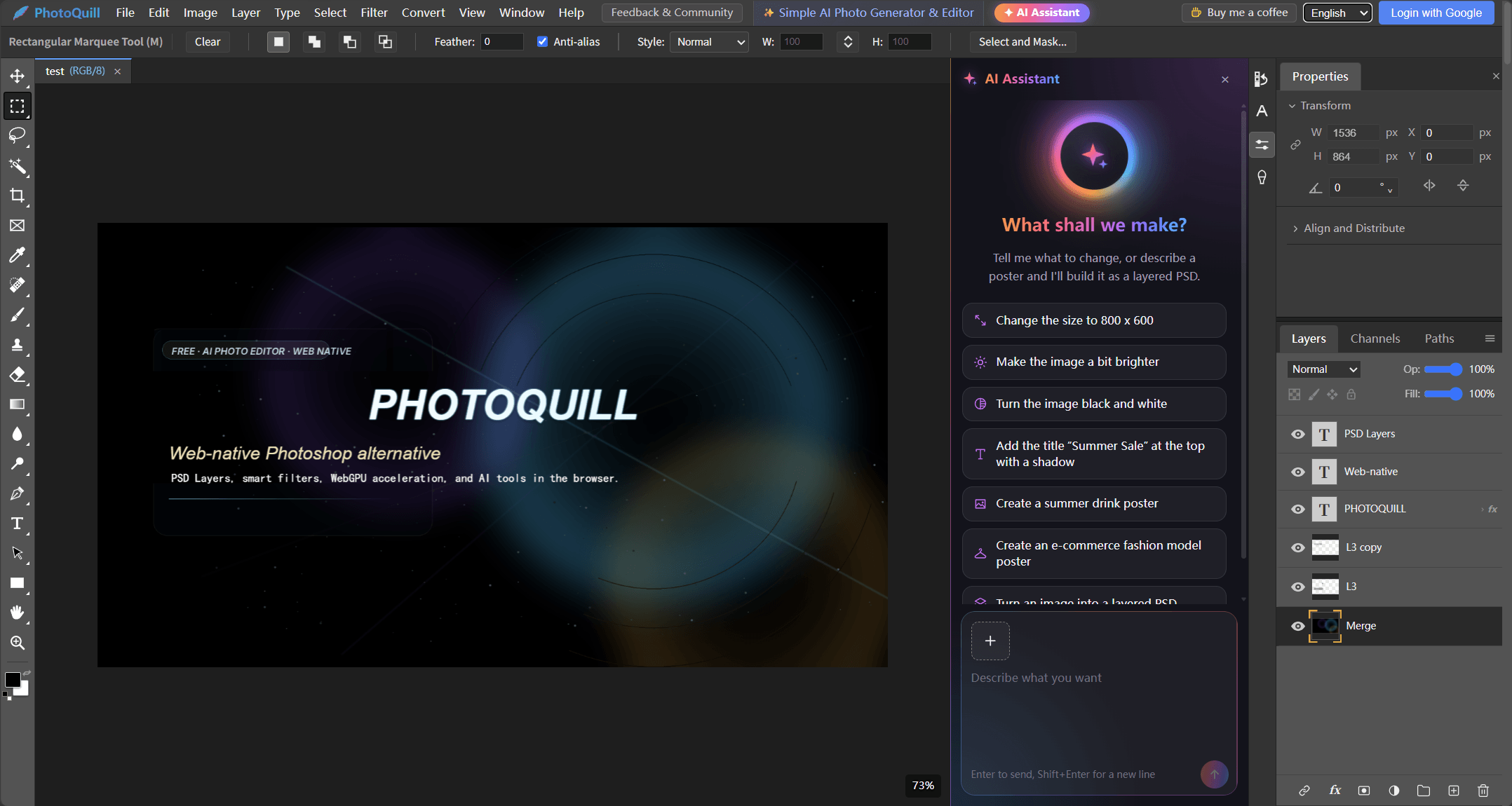
PhotoQuill is a free AI photo editor that runs in the browser and opens and saves PSD files. Its AI assistant does Methods 1 and 2 for you: it plans the layout, generates every element on its own layer from the same draft so they match, and sets the words as live text layers.
Open the AI Assistant
Open PhotoQuill and click AI Assistant in the top bar, next to Simple AI Photo Generator & Editor. A chat panel opens to the right of the canvas.
Describe the Design
Say what it is, its shape, the headline and the style, for example Create a 3:4 poster for a lemon soda called Fizz Up, headline "Stay Cool", bright summer colors. You can also click a suggestion such as Create a summer drink poster. Building layers uses credits, so sign in with Google when asked.
Check the Draft
The assistant writes the copy and generates a draft image (20 credits) that appears in the chat. The draft sets the layout and colors for the layers; it is not itself one of the layers.
Confirm the Layer Plan
Next it lists every layer it will make, with a price for each and a total. The full background at 2K is 30 credits; each transparent element, text plate or art-text layer is 20; plain editable text is free. Confirm to build it, or decline and pay only for the draft.
Edit, Then Save as PSD
Up to four layers generate at once, and each one appears in the Layers panel as soon as it is done. A full poster usually takes a few minutes. Double-click a text layer to change the words, drag elements around, or click the AI button on a pixel layer to regenerate just that layer. When you're happy, choose File → Save as PSD.
ChatGPT vs. an AI Layer Assistant: Side by Side
| Method | Separate layers | Editable text | What you need |
|---|---|---|---|
| ChatGPT image | No, one flat image | No, drawn into the pixels | ChatGPT |
| Adobe plugin in ChatGPT | Edits one image; layers and masks happen after you continue in Photoshop | In Photoshop | Adobe account, Photoshop for layer work |
| ChatGPT-written script | Yes | Yes | Desktop Photoshop, images made separately, some debugging |
| PhotoQuill AI assistant | Yes | Yes | A browser and credits (about 110–210 per poster) |
Costs and Limits Worth Knowing
A full poster from PhotoQuill's assistant costs about 110 to 210 credits, depending on how many layers it has, and each chat message costs 1 credit. New accounts get 10 free credits plus 5 more every day. That covers chatting and quick edits such as resizing or adding a title, but not a full poster: the assistant needs at least 110 credits in your balance to start one, so you need a plan or a top-up from the pricing page.
Text layers use the fonts installed on your computer. If you open the PSD on another computer, install the same fonts there so the text keeps its look. And like every AI tool, the assistant gives a different result each time; if the layer plan doesn't look right, decline it and rephrase your request before any layers are paid for.