The Best AI Photo Editors in 2026: 8 Free and Paid Tools Compared
Updated November 11, 2026 · By PhotoQuill Team
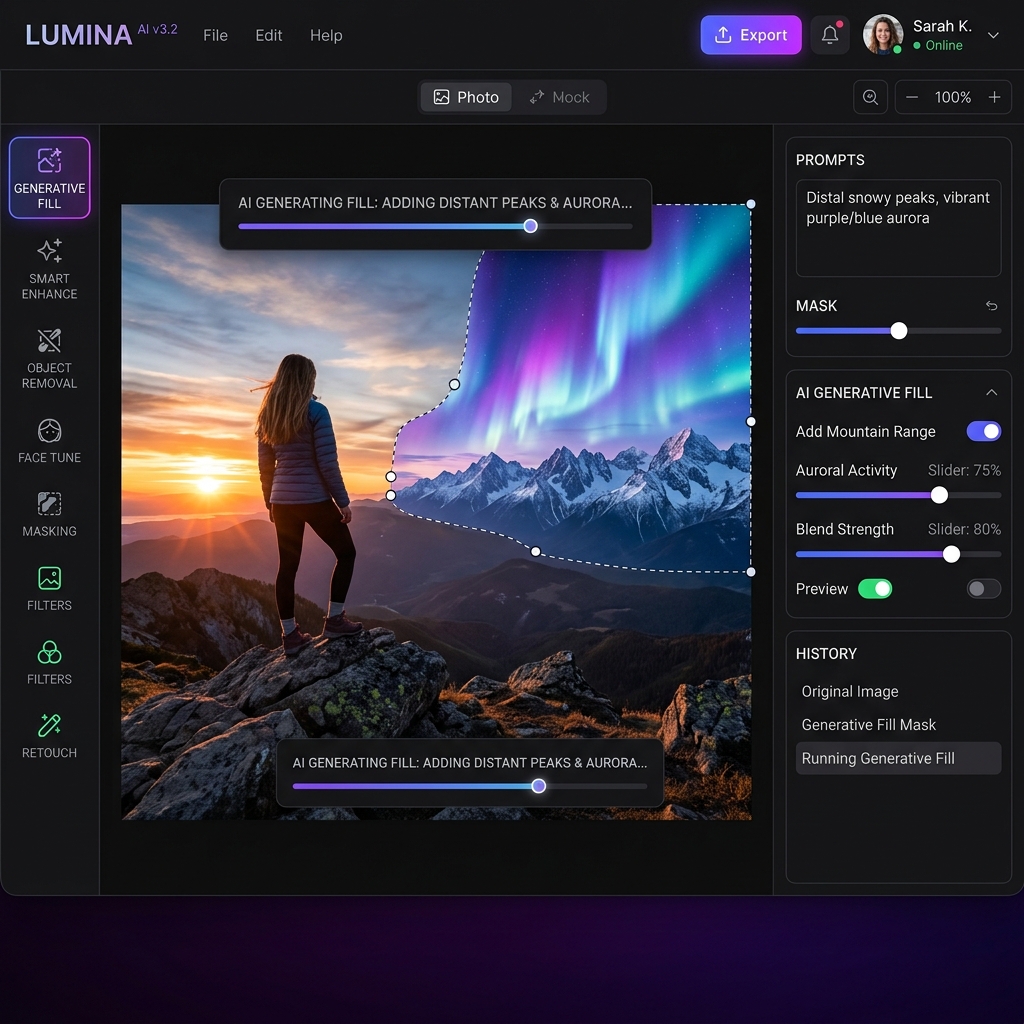
Every photo editor now has AI. The real differences are what happens after the AI is done: can you still move things and fix the text, how much the free plan actually gives you, and whether the tool fits the kind of work you do. We compared eight popular AI photo editors on exactly that.
How We Compared Them
- AI tools: generating images, removing backgrounds, erasing and replacing objects, and editing by prompt.
- Editable results: whether AI output stays on layers with editable text, or ends up as one flat image.
- Free plan: what you can do without paying, and where the limits are.
- Where it runs: browser, desktop or mobile, and whether you need an install.
Quick Picks
- Best for layered AI designs and PSD files: PhotoQuill
- Best for professional retouching: Adobe Photoshop
- Best for social media templates: Canva
- Best free Adobe option for quick graphics: Adobe Express
- Best for product photos: Photoroom
- Best lightweight web editor: Pixlr
- Best for one-click enhancements: Fotor
- Best for editing by chat: ChatGPT and Gemini
1. PhotoQuill: Best for Layered AI Designs and PSD Files
PhotoQuill is a free AI photo editor that runs in the browser and opens and saves Photoshop PSD files with layers, masks and blend modes. Its AI tools generate images (with models such as GPT Image, Nano Banana, FLUX.2 and Z-Image), remove backgrounds, erase or replace objects and restore old photos. What sets it apart is the AI assistant: describe a poster and it builds it as separate layers with live, editable text; give it a flat image and it splits it into a layered PSD; click the AI button on any layer to regenerate just that layer.
- Free plan: the editor is free with no account. AI needs a Google sign-in and uses credits: 10 on signup plus 5 every day. Paid plans start at $8.90 a month for 2,000 credits.
- Watch out for: a full layered poster costs about 110 to 210 credits, more than the free credits cover. It needs a browser with WebGPU, such as current Chrome or Edge. The free plan is for personal, non-commercial use.
- Choose it if: you want AI output you can keep editing like a Photoshop file, without installing anything.
2. Adobe Photoshop: Best for Professional Retouching
Photoshop remains the industry standard, and its AI is woven into a mature toolset: Generative Fill and Generative Expand for adding or extending content, the Remove tool for cleanups, and Select Subject for fast masks. It runs on desktop, with web and mobile versions too.
- Free plan: none for the full app; it needs a Creative Cloud plan, with a free trial. Generative features draw from monthly generative credits, usually 1 per standard generation. Tools that only analyze the image, such as Select Subject, don't use credits.
- Watch out for: the subscription, the credit limits on generative features, and a large install.
- Choose it if: you edit professionally every day and already pay for Creative Cloud. If you only want Photoshop's AI occasionally, see how to use AI in Photoshop and whether it's free.
3. Canva: Best for Social Media Templates
Canva's strength is its huge template library, with Magic Studio AI tools layered on top for removing backgrounds, erasing objects, expanding images and generating pictures. For non-designers who need a post or flyer in minutes, it's hard to beat.
- Free plan: yes, with a limited AI allowance. The background remover and most Magic Studio photo tools are part of Canva Pro.
- Watch out for: it's a design tool rather than a layer-based photo editor, and it doesn't export PSD files.
- Choose it if: you mostly make social graphics from templates.
4. Adobe Express: Best Free Adobe Option for Quick Graphics
Adobe Express brings Adobe's Firefly models to a simple, template-driven editor: text to image, generative fill, background removal and quick animations, on the web and on mobile.
- Free plan: yes. Express Premium costs $9.99 a month and includes 250 generative credits a month.
- Watch out for: it's built for quick graphics rather than detailed, layered photo editing.
- Choose it if: you like Canva-style templates but want Adobe's AI and ecosystem.
5. Photoroom: Best for Product Photos
Photoroom is tuned for e-commerce: it cuts products out cleanly, places them on AI-generated backgrounds with realistic shadows, and can process images in batches.
- Free plan: yes, but free exports carry a Photoroom watermark.
- Watch out for: it's focused on product shots, not general photo editing or design.
- Choose it if: you sell online and need clean product images quickly.
6. Pixlr: Best Lightweight Web Editor
Pixlr is a family of browser editors: Pixlr E for layer-based editing and Pixlr X for quick fixes, with AI tools for generative fill, background removal and image generation.
- Free plan: yes, with ads and a small allowance of AI credits. Paid plans add credits and remove ads.
- Watch out for: the ads, and how quickly the free AI credits run out.
- Choose it if: you want a light, familiar web editor for everyday fixes.
7. Fotor: Best for One-Click Enhancements
Fotor focuses on fast results: one-click enhancement, beauty retouching, background and object removal, and an AI image generator, on the web, desktop and mobile.
- Free plan: yes, but many AI tools are limited or need Fotor Pro.
- Watch out for: less control than a layer-based editor, and frequent upgrade prompts.
- Choose it if: you want quick, automatic improvements to photos.
8. ChatGPT and Gemini: Best for Editing by Chat
You can now upload a photo to ChatGPT or Google Gemini and simply describe the change, such as a new background, a different outfit or a cleaned-up scene. ChatGPT uses OpenAI's GPT Image models and Gemini uses Google's Nano Banana models, and both are impressive at following instructions.
- Free plan: yes, with daily limits; paid plans raise them.
- Watch out for: every edit comes back as a new flat image, with any text drawn into the pixels, and repeated edits can drift from the original. See can ChatGPT make Photoshop files for ways around this.
- Choose it if: you want a one-off edit and don't need to adjust the result afterwards.
Side-by-Side Comparison
| Tool | Best for | Layers and PSD | Free plan | Runs on |
|---|---|---|---|---|
| PhotoQuill | Layered AI designs, PSD files | Yes, opens and saves PSD | Editor free; AI: 10 credits on signup + 5 a day | Browser |
| Photoshop | Professional retouching | Yes, native PSD | Free trial, then paid | Desktop, web, mobile |
| Canva | Social media templates | No PSD export | Yes, limited AI | Browser, apps |
| Adobe Express | Quick graphics | Template-based | Yes; Premium $9.99/mo with 250 credits | Browser, mobile |
| Photoroom | Product photos | No | Yes, watermarked exports | Mobile, browser |
| Pixlr | Light web editing | Layers in Pixlr E | Yes, with ads and few AI credits | Browser, mobile |
| Fotor | One-click fixes | Basic | Yes, many AI tools need Pro | Browser, desktop, mobile |
| ChatGPT / Gemini | Edits by chat | No, flat images | Yes, daily limits | Browser, apps |
How to Choose
- You want to keep editing after the AI: pick an editor that keeps layers, such as PhotoQuill or Photoshop.
- You make social posts from templates: Canva or Adobe Express.
- You sell products online: Photoroom.
- You want a one-off change and nothing more: ChatGPT or Gemini.
- You don't want to pay at all: use a free editor for everyday work (PhotoQuill, Photopea or GIMP) and spend free AI allowances only where AI really helps.