How to Use Nano Banana in Photoshop (and Without It)
Google's Nano Banana model is built into Photoshop's Generative Fill. Here's where to find it, what it costs, whether you need a plugin, and how to use it without Photoshop.
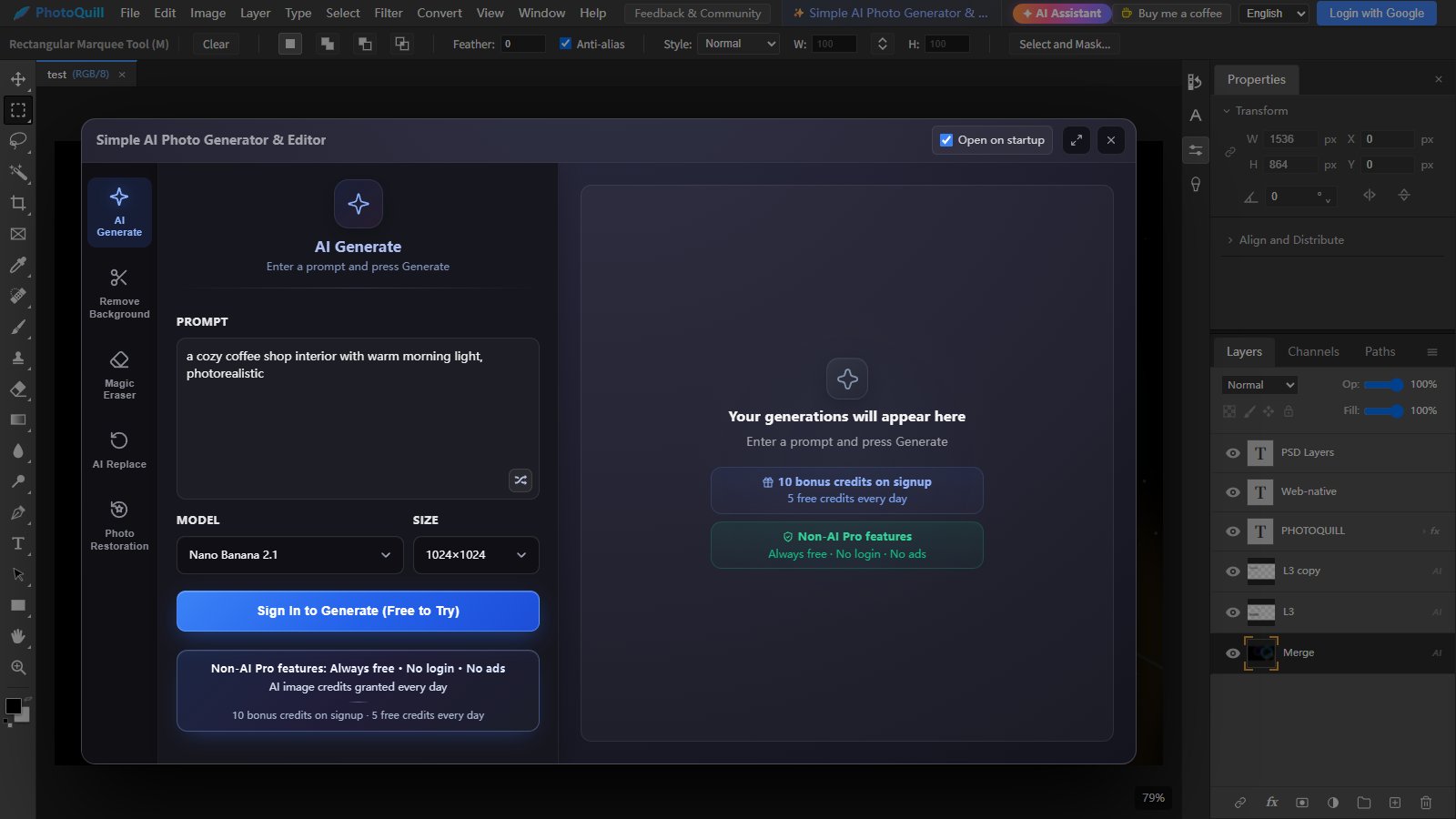
PhotoQuill is a free, Photoshop-style editor that runs in your browser and has Nano Banana built in. The button opens its AI generator with Nano Banana already selected; results land on a layer you can keep editing and save as a PSD.
Try Nano Banana in PhotoQuill →Nano Banana images cost 20 credits or more. New accounts get 10 free credits for faster models, and plans start at $8.90 a month for 2,000 credits.
Which Nano Banana Models Are in Photoshop?
Adobe added Google's original Nano Banana (Gemini 2.5 Flash Image) to Photoshop's Generative Fill in Photoshop 27 at Adobe MAX in late 2025, alongside Black Forest Labs' FLUX models. Since then Adobe has added Nano Banana Pro and Nano Banana 2. Google retired the original Nano Banana in October 2026, so current versions of Photoshop offer the newer models.
These are what Adobe calls partner models: they run alongside Adobe's own Firefly model in the same Generative Fill panel, and you choose between them in a model picker.
How to Use Nano Banana in Photoshop, Step by Step
Update Photoshop
Partner models appear in Photoshop on the desktop from version 27. If you don't see a model picker in Generative Fill, update Photoshop from the Creative Cloud app.
Make a Selection
Open your image and select the area you want to change with the Lasso, the Object Selection tool or the Selection Brush. To change the whole image, for example to restyle it, choose Select → All.
Click Generative Fill
Click Generative Fill in the contextual task bar that appears under the selection.
Choose a Nano Banana Model
Open the model picker and choose a Nano Banana model, such as Nano Banana Pro or Nano Banana 2. Partner models like these use more generative credits than Adobe's own Firefly model.
Describe the Change and Generate
Type what you want, for example replace the sky with a dramatic sunset, and click Generate. Photoshop adds the result as a new Generative Layer, so your original pixels stay untouched underneath.
Is Nano Banana Free in Photoshop?
No. Every Generative Fill uses generative credits from your Adobe plan, and partner models use more of them than Adobe's own model. A standard Firefly generation costs 1 credit; Nano Banana generations cost roughly 10 to 40 credits depending on the model and the output size. Credits on paid plans reset each month and don't roll over, and Photoshop itself needs a paid Creative Cloud plan.
If you mainly want Nano Banana and don't need the rest of Photoshop, it can be cheaper to use it somewhere it's billed per image. See Nano Banana without Photoshop below.
Do You Need a Nano Banana Photoshop Plugin?
Not anymore. Before Adobe added partner models, the only way to get Nano Banana into Photoshop was a third-party plugin that called Google's API. Those plugins still exist, but they usually need your own Google API key and billing, and they aren't made by Adobe, so check who makes one before you install it. For most people, the built-in Generative Fill option is simpler.
How to Use Nano Banana Without Photoshop
PhotoQuill is a free photo editor that runs in your browser, opens and saves PSD files, and has Nano Banana 2.1 and Nano Banana Pro built in. There's nothing to install and no subscription for the editor itself; AI images are paid per image with credits.
Open the AI Generator
Click this link to open PhotoQuill's AI generator with Nano Banana selected, or open PhotoQuill and click Simple AI Photo Generator & Editor in the top bar.
Choose the Model and Size
Pick Nano Banana 2.1 or Nano Banana Pro, then a size: 1K, 2K or 4K. Sign in with Google when you generate.
Generate, Then Edit in Layers
Type a prompt and click Generate. Send the result to the editor as a new layer or a new project, keep editing with masks, adjustments and text, and save as PSD.
Edit an Existing Photo with AI Replace
To change a photo you already have, open the AI Replace tab, which uses Nano Banana 2.1 by default, and describe the change, such as make the jacket red. The rest of the image is kept as close to the original as the model allows.
Photoshop vs. PhotoQuill for Nano Banana
| Photoshop | PhotoQuill | |
|---|---|---|
| Access | Creative Cloud plan | Free editor; AI credits per image |
| Nano Banana models | Nano Banana Pro, Nano Banana 2 | Nano Banana 2.1, Nano Banana Pro |
| Cost per image | About 10–40 generative credits | 20–70 PhotoQuill credits |
| Edit a selected area | Yes, with Generative Fill | Whole-image edits with AI Replace |
| Result on its own layer | Yes, a Generative Layer | Yes, a new layer or project |
| Install | Desktop app | Browser, nothing to install |
| PSD files | Native | Opens and saves PSD |
If you already use Photoshop every day, the built-in option is the most convenient. If you mostly want Nano Banana results you can keep editing in layers, without a subscription, PhotoQuill is the lighter choice. For Photoshop's other AI tools, see how to use AI in Photoshop.