How to Redo in Photoshop: Shortcuts and History Panel Guide
Undoing an edit by accident is frustrating when you cannot figure out how to step forward again. Here is the definitive guide to redo shortcuts, the History panel, and non-destructive recovery.
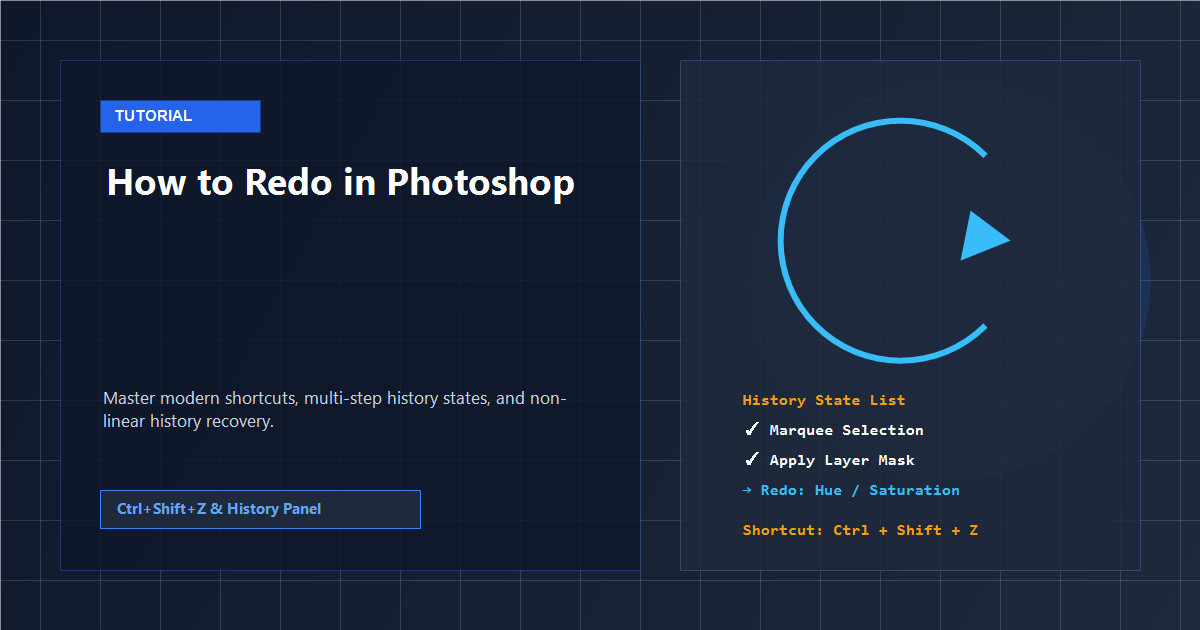
The Keyboard Shortcut Confusion: Modern vs. Legacy Photoshop
Few keyboard commands have generated more confusion among graphic designers than the redo command in Adobe Photoshop. For nearly two decades prior to version CC 2019, pressing Ctrl+Z (or Cmd+Z on Mac) acted as a toggle switch: it undid your last action, and pressing it a second time redid that same action. Moving backward multiple steps required Ctrl+Alt+Z.
Adobe aligned Photoshop with modern operating system standards in 2019, adopting continuous multi-step undo. As a result, the redo shortcut changed to Ctrl+Shift+Z on Windows and Cmd+Shift+Z on macOS. If you frequently jump between software versions or design tools, memorizing these specific combinations is essential.
For a detailed breakdown of reverse step navigation, see our accompanying guide on how to undo in Photoshop. You can also review general navigation patterns in our complete tutorial on how to use Photoshop.
Undo & Redo Command Matrix Across Platforms
Use this reference table to execute step-forward commands accurately across different operating systems and design software versions:
| Operation | Windows Keyboard | macOS Keyboard | Menu Navigation |
|---|---|---|---|
| Redo (Single Step) | Ctrl + Shift + Z |
Cmd + Shift + Z |
Edit → Redo |
| Undo (Single Step) | Ctrl + Z |
Cmd + Z |
Edit → Undo |
| Toggle Last State (Legacy) | Ctrl + Alt + Z |
Cmd + Option + Z |
Edit → Toggle Last State |
| Revert to Saved File | F12 |
F12 |
File → Revert |
| PhotoQuill Web Redo | Ctrl + Shift + Z / Ctrl + Y |
Cmd + Shift + Z |
Edit → Redo |
Re-enable Legacy Shortcuts If Muscle Memory Demands It
If you have twenty years of muscle memory tied to the legacy toggle, you can revert Photoshop to older behavior. Navigate to Edit → Keyboard Shortcuts, select the Edit menu category, and check Use Legacy Undo Shortcuts at the bottom of the dialog.
Using the History Panel: Non-Linear State Recovery
Keyboard shortcuts move linearly: one step backward or one step forward. The History panel gives you visual random access to your entire editing timeline. Each operation—whether it is a feather selection, layer mask paint, or levels adjustment—registers as an individual tile.
When you undo five steps, those five operations do not disappear immediately; they appear grayed out at the bottom of the list. Clicking any grayed-out item instantly restores your project to that exact future moment without requiring multiple key presses.
Enabling Non-Linear History
By default, if you jump back ten states and perform a new action, all subsequent grayed-out states are permanently erased. Non-Linear History alters this rule:
- Click the hamburger menu in the top-right corner of the History panel.
- Select History Options.
- Check Allow Non-Linear History.
With this setting active, making a change to an earlier state preserves all future states in your timeline, allowing you to branch and test alternative creative directions without losing work.
Step-by-Step: How to Redo and Restore States in PhotoQuill
PhotoQuill incorporates desktop-grade history tracking directly inside your web browser. Follow these steps to recover actions and navigate editing states online.
Execute Redo via Keyboard Shortcut
After pressing Ctrl+Z (or Cmd+Z on Mac) to undo a change, immediately press Ctrl+Shift+Z (or Cmd+Shift+Z on Mac). The canvas re-renders the undone layer, filter, or vector path in real time.
Redo via the Application Menu Bar
If you prefer mouse navigation, click Edit in the top menu bar. The first option in the dropdown displays Redo followed by the exact name of the action being restored (for example, Redo Paint Brush). Click it to reapply the edit.
Open the History Window
Navigate to Window → History from the top menu bar to display the floating History palette. Review the vertical stack of edits recorded during your current browser session.
Click Directly on Any Future State
Scroll down the list of history entries. Grayed-out items indicate undone actions. Click directly on the bottom-most grayed-out entry to skip multiple intermediate steps and jump straight to the latest point in your project.