How to Photoshop on iPhone: Free Browser Photo Editor (2026)
Editing photos on iPhone often forces you into stripped-down mobile apps or recurring App Store subscriptions. Here is how to access full desktop-grade layer editing, PSD compatibility, and AI tools in Mobile Safari.
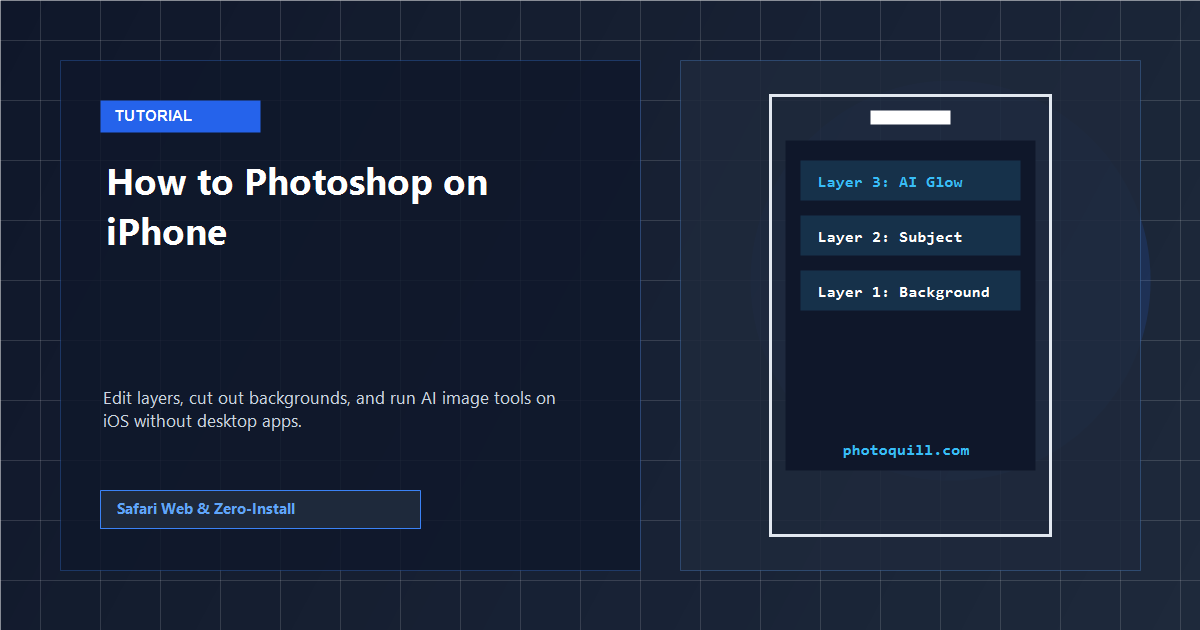
The Mobile Reality: App Store Paywalls vs. Browser Editing
Finding a way to photoshop on iPhone has historically meant choosing between two extremes: downloading subscription-locked apps that demand \$9.99 per month, or settling for basic filter apps that cannot handle layered compositions. Official mobile ports often omit adjustment layers, custom blending, and raw layer masks.
PhotoQuill bypasses the App Store entirely. By harnessing modern WebAssembly and WebGL rendering engines, it runs directly inside Mobile Safari and Chrome on iOS. You get a genuine multi-layer workspace with zero gigabytes of disk usage, zero forced signups, and immediate access to your iCloud Drive files.
Because the core engine runs locally in your browser memory, performance remains fluid even on older models like iPhone 12 or iPhone 13. For a broader look at web-based design without downloads, explore our breakdown on Photoshop alternatives with no download.
Mobile Comparison: App Store Photoshop vs. PhotoQuill Web
Before installing another trial subscription on your iOS device, review how browser-based layer editing stacks up against traditional mobile apps:
| Workflow Feature | Traditional Mobile App | PhotoQuill on iPhone |
|---|---|---|
| Installation | 1.5 GB+ App Store download | Zero install (runs instantly in Safari) |
| Subscription Requirement | \$9.99–\$20.99 monthly paywall | Free core layer editor + daily free AI credits |
| Layer Groups & Masks | Often simplified or locked | Full layer hierarchy, masks, and blend modes |
| PSD File Import & Export | Cloud conversion required | Direct bidirectional PSD parsing in browser |
| AI Tools (Inpaint / Text2Img) | Requires paid Cloud tier | Built-in prompt generator and cutout tools |
Isolate Subjects on the Go with AI Cutout
Need to create transparent product stickers or social profile cutouts on iPhone? Pair your mobile layer canvas with automated subject isolation. Learn the exact process in our tutorial on how to remove background without Photoshop.
Step-by-Step: How to Photoshop on iPhone with PhotoQuill
Follow these exact steps to open your mobile canvas, manipulate layers, and save transparent assets on iOS.
Launch PhotoQuill in Mobile Safari
Open Safari on your iPhone and visit PhotoQuill. Tap the Share button at the bottom of the screen, scroll down, and select Add to Home Screen. Tapping the newly created icon launches the canvas in borderless fullscreen mode.
Open Your Photo or PSD File
Tap File → Open from the top navigation bar. Select Photo Library to pick an iPhone snapshot, or tap Choose File to open layered .psd documents stored in your iCloud Drive or Dropbox folder.
Use Touch Gestures to Pan and Zoom
Pinch two fingers outward on the screen to zoom into fine details such as portrait eyes or product borders. Drag with two fingers across the canvas to pan. Select the Move Tool (V) from the left sidebar to position individual layers.
Adjust Layers and Blend Modes
Tap the Layers tab on the bottom control strip. Tap any layer to make it active, adjust the Opacity slider, or switch the blending mode dropdown from Normal to Multiply, Screen, or Soft Light.
Generate or Inpaint Visual Assets with AI
Tap the glowing AI Generate button in the top menu to reveal the generation drawer. Enter your creative description, pick an aspect ratio (1:1 or 16:9), and tap Generate. Once finished, tap Add Layer to insert the render straight into your composition.
Export to iPhone Photos or Files
When your design is complete, tap File → Export As. Choose PNG to keep background transparency, or select PSD to save your full layer stack for later desktop editing. Long-press the preview image and tap Save to Photos.