How to Photoshop: The Essential Beginner Guide to Image Editing
The phrase to photoshop has become synonymous with all forms of digital image manipulation. From retouching portrait skin and removing tourists from vacation snapshots to crafting complex digital compositions, learning how to photoshop unlocks professional creative power. This foundational guide deconstructs core techniques into practical steps anyone can master.
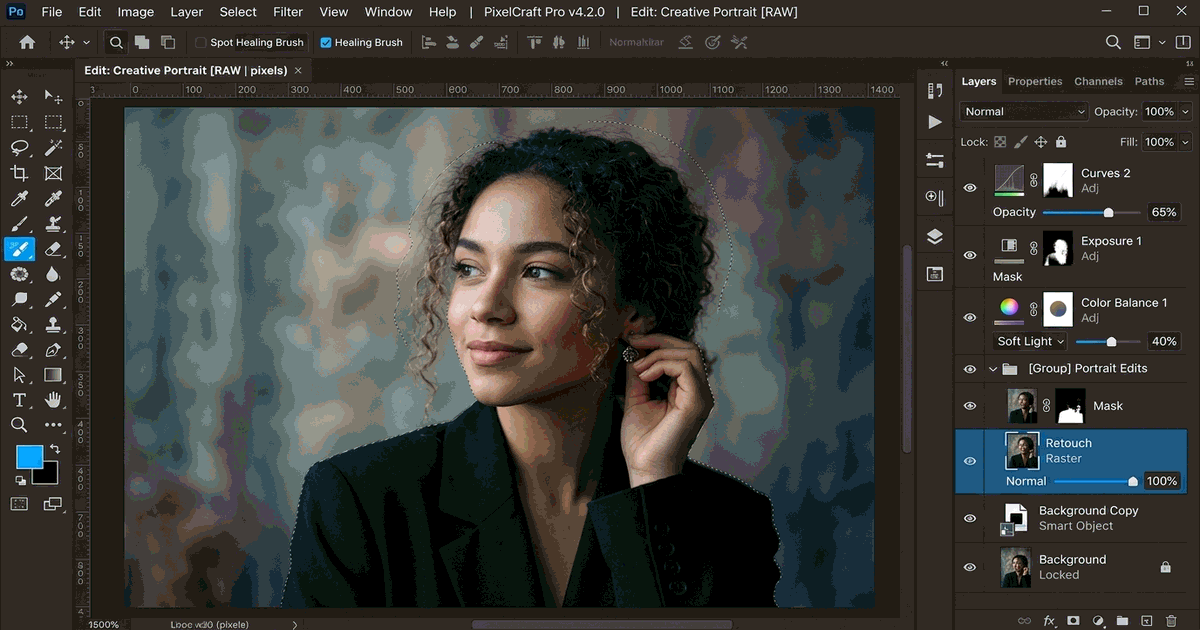
The 5 Pillars of Digital Image Manipulation
Regardless of whether you are using Adobe Photoshop or a modern web alternative like PhotoQuill, every edit relies on five universal principles:
- Layers: Stacked transparent digital sheets allowing you to isolate text, overlays, and color adjustments without touching the original source photo.
- Selections: Defining explicit pixel boundaries so that filters or adjustments apply strictly where you want them.
- Masking: Non-destructive black-and-white stencils where white reveals and black hides parts of a layer.
- Tonal Adjustments: Balancing brightness, contrast, highlights, shadows, and color temperature.
- Retouching Tools: Blending surrounding texture over unwanted blemishes, wrinkles, or powerlines.
Workflow 1: Non-Destructive Blemish and Object Removal
To eliminate distracting specks, dust, or unwanted background items:
- Create a new blank layer above your background image (
Ctrl + Shift + Non Windows,Cmd + Shift + Option + Non Mac). - Select the Spot Healing Brush Tool (shortcut
J). - In the top Options Bar, ensure Sample All Layers is checked and Type is set to Content-Aware.
- Paint gently over blemishes. The algorithm samples surrounding pixels and seamlessly blends tone and texture into the empty layer.
Workflow 2: Isolating Subjects and Changing Backgrounds
Replacing a dull overcast sky or putting a person against a studio backdrop is standard practice:
- Select the Quick Selection Tool (shortcut
W) or click Select Subject in the options bar. - Inspect the marching ants selection outline around your subject's hair, shoulders, and clothing.
- Click the Add Layer Mask icon at the base of the Layers panel. Your background vanishes instantly.
- Place a new photo or solid color layer beneath your cutout to create an entirely fresh scene. For in-depth steps, check our guide on how to remove background in Photoshop.
Comparison: Dedicated Desktop Suite vs. Browser Editing
| Feature | Adobe Photoshop CC | PhotoQuill (Free Web-Based) |
|---|---|---|
| Pricing | $22.99 / month recurring subscription | 100% Free, No subscriptions or hidden fees |
| System Requirements | Heavy RAM usage (16GB+ recommended), GPU | Lightweight, runs in any Chrome / Safari / Edge browser |
| Local Privacy | Cloud sync telemetry | Client-side sandbox processing (No photo uploads) |
| Layer & Blend Mode Support | Full advanced layer architecture | Core layers, blend modes, adjustments, and masks |
Workflow 3: Color and Exposure Correction
Never apply destructive adjustments directly via Image → Adjustments. Instead, click the half-moon Adjustment Layer icon at the bottom of the Layers palette:
- Levels / Curves: Deepen shadows and pull up highlights to rescue flat, underexposed shots.
- Hue / Saturation: Boost vibrancy without causing skin tones to look unnaturally orange. Learn more in our tutorial on how to blend two images in Photoshop.
Frequently Asked Questions
Yes. PhotoQuill gives you standard layer controls, blend modes, crop tools, and adjustment filters directly in your browser without requiring a paid subscription.
Always edit non-destructively. Never work directly on your original background layer; always use duplicate layers, layer masks, and adjustment layers.
Press Ctrl + Z on Windows or Cmd + Z on Mac to step backward through your edit history.
For digital screens, aim for 72 to 150 DPI with horizontal or vertical pixel dimensions between 1080px and 2048px.
With consistent practice, you can master selections, layers, cropping, and basic color balancing within 3 to 5 hours.