How to Deselect in Photoshop
Active selections confine all brushwork and adjustments inside their borders. Here is how to clear marching ants selections in Photoshop and PhotoQuill using keyboard shortcuts and mouse clicks.
Why Marching Ants Block Normal Editing
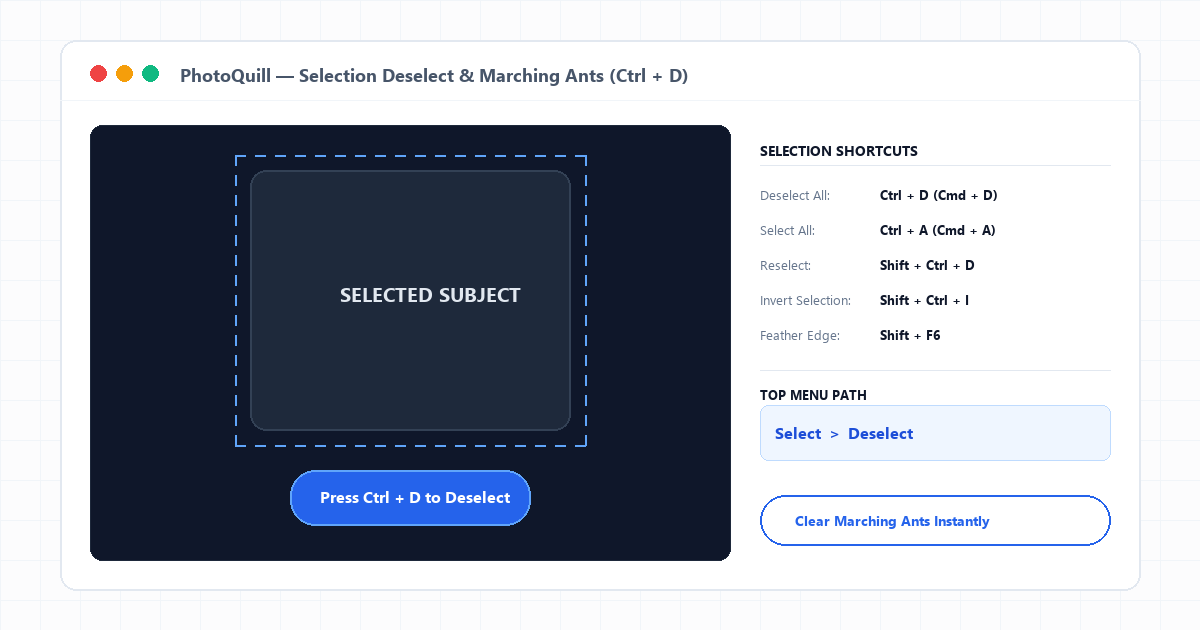
In digital photo editing, an active selection is indicated by animated black-and-white dashed borders commonly referred to as "marching ants." While a selection is active, Photoshop creates an invisible mask across the rest of the canvas: only pixels inside the dashed boundary can be painted, erased, copied, or filtered.
Beginners often panic when their Brush tool stops laying down paint, or when an adjustment filter seems broken. In nearly every case, a tiny accidental 1-pixel selection is active somewhere in the corner of the document. Deselecting releases this constraint, allowing edits to apply across your entire layer canvas once again.
To soften selections before applying edits or clearing them, check out our guide on feathering selection edges.
Three Ways to Clear an Active Selection
Photoshop and PhotoQuill provide multiple quick pathways to clear selections depending on whether your hands are on the keyboard or mouse.
Selection Control Methods
| Method | Windows Command | macOS Command | Speed & Convenience |
|---|---|---|---|
| Universal Hotkey | Ctrl + D |
Cmd + D |
Fastest (Industry Standard) |
| Top Application Menu | Select > Deselect |
Select > Deselect |
Mouse-accessible dropdown |
| Canvas Click | Single left-click with Marquee (M) | Single click with Marquee (M) | Quick mouse gesture on empty area |
If your goal is selecting the background instead of the subject, you do not need to deselect and redraw. Instead, press Shift+Ctrl+I (Shift+Cmd+I on Mac) to run Select > Inverse. If you are experimenting with color contrasts on selections, you can also invert colors directly on the active area.
Recovering Lost Selections and Hiding Marching Ants
If you spent ten minutes carefully cutting out a complex subject with the Lasso tool and accidentally pressed Ctrl+D, do not panic. Photoshop remembers your previous selection coordinates in memory.
Press Shift+Ctrl+D (Shift+Cmd+D on Mac) or choose Select > Reselect. Your exact marching ants boundary reappears instantly.
Step-by-Step: How to Deselect in PhotoQuill
Confirm the Active Selection
Look at your canvas for the flickering dashed outline around an object or region.
Press the Deselect Shortcut
Press Ctrl+D on your keyboard (or Cmd+D if working on a Mac). The dashed outline immediately dissolves.
Alternative: Select from the Top Menu
If you prefer mouse navigation, click Select in the top menu bar, then click Deselect.
Alternative: Click with Marquee Tool
Press M to select the Rectangular Marquee Tool. Click once anywhere on the canvas away from your selection to clear it.
Restore with Reselect If Needed
If you cleared the selection by accident, immediately press Shift+Ctrl+D to restore the marching ants outline.