PhotoCraft Alternative: Free Online Photo Editor with AI (2026)
PhotoCraft gained viral attention as an open-source Rust attempt to rebuild Photoshop. Here is how PhotoQuill delivers instant browser access, layer editing, and built-in AI tools today.
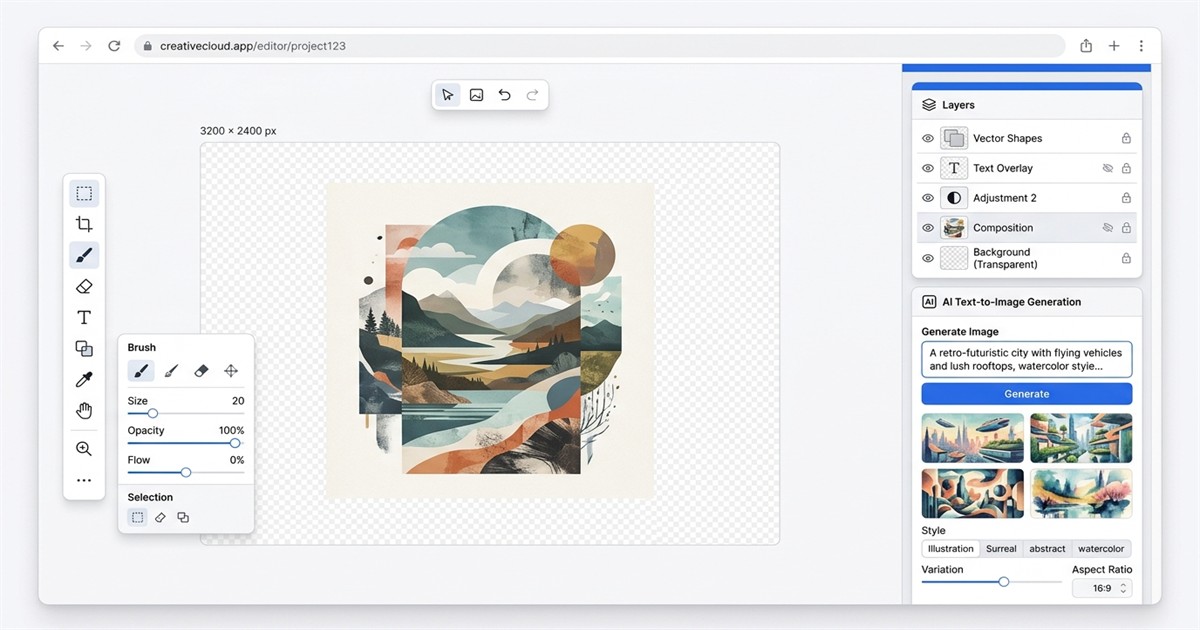
The Ready-to-Use Web Advantage: Instant Access, AI, and Free Credits
The open-source community celebrated PhotoCraft for challenging proprietary subscription models. But creators who need to edit images right now encounter friction: building from Rust source code, handling multi-gigabyte desktop packages, and navigating experimental alpha menus.
PhotoQuill eliminates this setup overhead. Instead of tethering you to a single local machine or an unstable binary, it puts an entire professional layer stack right inside your web browser. You open a URL and start working immediately.
1. Zero Installation: Launch on Any Operating System
Whether you work on Windows 11, macOS, Linux, a school Chromebook, or an iPad, PhotoQuill runs without installation or administrator permissions. You never have to configure Rust toolchains, install dependencies, or wait for compilation. Review our guide on Photoshop alternatives with no download to see how web technologies deliver desktop speed without the local footprint.
2. Built-in AI Image Generation and Modification
While PhotoCraft focuses on technical backend protocols like MCP and command-line interfaces for developer scripts, PhotoQuill brings visual AI tools straight to the canvas:
- AI Text-to-Image Generation: Describe a visual concept, generate high-resolution elements, and insert them directly into your layer hierarchy.
- AI Object Replacement and Inpainting: Brush over an element to remove it or replace it with a newly generated object that blends with surrounding lighting. Explore our tutorial on replacing objects in photos using AI for detailed workflows.
- One-Click Background Removal: Isolate complex hair strands or product edges instantly without tedious pen-tool selections. Learn more in our AI background removal guide.
3. Daily Free AI Credits Without Subscription Traps
High-end generative AI usually hides behind expensive monthly tiers or mandatory paywalls. PhotoQuill gives every user free daily AI credits refreshed every 24 hours. The core raster layer editor remains 100% free with no watermarks, giving designers full freedom to compose, mask, and refine projects.
4. Full Interface in Your Language
PhotoCraft ships an English-only interface with no localization roadmap announced. PhotoQuill ships with a fully localized UI across eight languages, so non-English-speaking teams can work without switching mental gears or consulting translated documentation:
- English — default interface
- 简体中文 (Simplified Chinese)
- Deutsch (German)
- Español (Spanish)
- Français (French)
- 日本語 (Japanese)
- Русский (Russian)
- Čeština (Czech)
The language switches automatically based on your browser locale, or you can select it manually from the interface settings. Every menu label, dialog, and AI prompt placeholder is translated — not just the marketing landing page.
PhotoCraft: The Open-Source Vision vs. Early Alpha Realities
Developed under the ArtCraft suite by Brandon Thomas and the open-source community, PhotoCraft aims to build a clean-room Rust replacement for Adobe Photoshop. The project generated tens of thousands of GitHub stars in its opening weeks by demonstrating that native GPU APIs like Vulkan, Metal, and DirectX 12 can handle raster compositing without Adobe code.
The vision is ambitious, but the current build remains in early alpha. Developers working on the project publicly state that feature parity sits well below 50%. Over twenty core editing tools remain unimplemented, while dozens of menu items act as placeholders that do not execute operations yet.
Early testers frequently report UI lag during tool switching, misaligned selection cursors, and erratic canvas sizing when opening custom projects. For software engineers testing code, PhotoCraft is a fascinating experiment. But for graphic designers, marketers, and photographers facing client deadlines, an experimental alpha cannot replace an active creative workflow.
Feature Breakdown: PhotoCraft vs. PhotoQuill
Comparing the two tools highlights the divide between early experimental desktop binaries and an accessible, production-ready web editor with integrated machine learning tools.
| Feature | PhotoCraft (Rust) | PhotoQuill |
|---|---|---|
| Platform Availability | Desktop Only (Win, Mac, Linux) | Web, Windows, Mac, Chromebook, Mobile |
| Setup Requirement | Download / Compile Binary | Zero Install (Runs in Browser) |
| Current Stability | Early Alpha (<50% Tool Parity) | Production-Ready Core Canvas |
| AI Image Generation | None Out-of-the-Box | Integrated Text-to-Image (New Layers) |
| AI Photo Inpainting & Retouch | None (Agent Protocol Only) | Object Replace, Inpaint, Cutout |
| Daily Free Allowance | Free Open Source Code | Free Layer Editor + Daily Free AI Credits |
| Adobe PSD / PSB Support | Basic File Round-Trip | Bidirectional Import & Export |
| Layer Blending & Masks | In Development | Full Blend Modes, Groups, Masks |
| Interface Language | English Only | 8 Languages (EN, ZH, DE, ES, FR, JA, RU, CS) |
Preserve Layer Hierarchies Without Desktop Lock-in
Design projects rarely live in isolation. If collaborators share layered Photoshop .psd assets, PhotoQuill parses adjustment layers, folders, and opacity settings directly in your tab. You make your edits, generate AI elements, and export back to PSD without flattening artwork. Find out more in our free online PSD viewer and layer editor walkthrough.
Step-by-Step: Editing and Generating Art in PhotoQuill
Follow these specific steps to open an image, use generative AI, and export a layered composition in your browser without downloading desktop software.
Open PhotoQuill in Your Browser
Open your browser and navigate to PhotoQuill. Drag and drop any image or PSD document onto the main canvas. To open files through the interface, click File → Open (Ctrl+O) and pick your file from local storage.
Generate Elements Using AI Text-to-Image
Click the AI Tools button on the top toolbar to reveal the prompt drawer. Enter your subject prompt in the input box, select an art style, and click Generate. The newly created visual renders as a fresh layer on top of your canvas stack.
Modify and Blend with Layer Controls
Select your generated layer in the Layers panel on the right. Press Ctrl+J to duplicate the layer or change the blending mode dropdown from Normal to Screen or Overlay. Use the Selection Brush to mask out unwanted portions with smooth feathering.
Export as Layered PSD or Web Image
When adjustments are finished, navigate to the top menu and select File → Export As. Choose PSD to preserve individual layers, masks, and text objects, or select PNG or WebP for optimized web publishing.