Compositor for Windows & Web: Best Free Alternative (2026)
Compositor gained attention as a lightweight Photoshop alternative, but it remains locked to macOS. Here is how Windows and web users can edit layered images and PSD files without installing software.
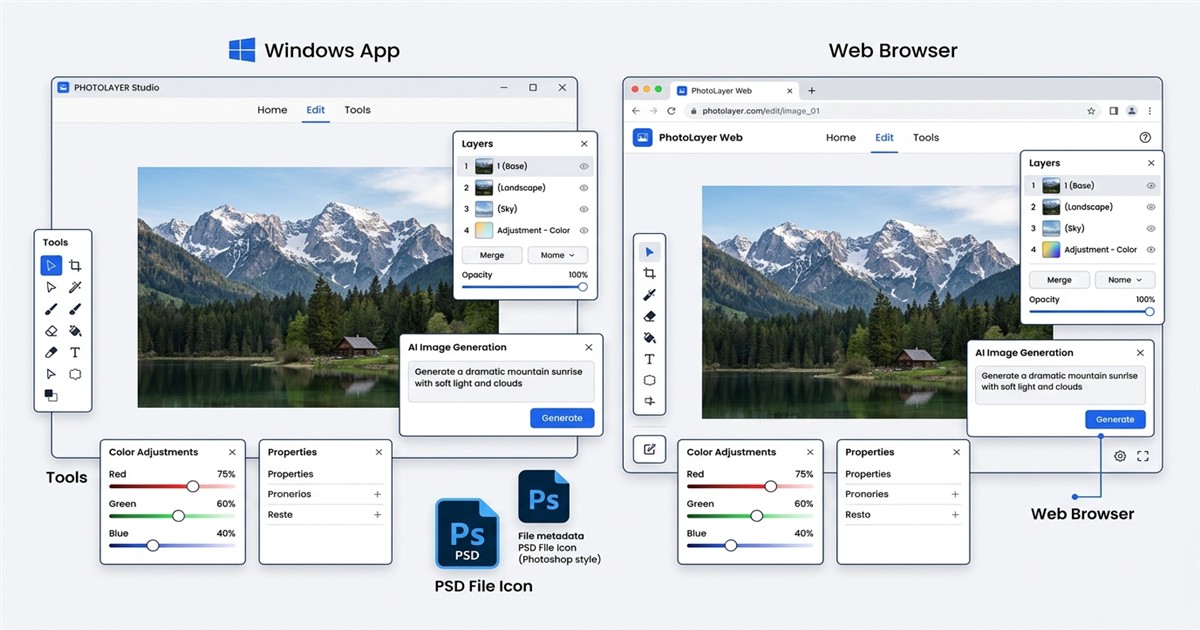
The Missing Windows and Web Version of Compositor
Developer Robbie Tilton built Compositor to give creators a bloat-free, layer-oriented photo editor without Adobe Creative Cloud subscriptions or telemetry. The application weighs around 12 MB, launches in seconds, and provides classic essentials: layers, blending modes, clipping masks, adjustment curves, and healing brushes.
That lightweight approach caught fire across developer and designer communities. However, users quickly encountered a hard wall: Compositor is built exclusively in Swift and tightly coupled to Apple's Metal graphics API. There is no official Windows installer, no Linux package, and no web browser version.
Over 70% of desktop users run Windows, while millions more design on Chromebooks, work laptops, and tablets where installing third-party native software is restricted or impossible. Waiting for an open-source port to rewrite thousands of lines of Metal shader code into Direct3D or Vulkan takes months or years. If you need a flexible, subscription-free workflow today, you need a tool that runs anywhere without OS boundaries.
Feature Breakdown: Compositor vs. PhotoQuill
PhotoQuill takes the concept of a lightweight, subscription-free Photoshop alternative and brings it directly into the modern web browser. Powered by WebAssembly and WebGPU, it delivers desktop-grade image processing across Windows, macOS, Linux, ChromeOS, iPadOS, and iOS without requiring a single installer file.
| Feature | Compositor | PhotoQuill |
|---|---|---|
| Platform Support | macOS Only | Windows, Mac, Web, Mobile |
| Installation | 12 MB Mac Download | Zero Install (Runs in Browser) |
| Adobe PSD Compatibility | PSD import only (text & vectors rasterized; saves as .comp) | Full PSD Import & Export (layers preserved) |
| Layer Styles & Blending | Standard Blend Modes | Full Blend Modes, Folders, Masks |
| AI Image Generation | None Built-in | Text-to-Image Generation |
| AI Photo Modification | Local Cutout Only | Inpainting, Object Replace, Cutout |
| Daily Free Allowance | Free Open Source | 100% Free Canvas + Daily Free AI |
| File Privacy | Local on Device | Local Canvas Processing |
Native PSD Interoperability Without Desktop Lock-in
One primary drawback of early open-source editors like Compositor is file isolation. If a client or team member sends you an Adobe Photoshop .psd file with nested layer groups, smart objects, and text styling, proprietary folder manifests cannot open it. For complete compatibility details, review our free PSD viewer and layer editor guide.
Why PhotoQuill Is the Best Cross-Platform Alternative
PhotoQuill bypasses operating system limits by executing directly inside modern browsers. Whether you sit at a custom Windows 11 desktop, a ThinkPad running Ubuntu, or an office Chromebook, your canvas looks and behaves identically. You get complete layer stacks, adjustment layers, marquee selections, clone stamping, and transform controls without configuring dependencies or managing graphic drivers.
Modern browser graphics have evolved rapidly. With WebGPU and SIMD WebAssembly, operations like Gaussian blur, sharpen filters, and high-resolution raster compositing run directly on your GPU hardware. You can learn more about high-performance web graphics in our overview of browser-based photo editors like Photoshop.
Integrated AI Generation and Object Editing
While traditional tools treat AI as an afterthought or require external plugins, PhotoQuill embeds generative models directly into your canvas workflow. You can type a descriptive prompt to generate brand-new concept art, composite it as a fresh layer, and mask away unwanted areas in seconds.
Need to retouch an existing photo? Use the selection brush to isolate a distraction and prompt the AI to replace it with matching background texture. If you need clean cutouts for product listings or portraits, our automated tool removes solid or complex backgrounds with a single click. For step-by-step techniques, refer to our AI background removal guide.
Step-by-Step: Editing Photos on Windows with PhotoQuill
Follow these concrete steps to open your image, manage layer structures, and perform AI edits directly in your browser on Windows or any desktop operating system.
Open PhotoQuill and Load Your File
Open your browser and navigate to PhotoQuill. Drag and drop any image or existing .psd document onto the main canvas area. Alternatively, go to the top menu and click File → Open (Ctrl+O) to select a file from your local disk.
Organize Layers and Blending Modes
Locate the Layers panel on the right sidebar. Press Ctrl+J to duplicate your base layer. Click the blending mode dropdown (currently set to Normal) and change it to Multiply, Screen, or Soft Light to blend composite elements naturally.
Use AI to Generate or Modify Elements
Click the AI Tools button on the top toolbar. To generate fresh imagery, enter your prompt in the text box and click Generate. To isolate a portrait or product, select your layer and click Remove Background to generate an instant cutout mask.
Export Your Project with Layers Intact
When your design is complete, click File → Export As. Choose PSD to save a multi-layer document compatible with Adobe Photoshop, or choose PNG or WebP for optimized web sharing.