Free Gimp Online Editor: What Actually Works in the Browser
1. Why People Search for a Free Gimp Online Editor
Typing free Gimp online editor into a search bar almost always comes from the same spot: you don't want to pay for Photoshop, you don't want to sit through a large desktop install, and you heard Gimp is powerful but a bit rough around the edges. A browser version sounds like the perfect middle ground.
And to be fair, online Gimp wrappers do fill a narrow niche. If you just need to fix red-eye, hide a pimple, or punch up the color on a holiday photo, a simplified web build is fast enough. You open a tab, drop an image in, click a few auto-tools, and move on.
The problem shows up the moment your work is slightly more serious than that.
2. What a Gimp Online Editor Actually Gives You
Most free Gimp online editors you find on top search results are slimmed-down, beginner-focused wrappers. They typically hand you:
- Basic crop, resize, and rotate.
- Auto-enhance, color grading, and simple curves.
- Spot-heal and red-eye removal.
- A small set of filters and overlays.
- Export to JPG or PNG.
That is genuinely useful for one-off social media edits. But you won't find the parts of Gimp that made it famous: scripting with Script-Fu, third-party plugins, brush engines, GEGL-based filters, detailed channel work, or real raw file processing. The desktop Gimp experience is intentionally cut down for the web.
In other words, a "free Gimp online editor" is Gimp's name, not Gimp's software. It's a lightweight editor that behaves like the photo-kiosk parts of Gimp, with the heavy machinery left behind.
4. A Browser Editor Built for the Same Job
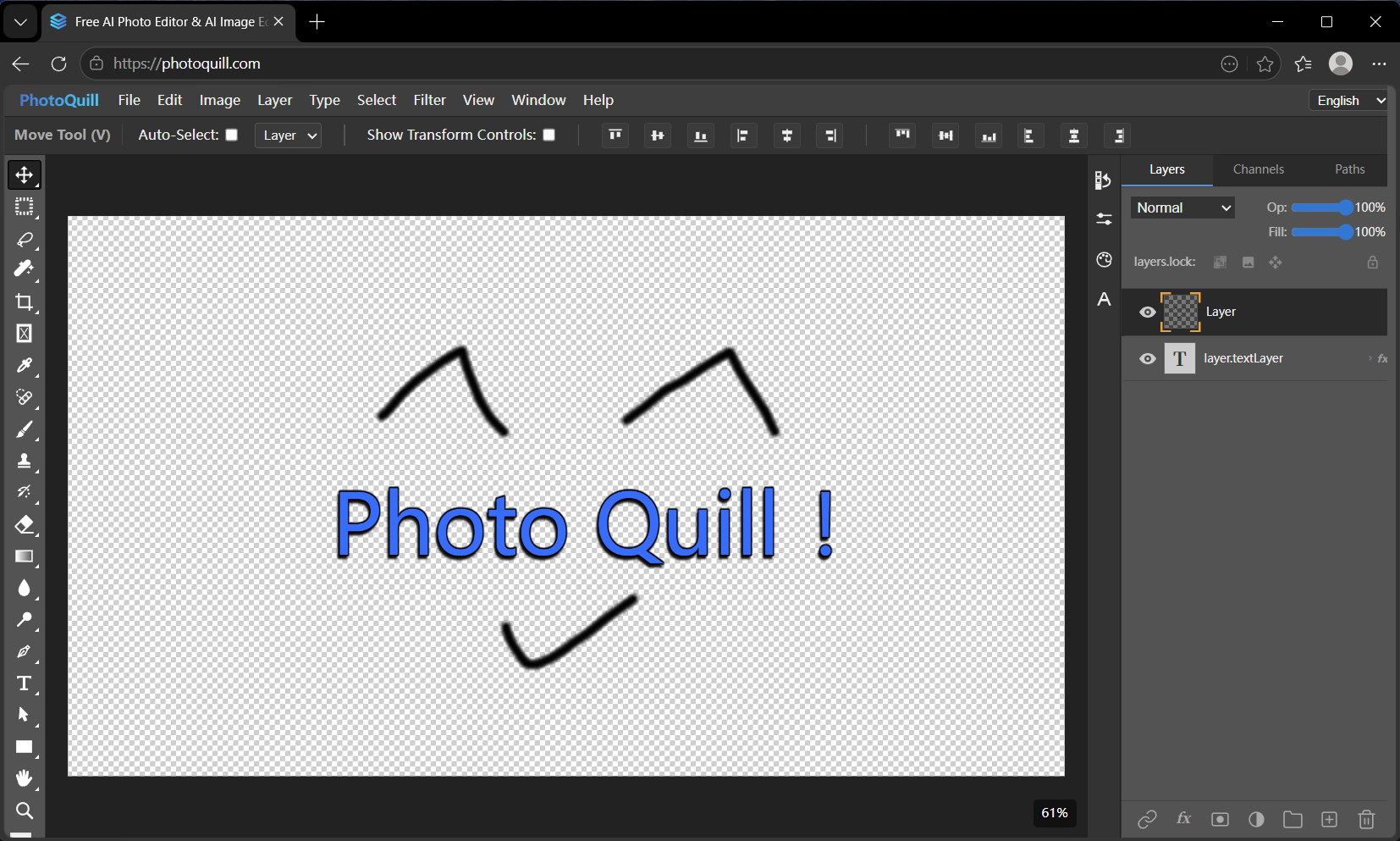
This is where a modern browser editor like PhotoQuill lines up well with what people actually want when they search for a free Gimp online editor. Same tab-first workflow, same "no install" promise, but with the parts that matter for design work still intact.
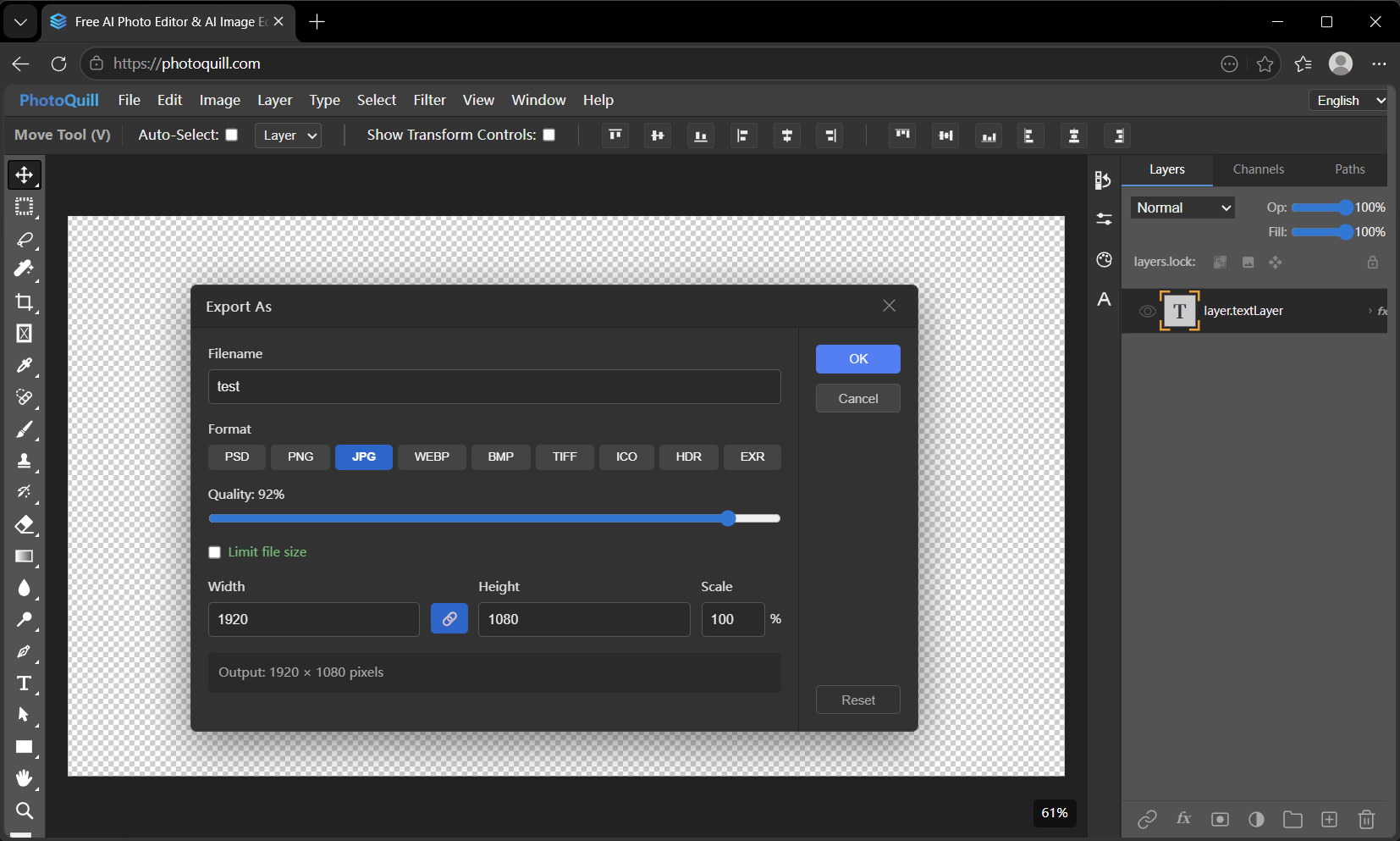
PhotoQuill runs on WebGPU, so even large documents stay responsive. You get a full layer stack with groups, masks, and blend modes, proper text layers, adjustment-style controls, keyboard shortcuts that don't fight your muscle memory, and exports to PNG, JPG, WebP, or PSD without a watermark.
Files never get uploaded. The PSD parser, canvas, and export pipeline all run on your device, so your image stays where it started. For anyone using "Gimp online" as a stand-in for "Photoshop online, but free," that's the combination that actually lands.
5. Free Gimp Online vs PhotoQuill at a Glance
| Capability | Typical Gimp Online Editor | PhotoQuill | Desktop Gimp |
|---|---|---|---|
| Install required | No | No | Yes |
| No signup to edit | Varies | Yes | Yes |
| Full layer panel with groups and masks | Limited | Yes | Yes |
| Opens PSD files cleanly | Flaky | Yes | Partial |
| Files stay on your device | Usually uploaded | Yes | Yes |
| WebGPU acceleration | No | Yes | No |
| Batch editing across tabs | Single file | Multi-tab | Yes |
| Free export, no watermark | Varies | Yes | Yes |
6. Start Editing in Under a Minute
- Open photoquill.com in Chrome, Edge, or any modern browser.
- Drag your JPG, PNG, WebP, or PSD directly onto the canvas.
- Use the layer panel on the right to stack edits non-destructively.
- Pick up familiar shortcuts: V for move, B for brush, T for text, Ctrl+Z to undo.
- Export to your format of choice. Nothing leaves your device.
7. FAQ
Is a free Gimp online editor the same as the full desktop Gimp?
No. Most online Gimp editors are simplified web wrappers aimed at beginners. They expose a handful of retouching and color tools but drop heavier features like scripting, third-party plugins, custom brushes, and advanced filters you'd find in the desktop build.
Can I edit layered files in a Gimp online editor?
Partially. Some online Gimp editors can open a layered file, but layer controls are usually limited. For real layered work with blend modes, masks, and groups, a browser-based editor like PhotoQuill behaves much closer to desktop software.
Are free online Gimp editors safe to use with private photos?
It depends. Many free online editors upload your file to a server to render it, which means your image leaves your device. Editors that run entirely on your device with WebGPU keep the file local and are safer for private or client work.
Can I open a PSD file in a Gimp online editor?
Online Gimp editors offer patchy PSD support at best. If your workflow revolves around PSDs shared by teammates or clients, a browser editor built around PSD parsing, like PhotoQuill, is a more reliable choice.
Do I need to create an account to use a free Gimp online editor?
Some require signup, some don't. PhotoQuill does not require any account to open, edit, and export images in the browser. You can start editing in under ten seconds from a fresh tab.