Photopea No Ads: What the Sidebar Costs and How to Skip It
- 1. Why "Photopea No Ads" Is Such a Common Search
- 2. What the Ad Sidebar Actually Costs You
- 3. The Three Routes People Try (and Where Each Breaks)
- 4. The Cleaner Option: An Editor Without Ads in the First Place
- 5. Photopea With Ads vs Premium vs PhotoQuill
- 6. Moving Your PSDs Over in Under a Minute
- 7. Photopea Ad-Free Alternatives FAQ
1. Why "Photopea No Ads" Is Such a Common Search
There's a reason Photopea no ads is one of the most-typed queries in the browser-editor space. The ad sidebar in Photopea isn't subtle. It sits permanently on the right edge of the workspace, serves programmatic ads from multiple networks, and on smaller laptop screens it can eat a meaningful chunk of canvas real estate.
Photopea is honest about the trade. The free version is ad-supported, and Photopea Premium at roughly five dollars per month is the official way to remove ads. That's a fair business model, and it pays for a product a lot of people rely on. But that doesn't mean everyone wants to pay five dollars a month, and it doesn't mean everyone wants animated ad creatives next to a client's photo during a Zoom screen share either.
So the search volume around Photopea without ads, remove ads from Photopea, and hide Photopea ads keeps growing. The demand isn't hostility toward the project; it's friction with the format.
2. What the Ad Sidebar Actually Costs You
The lost pixels are the obvious part, but they're not the whole story. Here's what the ad sidebar tends to cost in real workflows:
- Horizontal canvas space. On a 13-inch MacBook, the right sidebar can claim 250 to 300 pixels. That's a meaningful percentage of the workspace, especially when you're already running a layer panel on the right side as well.
- Focus. Motion in peripheral vision is hard to ignore. Animated ads train your eye away from the canvas every few seconds.
- Client-facing optics. Sharing your screen with a client or in a YouTube tutorial means their eye lands on an ad for a game before it lands on your work.
- Anti-adblock friction. If you run a general ad blocker, Photopea will show an "ad blocking detected" notice and certain features (like some AI tools gated behind "watch an ad to unlock") may not function until you allowlist the site.
- Occasional bad creatives. Photopea's own documentation acknowledges that malicious or full-screen ads occasionally slip through the programmatic ad networks and have to be reported.
None of that makes Photopea a bad product. It just explains why so many of its users are actively looking for an ad-free path.
3. The Three Routes People Try (and Where Each Breaks)
Route 1: Photopea Premium (the official way)
Five dollars per month, tied to the email address on your Photopea account. It removes the ad sidebar and unlocks extra cloud storage. The catch is simple: it's a recurring subscription for an editor you originally chose because it was free. For hobbyists, students, or occasional users, the economics rarely land.
Route 2: Userscripts and browser extensions
Searching Photopea no ads surfaces a steady stream of Tampermonkey userscripts, GitHub repos, and a Chrome Web Store extension whose entire job is to hide the ad container in the Photopea DOM. They usually work by spoofing viewport width, pushing the ad div off-screen, or overriding the anti-adblock check.
The practical issue is maintenance. Photopea periodically updates its anti-adblock logic, so scripts that work today may silently stop working next month. You end up rotating through three different scripts to find the one that's currently patched. For anyone who just wants to edit a photo, that's more fiddling than the problem is worth.
Route 3: Standard ad blockers
uBlock Origin or similar tools do block Photopea's ads, but Photopea detects the block and shows a notice. Some features locked behind "watch an ad" prompts stop working until you allowlist the domain or disable the blocker. It's a dance, not a fix.
4. The Cleaner Option: An Editor Without Ads in the First Place
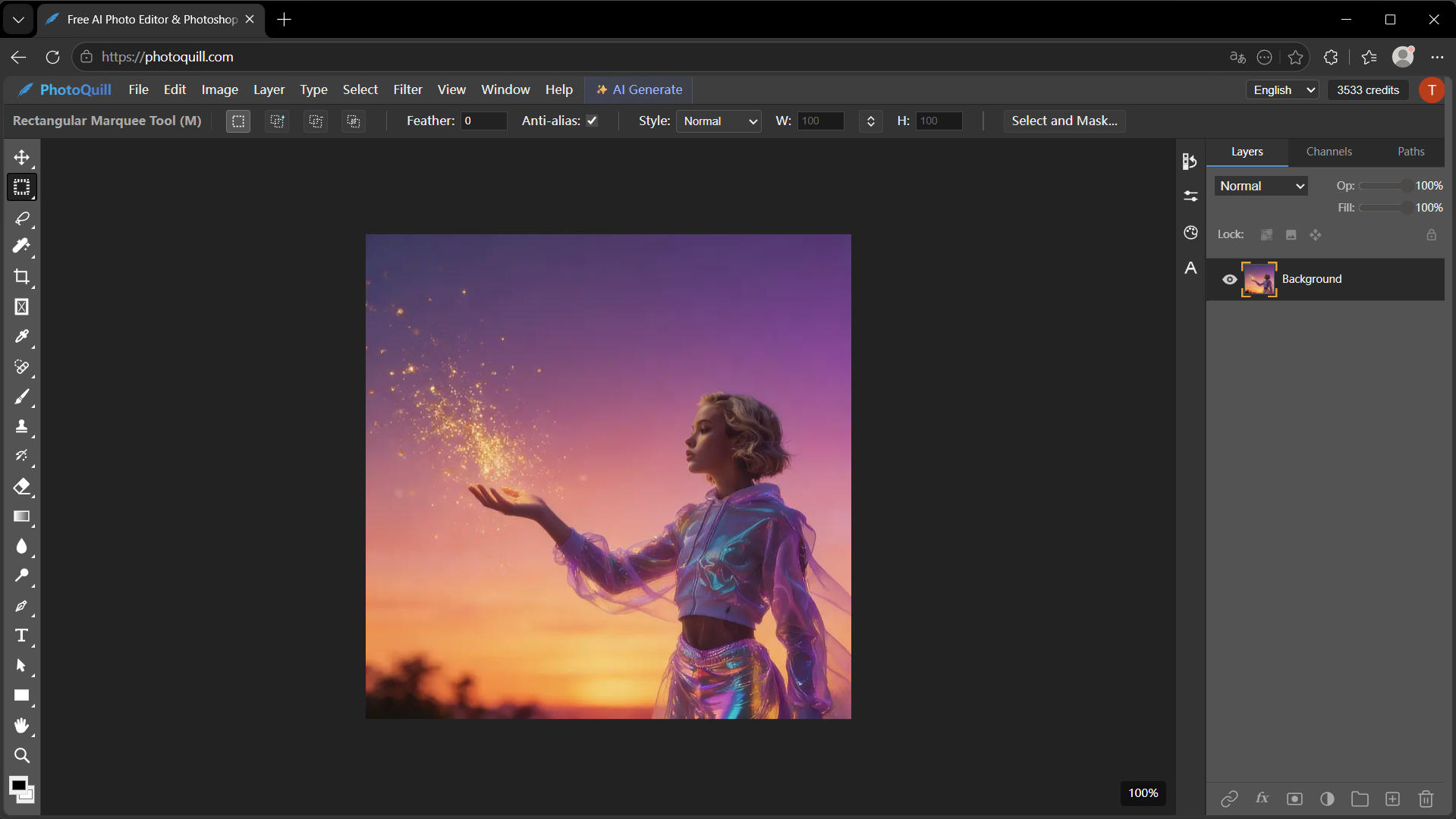
The honest framing of "Photopea no ads" is: you want a capable browser editor where the sidebar isn't paid for by your attention. That's exactly what PhotoQuill is built as.
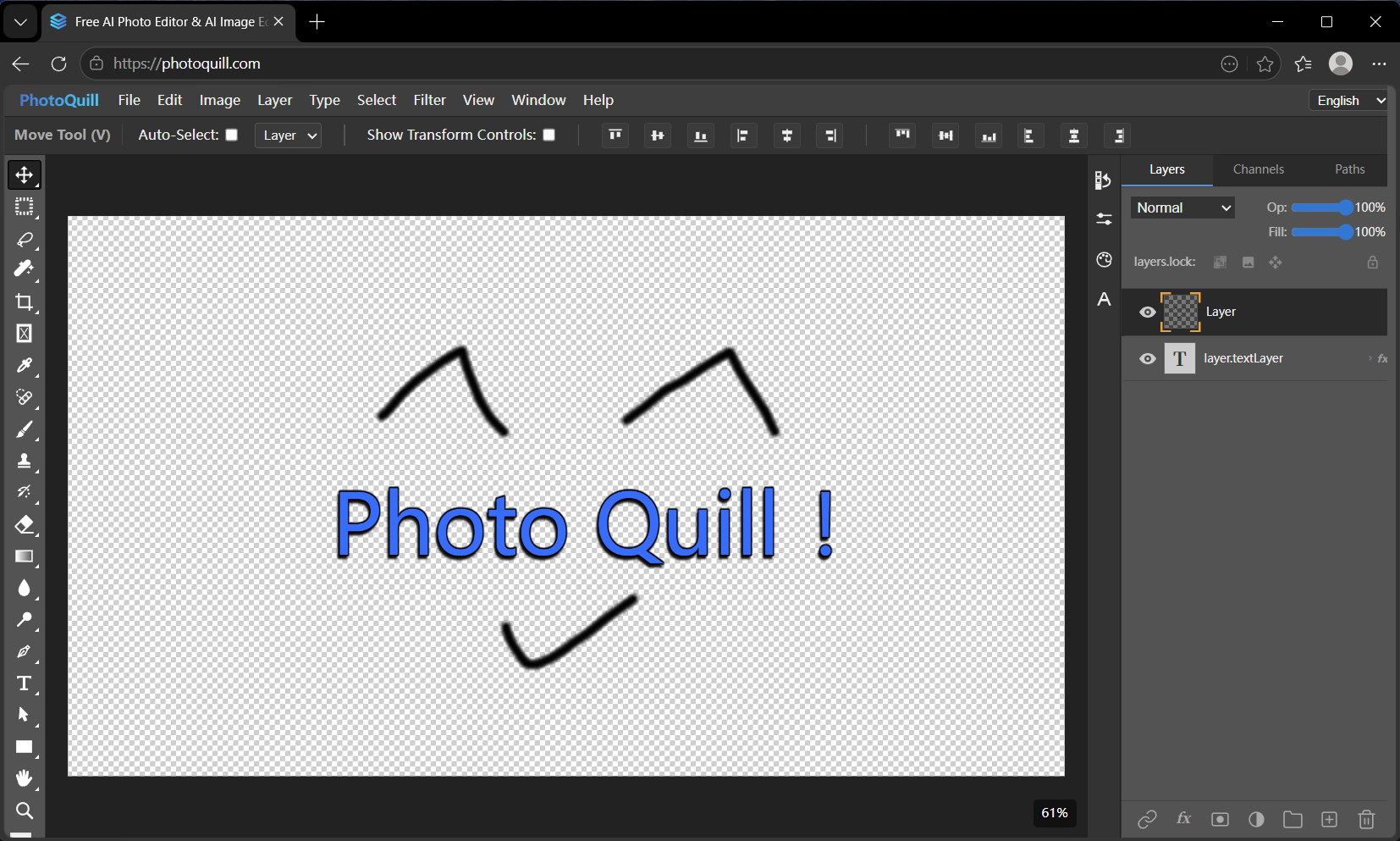
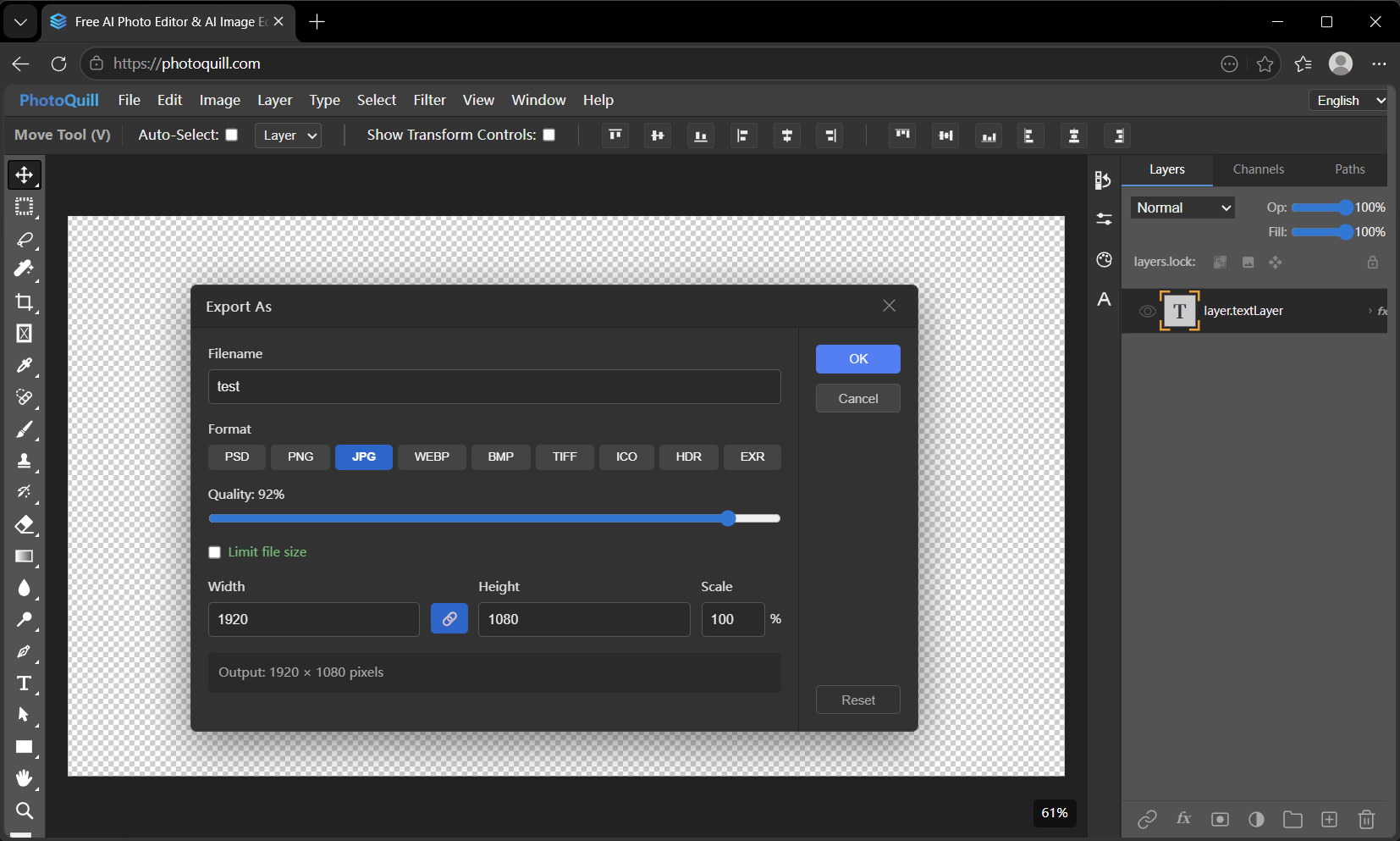
PhotoQuill runs entirely in your browser using WebGPU. There is no ad sidebar, no anti-adblock gate, and no "watch an ad to use this tool" flow. The editor is free to use with layers, groups, blend modes, masks, text layers, and keyboard shortcuts that match what you already know. Exports to PNG, JPG, WebP, and PSD are free and watermark-free. There is an optional paid AI credit bundle for generative features, but the core editor never was and never will be ad-supported.
Files stay on your device. PhotoQuill parses PSDs locally; nothing is uploaded. For anyone who started on Photopea because of its zero-install, run-anywhere promise, this is the same promise minus the ad layer.
5. Photopea With Ads vs Premium vs PhotoQuill
| Capability | Photopea (free) | Photopea Premium | PhotoQuill |
|---|---|---|---|
| Monthly cost | Free | ~$5/mo | Free |
| Ad sidebar in the workspace | Yes | Removed | Never had one |
| Anti-adblock detection | Yes | N/A | N/A |
| Full layers, blend modes, masks | Yes | Yes | Yes |
| PSD open and save | Yes | Yes | Yes |
| Files stay on your device | Yes | Yes | Yes |
| WebGPU acceleration | No | No | Yes |
| Signup required to edit | No | Yes (account) | No |
| "Watch an ad to unlock" gates | Some features | Removed | None |
6. Moving Your PSDs Over in Under a Minute
- Export your current project from Photopea as a PSD (File → Export as → PSD).
- Open photoquill.com in the same browser.
- Drag the PSD onto the canvas. Layers, groups, blend modes, and masks come through intact.
- Keep working. Shortcuts like V, B, T, and Ctrl+Z behave the way you expect.
- Export back to PSD, PNG, JPG, or WebP without a watermark.
7. Photopea Ad-Free Alternatives FAQ
How do I get Photopea with no ads?
Photopea's official ad-free route is the Premium subscription, priced at five dollars per month. Unofficial routes include userscripts and browser extensions that hide the ad sidebar, but these often break when Photopea updates its anti-adblock detection.
Is it against Photopea's rules to remove ads?
Photopea monetizes the free tier through ads and actively detects blockers. The service may show an ad-blocking warning or limit certain features if it detects ad blocking. Using an editor that doesn't run ads in the first place avoids this cat-and-mouse situation entirely.
Why do Photopea ad-remover scripts keep breaking?
Photopea updates its anti-adblock checks periodically. Scripts that work one month may stop working the next. Maintainers on GitHub, Greasyfork, and Chrome Web Store regularly push patches, but there is always a window where the workaround fails.
Is there a free browser editor without ads at all?
Yes. PhotoQuill is a browser-based image editor with layers, PSD support, and WebGPU rendering. It has no ad sidebar, no anti-adblock detection, and no forced signup. Optional AI credits are paid, but the editor itself is free and ad-free.
Can a clean browser editor open my existing Photopea files?
If your files are PSD, yes. PhotoQuill parses PSD files locally in the browser, preserving layers, groups, masks, and blend modes. You can continue the project you started in Photopea without re-exporting.