Image to PSD Converter: Convert Any Picture to Photoshop PSD Online
Transforming raster graphics such as JPG, PNG, WebP, or HEIC into production-ready Adobe Photoshop documents used to require either a costly creative cloud license or generic cloud converters that flatten everything into a locked single background layer. PhotoQuill delivers an in-browser image to PSD converter powered by local WebAssembly and intelligent AI layer deconstruction, giving you native Photoshop files with complete layer separation and zero server uploads.
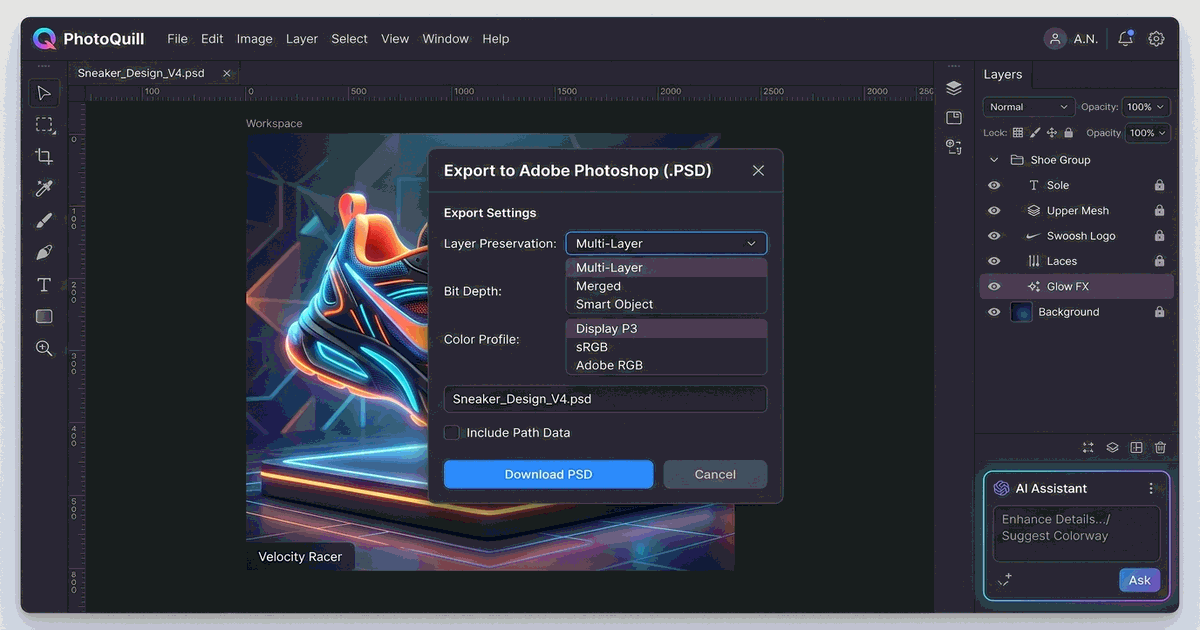
Two Approaches: Direct Lossless Conversion vs. AI Layer Deconstruction
When converting an image to PSD, digital artists and graphic designers generally face two distinct technical requirements: exact container encapsulation or semantic multi-layer reconstruction. Understanding which pathway fits your production pipeline determines whether you receive a standard single-layer master file or a fully editable multi-layered asset.
In standard container conversion, the input image (whether a 32-bit transparent PNG or an uncompressed TIFF) is decoded into raw pixel arrays, assigned color profile tags, and packaged directly into Adobe specification binary chunks. This guarantees that bit depth, transparent alpha channels, and original resolution are preserved with zero re-compression artifacts, making it ideal for archiving and cross-software migration.
However, when dealing with marketing posters, social media banners, or flattened mockups, a single background layer restricts further typography updates or background adjustments. This is where modern generative models change the paradigm: instead of simple format wrapping, an AI assistant inspects visual semantics, separates isolated subjects, extracts typography into true vector text layers, and reconstructs the hidden background canvas.
Direct Format Encapsulation (Pixel-Lossless)
Best for: Transparent logos, raw photograph exports, web asset archiving, and retaining strict color profiles without altering composition.
Execution: The browser decodes your image into an RGBA framebuffer, maintains native bit depth (8-bit, 16-bit integer, or 32-bit floating point), preserves embedded ICC profiles, and compiles a clean .psd file ready for immediate desktop editing.
Quick option: to turn a batch of images into single-layer PSDs without opening the editor, use the free PNG to PSD converter or JPG to PSD converter.
AI Layer Deconstruction (Semantic Separation)
Best for: Flattened promotional graphics, banners with burnt-in text, composite illustrations, and graphics where individual elements must be moved or restyled.
Execution: The PhotoQuill AI Assistant inspects visual boundaries, isolates subjects into clean alpha-cutout layers, maps detected typography into native Photoshop Text layers, and inpaints background gaps using deep diffusion models.
Note: AI layer deconstruction is a cloud-powered operation. It requires a PhotoQuill account and a minimum credit balance of 50 credits to start (background inpainting: 30 credits; each transparent element or art-text layer: 20 credits).
Supported Formats, Color Profiles, and Technical Specifications
A reliable image to PSD converter must navigate a wide variety of contemporary image encodings without stripping essential metadata. PhotoQuill handles standard web formats as well as modern container standards and camera RAW files directly inside the client engine, avoiding server latency and bandwidth constraints.
For transparency-heavy workflows, PNG files carrying 8-bit palette alpha or 24-bit RGB with 8-bit alpha channels are accurately mapped into Photoshop layer masks or direct layer transparencies. This prevents the dark halo fringes often caused by incorrect premultiplied alpha handling during format translation. Similarly, high-efficiency WebP and Apple HEIC photos are parsed through dedicated WebAssembly decoders, maintaining optimal dynamic range.
Color management remains another cornerstone of professional asset conversion. PhotoQuill respects embedded color profiles (such as sRGB, Display P3, and Adobe RGB 1998). When writing the PSD color mode data block, the parser retains color primaries and transfer functions so your imagery looks identical on wide-gamut monitors and calibrated printing presses.
| Source Format | Channel Architecture | Maximum Resolution | PSD Output Characteristic |
|---|---|---|---|
| PNG (Portable Network Graphics) | RGB / RGBA (8-bit, 16-bit) | Up to 16,384 × 16,384 px | Retains true transparent Alpha channel as native layer transparency |
| JPEG / JFIF | RGB (8-bit per channel) | Up to 30,000 × 30,000 px | Zero additional lossy compression; embeds original EXIF and ICC tags |
| WebP (Lossy & Lossless) | RGB / RGBA (8-bit) | Up to 16,383 × 16,383 px | Decodes VP8/VP8L frames into uncompressed PSD layer buffers |
| Apple HEIC / HEIF | RGB (8-bit, 10-bit HDR) | Hardware dependent | Converts HEVC/AV1 tiles directly into standard 8/16-bit PSD layers |
| Camera RAW (CR2, NEF, ARW) | Bayer sensor RAW (12/14-bit) | Full sensor resolution | Demosaiced via libraw-wasm into high-precision 16-bit linear PSD |
How to Convert an Image to PSD in PhotoQuill
Converting your imagery to a Photoshop document in PhotoQuill requires zero software installation — standard format conversion runs 100% locally in your browser, while advanced AI layer deconstruction is available on demand. Follow this practical four-step workflow to produce your files:
Load Your Source Graphic
Drag and drop your target file onto the PhotoQuill canvas, or choose File → Open from the top navigation. The file parses inside your browser within milliseconds without uploading to any remote storage.
Inspect Color Mode and Canvas Geometry
Verify your document dimensions under Image → Canvas Size. If you are preparing an asset for print or high-end grading, navigate to Image → Mode to select 8-bit, 16-bit, or 32-bit channels according to your project requirements.
Apply Adjustments or Trigger AI Layer Separation
If you only need a flattened container conversion, proceed directly to export. To separate individual editable elements, open the AI Assistant sidebar from the top toolbar, then click the plus icon (+) in the bottom-left corner of the input field and select your flat image. The welcome card pre-fills the deconstruction instruction automatically — review the layer plan and confirm to begin generation.
Export Native Photoshop PSD
Click File → Save As PSD. PhotoQuill compiles the active layer stack, color channels, blending modes, and layer masks into an industry-standard .psd file and triggers an instant browser download.
Diagnostic Comparison: Traditional Online Converters vs. PhotoQuill Studio
Most free online file converters operate on obsolete server-side command-line scripts like ImageMagick. While suitable for simple batch jobs, they fall short when designers demand fidelity, security, and multi-layer structural control.
The comparative matrix below outlines the critical differences between standard third-party conversion utilities and PhotoQuill's client-side WebGPU and AI architecture:
| Capability | Generic Cloud Converters | PhotoQuill In-Browser Studio |
|---|---|---|
| Layer Architecture | Single flattened background layer only | Multi-layer composition + AI semantic layer deconstruction |
| Text Editability | Rasterized pixels (non-editable text) | Native Photoshop Text layers with font styling and alignment |
| Data Privacy & Security | Files uploaded to unknown third-party servers | 100% Client-side local execution; files never leave device |
| File Size Limitations | Restricted to 10MB ~ 25MB caps behind paywalls | Virtually unlimited (governed only by device system RAM) |
| Transparency Preservation | Often fills transparent regions with black or white | True 32-bit RGBA alpha channel preservation and matting |
| Non-Destructive Adjustments | None; output is static raster image | Full support for adjustment layers (Curves, Levels, HSL) |
Pro Tips for Flawless PSD Generation
To ensure your converted PSD integrates smoothly into professional print and digital publishing environments, keeping several technical best practices in mind will save substantial retouching time later.
First, always verify whether your target application requires premultiplied or straight alpha channels. When exporting transparent PNG icons or product cutouts into a PSD, PhotoQuill automatically cleans fringe pixels to avoid light or dark border artifacts along high-contrast silhouette edges. For deeper control over background extraction, check out our guide on how to remove backgrounds without Photoshop.
Second, when converting composite graphics where typography must be revised, take advantage of dedicated AI layer reconstruction rather than manually redrawing paths. Review our comprehensive step-by-step tutorial on how to convert image to psd with layers using AI to master prompt formulation, layer reviews, and font mapping. And if you need to inspect complex files created across different versions of design software, consult our guide to opening PSD files without Photoshop.