Photoshop for Chromebook — What Actually Works on ChromeOS
1. The Honest Truth: Photoshop Doesn't Run on ChromeOS
If you bought a Chromebook and now need to edit photos, you've probably already noticed: Adobe doesn't make a native Photoshop app for ChromeOS. There's a "Photoshop on the Web (Beta)" for existing Creative Cloud subscribers, but it still requires the subscription, and it's a stripped-down version of the desktop app.
The good news: in 2026, you don't need Photoshop. The browser is now powerful enough to run a real layered photo editor — including PSD files — right inside your Chromebook's existing Chrome.
2. Your Three Realistic Options
Option A: Pay for Adobe Creative Cloud + use Photoshop Web Beta
Around $22.99/month, plus the web version is missing chunks of features. Works, but expensive for a Chromebook user who probably bought the device specifically because it was affordable.
Option B: Enable Linux (Crostini) and install GIMP
Workable but painful. You have to enable Linux in ChromeOS settings, install via terminal, and tolerate the reality that GIMP's UI was designed in another decade. Touch input on a Chromebook tablet doesn't help.
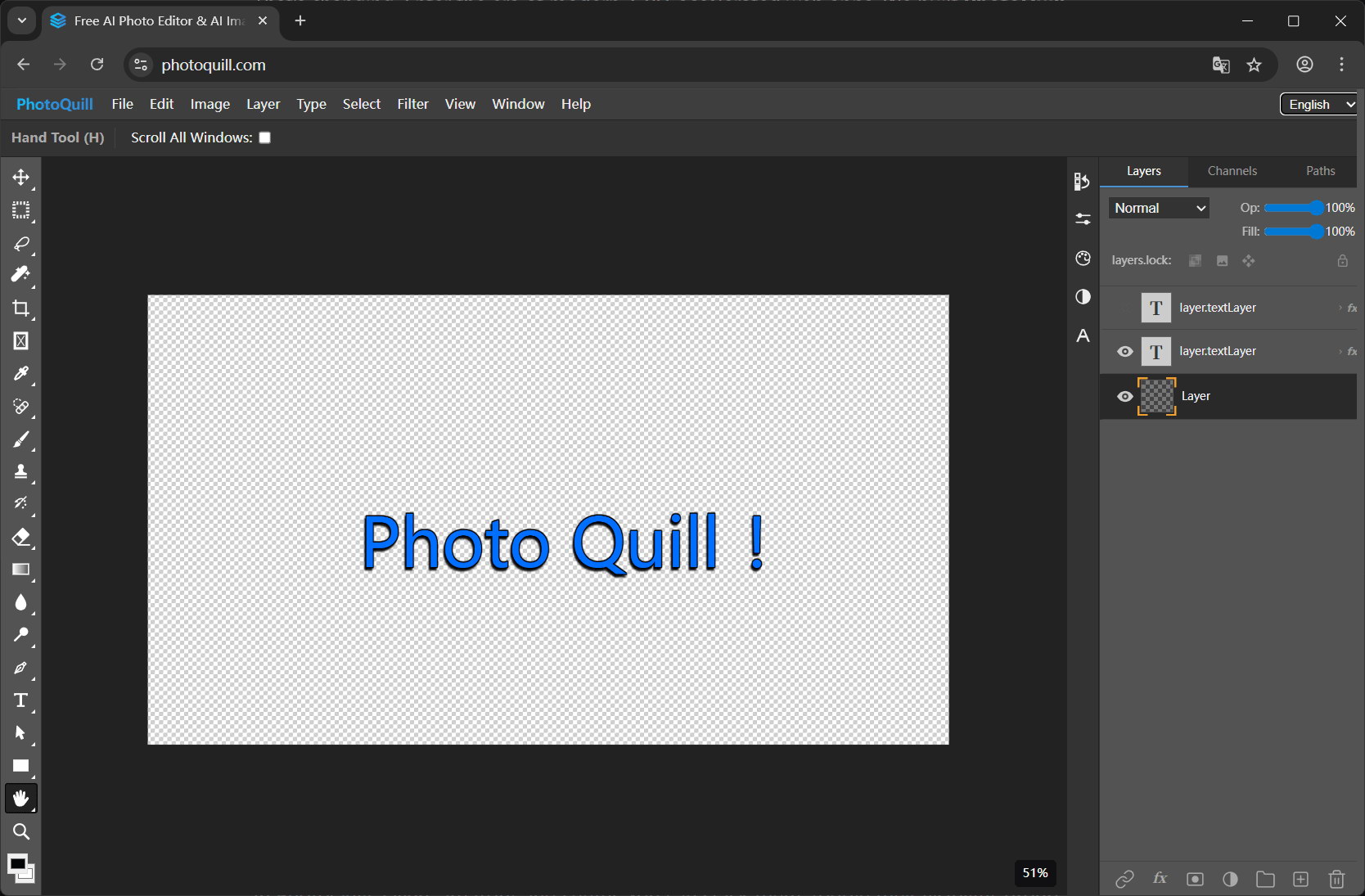
Option C: A browser-native editor (PhotoQuill)
Open the URL. Edit. Done. No Linux container, no subscription, no install. ChromeOS is literally a browser-first OS — running your photo editor in the browser is the most natural fit.
3. Why a Browser-Native Editor Is Actually a Better Fit for Chromebook
Chromebooks are designed around the web. They have less local storage, less RAM headroom for heavy desktop apps, and a security model that resists arbitrary installs. A web-based photo editor matches this design instead of fighting it.
PhotoQuill uses WebGPU (and falls back to WebGL on older Chromebooks) to render directly on the GPU. That means the same chip that runs Android games on your Chromebook is rendering your photo edits at 60fps — without downloading a multi-hundred-MB installer.
4. Get Set Up in 30 Seconds
- Open Chrome on your Chromebook.
- Go to photoquill.com.
- Drag a JPG, PNG, or PSD onto the canvas.
- Edit using the layer panel, brushes, filters, and adjustments — same workflow as Photoshop.
- Optional: pin to your shelf so it opens like a regular app (right-click the tab → "Pin").
5. School / Managed Chromebook Notes
If your school does block it, that's typically a generic content-filter false positive. A short note to your IT department explaining it's a free educational tool with no install footprint usually resolves it quickly.
6. Comparison: Photo Editing Options on a Chromebook
| Option | Works on ChromeOS | Cost | PSD Support | Setup time |
|---|---|---|---|---|
| Photoshop Desktop | No native app | $22.99/mo | Yes | N/A |
| Photoshop Web (Beta) | Subscription required | $22.99/mo | Yes | 10 min (account) |
| GIMP via Linux/Crostini | Yes, after enabling Linux | Free | Partial | 30+ min |
| PhotoQuill | Yes (browser native) | Free | Full | 10 seconds |
7. Chromebook Photo Editing FAQs
Is there a real Photoshop app for Chromebook?
No. Adobe does not ship a native Photoshop app for ChromeOS. There is a limited Photoshop Web (Beta) for paid Creative Cloud subscribers, but it requires the subscription. PhotoQuill runs natively in the Chromebook's browser with full layer and PSD support, free.
Will it work on a low-end school Chromebook?
Yes. PhotoQuill detects available hardware and falls back to WebGL where WebGPU isn't available. Performance scales with the GPU, but even modest Chromebooks handle layered editing well.
Can I open PSD files on my Chromebook?
Yes. Drag any .psd file into PhotoQuill in your browser. Layers, masks, blend modes, and groups are all preserved. No need to install Linux/Crostini just to run GIMP.
Does it work offline on a Chromebook?
PhotoQuill loads from the web, but once loaded, all editing happens locally in your browser. Some operations (like AI image generation) require connectivity, but core editing and PSD work runs without ongoing network calls.
Is it allowed on managed school Chromebooks?
Because PhotoQuill is a website (not an installable app), it bypasses most install restrictions on managed devices. As long as the domain isn't blocked by the school's filter, it works.