How to Open a PSD File Without Photoshop
1. The PSD-File-No-Photoshop Problem
You've just been emailed a .psd file. Maybe it's a logo source file from a freelancer, a banner from your designer, or a class assignment your professor sent. You double-click it and… nothing happens. Your machine doesn't know what a PSD is, and Adobe wants $22.99/month to make the problem go away.
You don't need a Photoshop subscription to open a PSD file. You just need a tool that understands the format. The browser is now perfectly capable of doing that without uploading your file anywhere.
2. Three Ways People Try to Solve This
Option A: Photoshop trial
Install a 7-day Adobe trial. Wait 30 minutes for the Creative Cloud installer. Get nagged about subscriptions every time you open the app. After 7 days, your file is locked behind a paywall.
Option B: Free desktop tools (GIMP, Krita)
Download a 200MB installer. Wait through setup. Discover that GIMP partially supports PSD but mangles smart objects, certain blend modes, and text layers. Repeat the install on every machine you use.
Option C: A browser-based PSD editor
Open a URL. Drag the PSD in. Done in 5 seconds, with full layers preserved. Nothing installed, nothing uploaded. This is the route this guide covers.
3. How to Open a PSD in Your Browser (Step by Step)
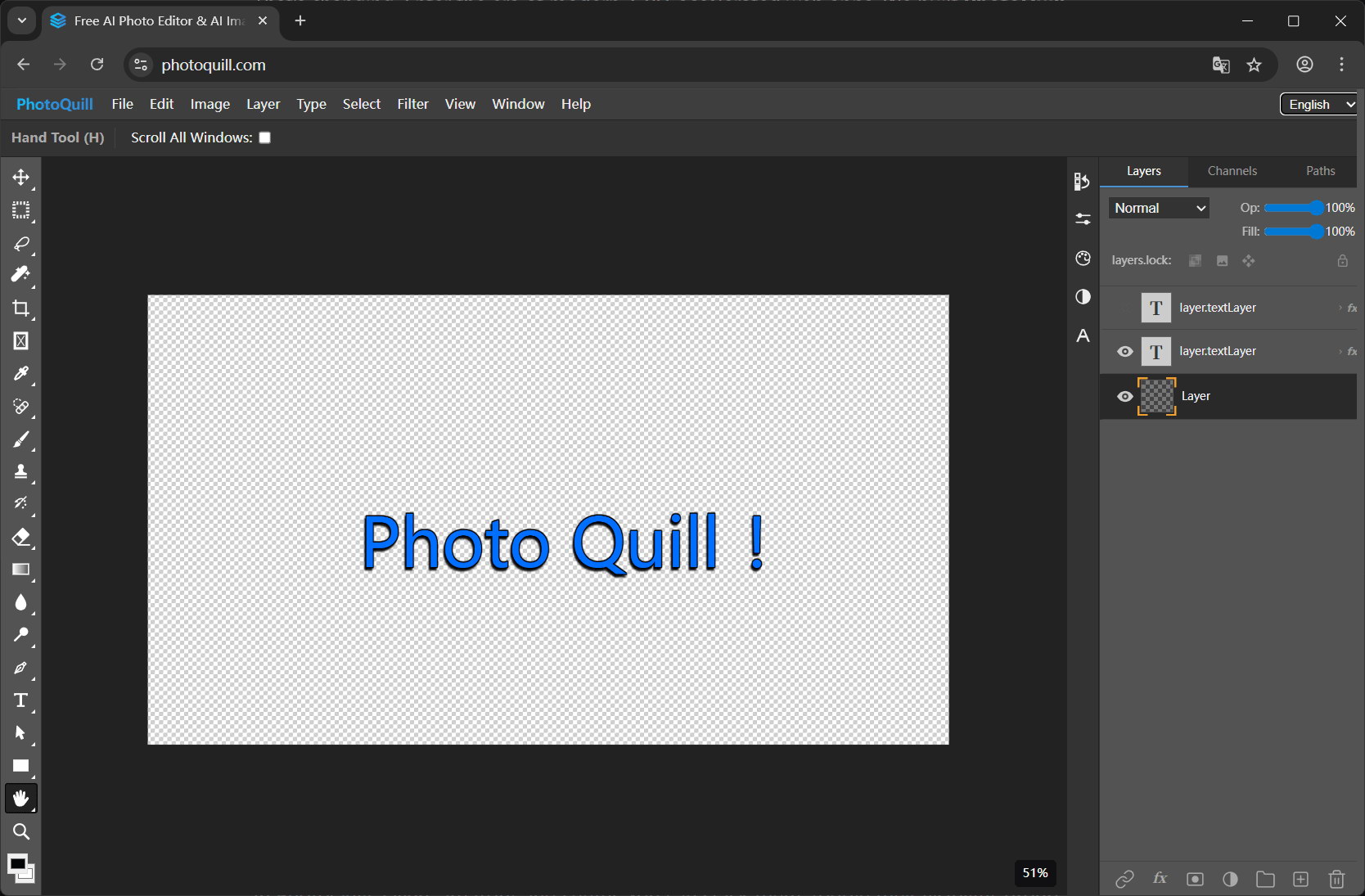
- Open photoquill.com in Chrome, Edge, Firefox, or Safari.
- Drag your
.psdfile onto the canvas (or use File → Open). - Wait 1-3 seconds while the file is parsed locally on your device.
- The PSD opens with all layers, masks, groups, and blend modes intact in the right-hand panel.
- Edit, adjust, or just inspect. When done, export back to PSD, PNG, JPG, or WebP.
4. Why Layer Preservation Actually Matters
A lot of "free PSD viewers" online flatten your file into a single image. That's fine if you only need to see the artwork — but the moment you need to swap out a logo, change text copy, or repurpose a layer, a flattened preview is useless.
Real PSD support means:
- Each layer is independently selectable, hideable, and editable.
- Layer masks are preserved as masks, not baked into pixels.
- Blend modes (Multiply, Screen, Overlay, Color Dodge, etc.) render the same way as in Photoshop.
- Text layers stay editable as text where the font is available.
- Layer groups and folder structures are preserved.
That's the difference between "I can look at this PSD" and "I can actually work with this PSD."
5. Comparison: PhotoQuill vs Other Free Options
| Feature | PhotoQuill | GIMP (free) | Photopea (free) | Random "PSD viewer" sites |
|---|---|---|---|---|
| No install required | Yes | No (200MB) | Yes | Yes |
| Files stay on your device | Yes (local) | Yes | Yes | Often uploaded |
| Full layer editing | Yes | Partial | Yes | Flatten only |
| Blend modes preserved | Yes | Partial | Yes | No |
| WebGPU acceleration | Yes | No | No | No |
| Export back to PSD | Yes | Yes | Yes | No |
6. Opening PSD Files FAQs
Can I open a PSD file without Photoshop?
Yes. PhotoQuill opens PSD files directly in your browser with full preservation of layers, masks, blend modes, smart objects, and text layers. No Photoshop subscription or installation required.
Will my layers be preserved?
Yes. Unlike preview-only tools that flatten the image, PhotoQuill keeps every layer editable — including layer groups, masks, opacity, and blending modes like Multiply, Screen, and Overlay.
Is the PSD file uploaded to a server?
No. The PSD is parsed entirely in your browser using local CPU and GPU. Your file never leaves your device. There are zero uploads and zero server-side storage.
Can I save my edits back to a PSD file?
Yes. You can export your work back to a layered PSD, or to PNG, JPG, WebP, or other common formats.
What if the PSD was created in a recent Photoshop version?
PhotoQuill supports modern PSD format features and gracefully handles files from current Photoshop releases. Most files open with no compatibility issues.